
Before beginning any penetration testing engagement, it is essential to set up a reliable and efficient working environment. This involves organizing tools, configuring systems, and ensuring that all necessary resources are ready for use. By establishing a well-structured testing infrastructure early on, we can reduce downtime, minimize errors, and streamline the assessment process. In this module, we will explore the foundational technologies and configurations that support this goal, focusing on virtualization and setting up the proper environment for our testing activities.
Assume that our company was commissioned by a new customer (Inlanefreight) to perform an external and internal penetration test. As already mentioned, proper Operating System preparation is required before conducting any penetration test. Our customer provides us with internal systems that we should prepare before the engagement so that the penetration testing activities commence without delays. For this, we have to prepare the necessary operating systems accordingly and efficiently.
Every penetration test is different in terms of scope, expected results, and environment, depending on the customer's service line and infrastructure. Apart from the different penetration testing stages we usually go through; our activities can vary depending on the type of penetration test, which can either extend or limit our working environment and capabilities.
For example, if we are performing an internal penetration test, in most cases, we are provided with an internal host from which we can work. Suppose this host has internet access (which is usually the case). In that case, we need a corresponding Virtual Private Server (VPS) with our tools to access and download the related penetration testing resources quickly.
Testing may be performed remotely or on-site, depending on the client's preference. If remote, we will typically ship them a device with our penetration testing distro of choice pre-installed, or provide them with a custom VM that will call back to our infrastructure via OpenVPN. The client will elect to either host an image (that we must log into and customize a bit on day one) and give us SSH access (via IP whitelisting), or provide us with VPN access directly into their network. Some clients will prefer not to host any image and provide VPN access, in which case we are free to test from our own local Linux and Windows VMs.
When traveling on-site to a client, it is essential to have both a customized and fully up-to-date Linux and Windows VM. Certain tools work best (or only) on Linux, and having a Windows VM makes specific tasks (such as enumerating Active Directory) much easier and more efficient. Regardless of the setup chosen, we must guide our clients on the pros and cons and help guide them towards the best possible solution based on their network and requirements.
This is yet another area of penetration testing in which we must be versatile and adaptable as subject matter experts. We must make sure we are fully prepared on day 1 with the proper tools to provide the client with the best possible value and an in-depth assessment. Every environment is different, and we never know what we will encounter once we begin enumerating the network and uncovering issues. We will have to compile/install tools or download specific scripts to our attack VM during almost every assessment we perform. Having our tools set up in the best way possible will ensure that we don't waste time in the initial days of the assessment. Ideally, we should only have to make changes to our assessment VMs for specific scenarios we encounter during the assessment.
Over time, we all gather different experiences and collections of tools that we are most familiar with. Being structured is of paramount importance, as it increases our efficiency in penetration testing. The need to search for individual resources and their dependencies before the engagement even starts can be removed entirely by having access to a prebaked, organized, and structured environment. Doing so requires preparation and knowledge of different operating systems, which will develop with time.
Efficiency is what many people want and expect. However, many people today rely on a tremendous amount of tools, to the point where the system becomes slow and no longer works properly. This is not surprising given the large number of applications and solutions offered today. Beginners in particular are overwhelmed when every source of information has 50 different opinions. These are all relevant and depend on the individual case, which is not a bad thing.
But beginners or even experienced people often look for other solutions when their work spectrum or responsibilities in their working environment change. Then there is another difficult aspect: migrating from the old to the new.
This often requires a great deal of effort and time and still does not guarantee that this investment will reflect the value. Therefore, with this module we want to create the essential setup in which we create a working environment for ourselves that we know inside out, can configure ourselves and adapt independently.
As we have already seen in the Learning Process module, organization plays a significant role in our penetration tests. It does not matter what type of penetration test it is. Having a working environment that we can navigate almost blindly saves a tremendous amount of time researching resources that we are already familiar with and have invested our time learning. These sources can be found within a few minutes, but once we have an extensive list of resources required for each assessment and include installation, this results in a few hours of pure preparation.
Corporate environments usually consist of heterogeneous networks (hosts/servers having different Operating Systems). Therefore, it makes sense to organize hosts and servers based on their OS. If we organize our structure according to penetration testing stages and the targets’ Operating System, then a sample folder structure could look as follows.
Organization
Code: sessoin
Cry0l1t3@htb[/htb]$ tree ..

└── Penetration-Testing
    │
    ├── Pre-Engagement
    │       └── ...
    ├── Linux
    │   ├── Information-Gathering
    │   │   └── ...
    │   ├── Vulnerability-Assessment
    │   │   └── ...
    │   ├── Exploitation
    │   │   └── ...
    │   ├── Post-Exploitation
    │   │   └── ...
    │   └── Lateral-Movement
    │       └── ...
    ├── Windows
    │   ├── Information-Gathering
    │   │   └── ...
    │   ├── Vulnerability-Assessment
    │   │   └── ...
    │   ├── Exploitation
    │   │   └── ...
    │   ├── Post-Exploitation
    │   │   └── ...
    │   └── Lateral-Movement
    │       └── ...
    ├── Reporting
    │   └── ...
    └── Results
        └── ...
If we are specialized in specific penetration testing fields, we can, of course, reorganize the structure according to these fields. We are all free to develop a system with which we are familiar, and in fact, it is recommended that we do so. Everyone works differently and has their strengths and weaknesses. If we work in a team, we should develop a structure that each team member is familiar with. Take this example as a starting point for creating your system.
Organization
Cry0l1t3@htb[/htb]$ tree ..

└── Penetration-Testing
    │
    ├── Pre-Engagement
    │       └── ...
    ├── Network-Pentesting
    │       ├── Linux
    │       │   ├── Information-Gathering
    │        │   │   └── ...
    │       │   ├── Vulnerability-Assessment
    │       │   │    └── ...
    │       │    └── ...
    │       │        └── ...
    │        ├── Windows
    │         │   ├── Information-Gathering
    │        │   │   └── ...
    │        │   └── ...
    │       └── ...
    ├── WebApp-Pentesting
    │       └── ...
    ├── Social-Engineering
    │       └── ...
    ├── .......
    │       └── ...
    ├── Reporting
    │   └── ...
    └── Results
        └── ...
Proper organization helps us in both keeping track of everything and finding errors in our processes. During our studies here, we will come across many different fields that we can use to expand and enhance our understanding of the cybersecurity domain. Not only can we save the cheatsheets or scripts provided within Modules in Academy, but we can also keep notes regarding all phases of a penetration test we will come across in HTB Academy to ensure that no critical steps are missed in future engagements. We recommend starting with small structures, especially when entering the penetration testing field. Organizing based on the Operating System is, therefore, more suitable for newcomers.
While organizing things for ourselves or an entire team, we should make sure that we all work according to a specific procedure. Everyone should know how where they fit in and where each member fits in throughout the entire penetration testing process. There should also be a common understanding regarding the activities of each member. Otherwise, things may end up in the wrong subdirectory, or evidence necessary for reporting could be lost or corrupted.
Numerous browser add-ons exist that can significantly enhance both our penetration testing activities and efficiency. Having to reinstall them over and over again takes time and slows us down unnecessarily. Thankfully Firefox offers add-on and bookmark synchronization after creating and using a Firefox account. All add-ons installed using this account are automatically installed and synchronized when we log in again. The same applies to any saved bookmarks. Therefore, logging in with a Firefox account will be enough to transfer everything from a prefabricated environment to a new one.
We should be cautious not to store any resources containing potentially sensitive information or private resources. We should always keep in mind that third parties could view these stored resources. Therefore, customer-related bookmarks should never be saved. A list of bookmarks should always be created with a single principle:
This list will be seen by third parties sooner or later.For this reason, we should create an account for penetration testing purposes only. If our bookmark list must be edited and extended, then the safest route is to store the list locally and import it to the pentesting account. Once we have done this, we should change our private one (the non-pentesting one).
One other essential component for us is password managers. Password managers can prove helpful not only for personal purposes but also for penetration tests. One of the most common vulnerabilities or attack methods within a network is "password reuse". We often try to use found or decrypted passwords and usernames to log in to multiple systems and services within the company network through this attack. It is still quite common to come across credentials that can be used to access several services or servers, making our work easier and offering us more opportunities for attack. There are three main problems with passwords:
ComplexityRe-usageRemembering1. Complexity
The first problem with passwords is complexity and remembering it. It is already a challenge for standard users to create a complex password, as they are often associated with content that users know and can remember. NordPass has created a list of the most commonly used passwords that we can view here. We can see here that these passwords can be guessed within seconds without any special preparations, such as password mutation.
2. Re-usage
Once the user has created and memorized a complex password, only two problems remain. Remembering a complex and hard-to-guess password is still within the realm of possibility for a standard user. The second problem is that this password is then used for all services, which allows us to work across several components of the company's infrastructure. To prevent this, the user would have to create and remember complex passwords for all services used.
3. Remembering
This brings us to the third problem with passwords. If a standard user uses several dozen services, human nature forces them to become lazy. Very few will make an effort actually to remember all passwords. If a user creates multiple passwords, the risk of forgetting them or mixing them up with other password components is high if a secure password-keeping solution is not used.
Password Managers solve all problems mentioned above not only for standard users but also for penetration testers. We work with dozens, if not hundreds, of different services and servers for which we need a new, strong, and complex password every time. Some providers include the following, but are not limited to:
| 1Password | LastPass | Keeper | Bitwarden | Proton Pass |
|---|---|---|---|---|
Another advantage to this is that we only have to remember one password to access all of our other passwords. One of the most recommended is Proton Pass, which offers a free plan and are Plus plan with an integrated 2FA, secure vault, dark web monitoring.
We should continually update the components we have organized before starting a new penetration test. This applies to the operating system we use and all the Github collections we will collect and use over time. It is highly recommended to record all the resources and their sources in a file to more easily automate them later. Any automation scripts can also be saved in Proton, Github, or your own server with your self-hosted applications to download them directly when needed.
When we create automated scripts, they are operating system-dependent. For example, we can work with Bash, Python, and PowerShell. Creating automation scripts is a good exercise for learning and practicing scripting and can also help us prepare and even reinstall a system more efficiently. We will find more tools, practical explanations, and cheat sheets when learning new methods and technologies. It is recommended that we keep those in a record and keep the entries up to date.
Note-taking is another essential part of our penetration testing because we accumulate a lot of different information, results, and ideas that are difficult to remember all at once. There are five different main types of information that need to be noted down:
1. Discovered Information
By "discovered information" we mean general information—such as new IP addresses, usernames, passwords, source code—that we identified and are related to the penetration testing engagement and process. This is information that we can use against our target company. We often obtain such information through OSINT, active scans, and manual analysis of the given information resources and services.
2. Processing
We will acquire huge amounts of information, of all different types, during our penetration testing engagements. This requires that we be able to adapt our approach. The info we obtain may give us ideas for subsequent steps to take, while other vulnerabilities or misconfigurations may be forgotten or overlooked. Therefore, we should get in the habit of noting down everything we see that should be investigated as part of the assessment. Notion.so, Anytype, Obsidian and Xmind are very suitable for this.
Notion.so is a fancy online markdown editor that offers many different functions and gives us the ability to shape our ideas and thoughts according to our preferences.
Xmind is an excellent mind map editor that can visualize relevant information components and processes very well.

Obsidian is a powerful knowledge base that works on top of a local folder of plain text Markdown files.

3. Results
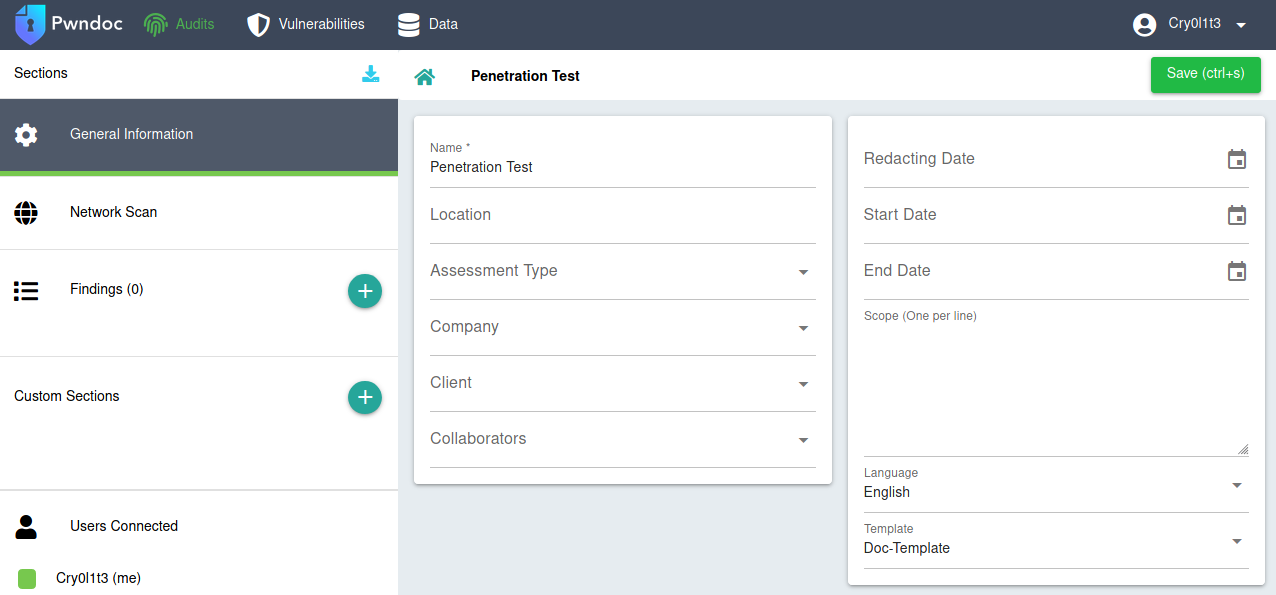
The results we get after our scans and penetration testing steps are significant. With such a large amount of information in a short time, one can quickly feel overwhelmed. It is not easy at first to filter out the most critical pieces of information. This is something that will come with experience and practice. Only through practice, our eyes can be trained to recognize the essential small fragments of information. Nevertheless, we should keep all information and results not to miss something meaningful and because a piece of information may prove helpful later in the engagement. Besides, these results are also often used for documentation. For this, we can use GhostWriter or Pwndoc. These allow us to generate our documentation and have a clear overview of the steps we have taken.
GhostWriter

Pwndoc
4. Logging
Logging is essential for both documentation and our protection. If third parties attack the company during our penetration test and damage occurs, we can prove that the damage did not result from our activities. For this, we can use the tools script and date. Date can be used to display the exact date and time of each command in our command line. With the help of script, every command and the subsequent result is saved in a background file. To display the date and time, we can replace the PS1 variable in our .bashrc file with the following content.
PS1
Code: bash
PS1="\[\033[1;32m\]\342\224\200\$([[ \$(/opt/vpnbash.sh) == *\"10.\"* ]] && echo \"[\[\033[1;34m\]\$(/opt/vpnserver.sh)\[\033[1;32m\]]\342\224\200[\[\033[1;37m\]\$(/opt/vpnbash.sh)\[\033[1;32m\]]\342\224\200\")[\[\033[1;37m\]\u\[\033[01;32m\]@\[\033[01;34m\]\h\[\033[1;32m\]]\342\224\200[\[\033[1;37m\]\w\[\033[1;32m\]]\n\[\033[1;32m\]\342\224\224\342\224\200\342\224\200\342\225\274 [\[\e[01;33m\]$(date +%D-%r)\[\e[01;32m\]]\\$ \[\e[0m\]"
Date
Organization
─[eu-academy-1]─[10.10.14.2]─[Cry0l1t3@htb]─[~]
└──╼ [03/21/21-01:45:04 PM]$
To start logging with script (for Linux) and Start-Transcript (for Windows), we can use the following command and rename it according to our needs. It is recommended to define a certain format in advance after saving the individual logs. One option is using the format <date>-<start time>-<name>.log.
Script
Organization
Cry0l1t3@htb[/htb]$ script 03-21-2021-0200pm-exploitation.log
Cry0l1t3@htb[/htb]$ <ALL THE COMMANDS>
Cry0l1t3@htb[/htb]$ exit
Start-Transcript
Organization
C:\> Start-Transcript -Path "C:\Pentesting\03-21-2021-0200pm-exploitation.log"

Transcript started, output file is C:\Pentesting\03-21-2021-0200pm-exploitation.log

C:\> ...SNIP...
C:\> Stop-Transcript
This will automatically sort our logs in the correct order, and we will no longer have to examine them manually. This also makes it more straightforward for our team members to understand what steps have been taken and when.
Another significant advantage is that we can later analyze our approach to optimize our process. If we repeat one or two steps repeatedly and use them in combination, it may be worthwhile to examine these steps with the help of a simple script to save time.
In addition, most tools offer the possibility to save the results in separate files. It is highly recommended always to use these functions because the results can also change. Therefore, if specific results seem to have changed, we can compare the current results with the previous ones. There are also terminal emulators, such as Tmux and Ghostty, which allow, among other things, to log all commands and output automatically. If we come across a tool that does not allow us to log the output, we can work with redirections and the program tee. This would look like this:
Linux Output Redirection
Organization
Cry0l1t3@htb[/htb]$ ./custom-tool.py 10.129.28.119 >> logs.custom-tool
Organization
Cry0l1t3@htb[/htb]$ ./custom-tool.py 10.129.28.119 | tee -a logs.custom-tool
Organization
C:\> .\custom-tool.ps1 10.129.28.119 > logs.custom-tool
Organization
C:\> .\custom-tool.ps1 10.129.28.119 | Out-File -Append logs.custom-tool
5. Screenshots
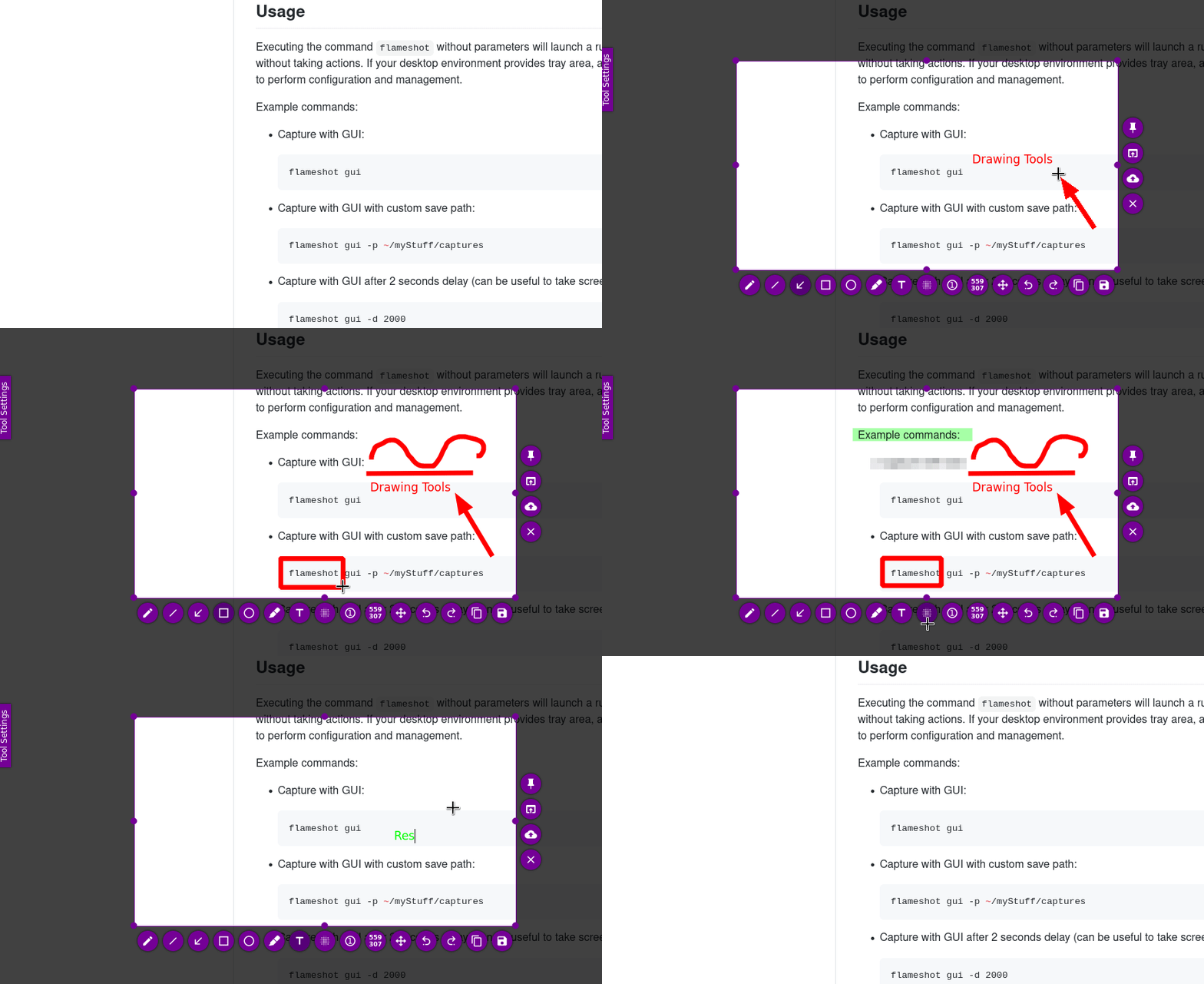
Screenshots serve as a momentary record and represent proof of results obtained, necessary for the Proof-Of-Concept and our documentation. One of the best tools for this is Flameshot. It has all the essential functions that we need to quickly edit our screenshots without using an additional editing program. We can install it using our APT package manager or via download from Github.
Flameshot
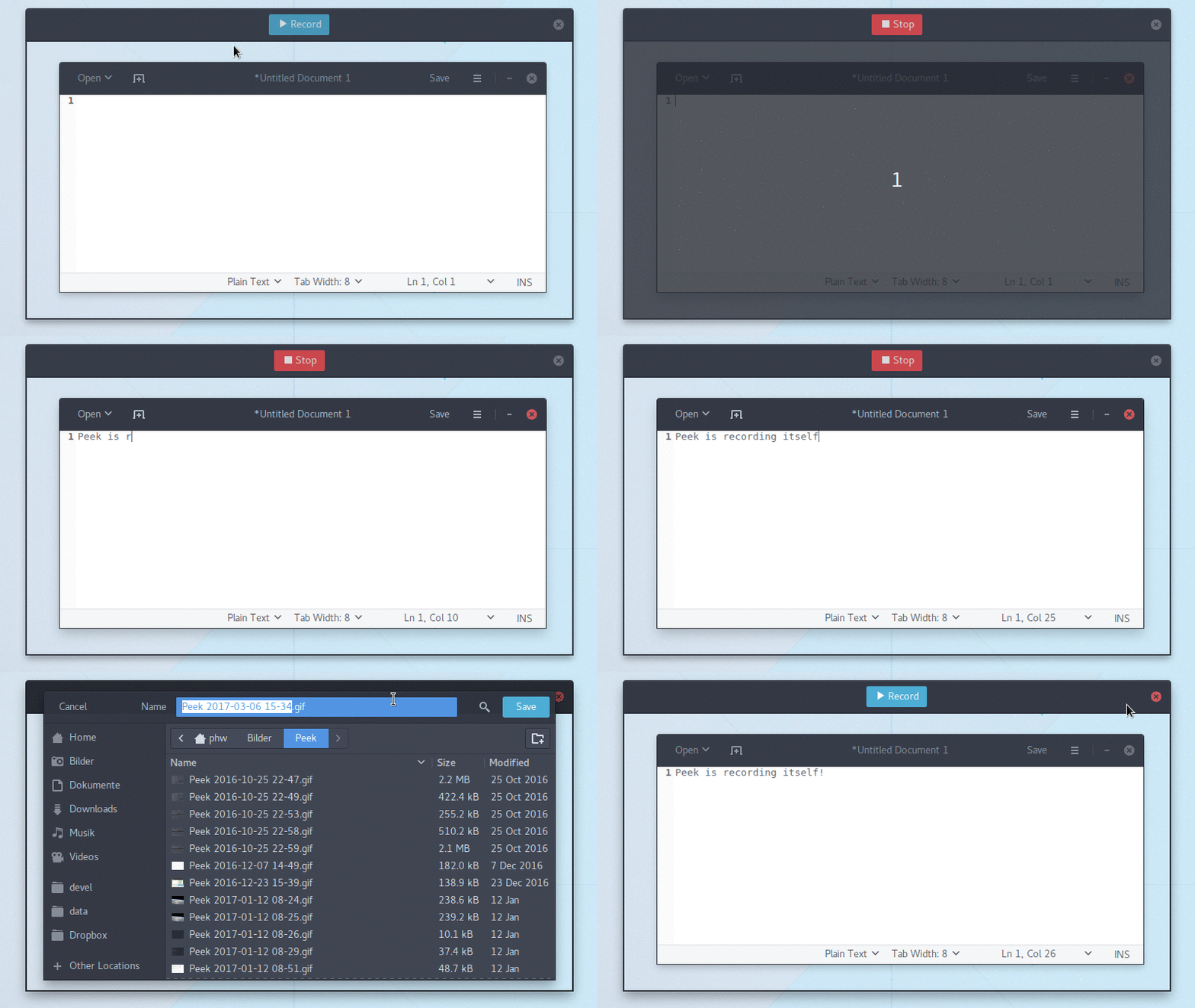
Sometimes, however, we cannot show all the necessary steps in one or more screenshots. We can use an application called Peek and create GIFs that record all the required actions for us.
Peek
Virtualization is an abstraction of physical computing resources. Both hardware and software components can be abstracted. A computer component created as part of virtualization is referred to as a virtual or logical component and can be used precisely as its physical counterpart. The main advantage of virtualization is the abstraction layer between the physical resource and the virtual image. This is the basis of various cloud services, which are becoming increasingly important in everyday business. Note that virtualization must be distinguished from the concepts of simulation and emulation.
By enabling physical computing resources—such as hardware, software, storage, and network components—to be represented and accessed in a virtual form, virtualization allows these resources to be distributed to different users in a flexible and demand-driven manner. This approach is intended to improve the overall utilization of computing resources. One of its key goals is to enable the execution of applications on systems that would not normally support them. In the context of virtualization, we typically distinguish between:
Hardware virtualization refers to technologies that allow hardware components to be accessed independently of their physical form through the use of hypervisor software. The best-known example of this is the virtual machine (VM). A VM is a virtual computer that behaves like a physical computer, from its hardware to the operating system. Virtual machines run as virtual guest systems on one or more physical systems referred to as hosts. VirtualBox can also be enhanced with VirtualBox Guest Additions, which are a set of drivers and system applications designed to enhance the performance and usability of guest operating systems with VirtualBox.

A virtual machine (VM) is a virtual operating system that runs on a host system (an actual physical computer system). Several VMs isolated from each other can be operated in parallel. The physical hardware resources of the host system are allocated via hypervisors. This is a sealed-off, virtualized environment with which several guest systems can be operated, independent of the operating system, in parallel, on one physical computer. The VMs act independently of each other and do not influence each other. A hypervisor manages the hardware resources, and from the virtual machine's point of view, allocated computing power, RAM, hard disk capacity, and network connections are exclusively available.
From the application perspective, an operating system installed within the VM behaves as if installed directly on the hardware. It is not apparent to the applications or the operating system that they are running in a virtual environment. Virtualization is usually associated with performance loss for the VM because the intermediate virtualization layer itself requires resources. VMs offer numerous advantages over running an operating system or application directly on a physical system. The most important benefits are:
An excellent and free alternative to VMware Workstation Pro is VirtualBox. With VirtualBox, hard disks are emulated in container files called Virtual Disk Images (VDI). Aside from VDI format, VirtualBox can also handle hard disk files from VMware virtualization products (.vmdk), the Virtual Hard Disk format (.vhd), and others. We can also convert these external formats using the VBoxManage command-line tool that is part of VirtualBox. We can install VirtualBox from the command line, or download the installation file from the official website and install it manually.

VirtualBox is very common in private use. The installation is easy and usually requires no additional configuration for it to launch. We can download VirtualBox from their homepage: https://www.virtualbox.org/
VirtualBox Download

Alternatively, with Ubuntu Linux we can use the following commands to install both VirtualBox and the extension pack simultaneously:
VirtualBox Installation
Virtualization
cry0l1t3@htb[/htb]$ sudo apt install virtualbox virtualbox-ext-pack -y

The VirtualBox extension pack enhances the overall functionality of VirtualBox with the following features:
Proxmox is an open-source, enterprise-grade server virtualization and management platform which utilizies Kernel-based Virtual Machine (KVM) for full virtualization and Linux Containers (LXC) for container-based virtualization. This software is used in businesses and large data centers.

Proxmox provides three main solutions which can be downloaded here:
Proxmox VE ISO Download

This software allows us to build and simulate entire networks, including complex setups using any type of virtual machine or container you can think of. We can download the Proxmox VE ISO file and install it on VirtualBox to experiment with it without the need for additional hardware resources.
After the download completes, we can create a new VM and assign the ISO image to it. Be sure to assign at least 4GB RAM and 2 CPUs for the Proxmox VM.

Once everything is set up, we should double check all the stats. If everything looks good, we now can start the VM.

When the VM boots up, we're greeted with the Proxmox Virtual Environment screen. Now, we can select the option to install Proxmox VE using the graphical interface.

Pay close attention throughout the duration of the setup, and make sure to read everything through the installation. Once it's installed, you will see the login screen, along with management webpage's URL.

The same credentials you used during the installation will be used to log into the web dashboard. Your credentials will be root:<your password>.

At this point, you should see all the configuration options for your virtualized “Datacenter”. This is where you can upload VMs, containers, create networks, and much more. Those VMs and containers will be inside virtualized Proxmox environment and do not need to be added independently to VirtualBox.

Linux is the most widely used operating system for penetration testing. As such, we must be proficient with it (or at the very least, familiar). When setting up an operating system for this purpose, it is best to establish a standardized configuration that consistently results in an environment we are comfortable working with.
Suppose we are asked to perform a penetration test to test both the network's internal and external security. If we have not yet prepared a dedicated system, now is the time to do so. Otherwise, we risk wasting valuable time during the engagement on setup and configuration, time that could be better spent testing various components of the network. However, before we prepare a system, we need to look at the available penetration testing distributions.
There are many different distributions we can use, all of which have different advantages and disadvantages. Many people ask themselves which system is the best. Nevertheless, what many do not understand is that it is a personal decision. This means that it depends primarily on our own needs and desires, which is the best for us. The tools available on these operating systems can be installed on pretty much any distribution, so we should instead ask ourselves what we expect from this Linux distribution. The best penetration testing distributions are characterized by their large/active community and detailed documentation. Among the most popular include, but not limited to:
ParrotOS (Pwnbox) |
Kali Linux | BlackArch | BackBox |
|---|---|---|---|
In this scenario, we will deal with ParrotOS Security as our penetration testing distribution of choice. Let's select the category Live to get a full version of the operating system.

Next, we see three different editions of ParrotOS
In this case, we will select the HTB edition. Feel free to follow along.

After that, you will see the download button and the default credentials, in case you want to use it without installation.

Before installing our ParrotOS Security operating system, we need to create a VM (in VirtualBox in this example). Here, we also specify which installation file will be used for the operating system (.iso file).
ParrotOS ISO

Since VirtualBox does not recognize every operating system by default, it may not correctly detect ParrotOS. Therefore, we need to manually specify which distribution it is based on—in this case, Debian.
We also need to assign a name for the VM with the label we want for it, and then set the path where it will be stored.
After that, we can set the maximum size of the VM. It is recommended to allocate more than 20 GB, since the VM will grow as we install packages and applications during setup and use.
OS Size

Once we have created our VM, we can start it and get to the GRUB menu to select our options. Since we want to install ParrotOS, we should select that option. Once we click on the VM window, our mouse will be trapped there, meaning that our mouse cannot leave the window. To move the mouse freely again, we have to press [Right CTRL] (the default hotkey in most cases). However, we should verify this key combination in the VirtualBox window under Preferences > Virtual Machine > Hot Key Combo.
Note: We can design all the steps according to our needs. However, we should stick to the given selection for uniformity in the steps shown to get the same result.

Once you click on Try / Install, you'll enter the live mode of ParrotOS. This mode lets you explore and test the system without installing it. When you click Install Debian, the installation process begins. We are then prompted to choose our language, location, keyboard layout, and partitioning method.

Since we want to encrypt our data and information on the VM using Logical Volume Manager (LVM), we should select the "Encrypt system" option. It is also recommended to create a Swap (no Hibernate) for our system.
LVM is a partitioning scheme. Mainly used in Unix and Linux environments, it provides a level of abstraction between disks, partitions, and file systems. Using LVM, it is possible to form dynamically changeable partitions which extend over several disks. After selecting LVM, we'll be prompted to enter a username, hostname, and password.

Once we have made all the required entries, we can confirm them and start configuring LVM.
LVM acts as an additional layer between physical storage and the operating system’s logical storage. LVM supports the organization of logical volumes into RAID arrays to protect against hard disk failure. Unlike RAID, however, the LVM concept does not provide redundancy. While primarily used in Linux and Unix, similar features exist in Windows (Storage Spaces) and macOS (CoreStorage)
Once we get to the partitioning step, we will be asked for an encryption passphrase. We should keep in mind that this passphrase should be very strong and must be stored securely, ideally with a password manager. We will then have to re-enter the passphrase to confirm that no mistakes were made.
LVM Passphrase

After setting the passphrase, we will get an overview of all the partitions that have been created and configured. Other options will also be made available to us, as shown above. If no further configurations are needed, we can finish partitioning and apply the changes.
The operating system will now begin installing, and when it completes, the virtual machine will automatically restart. Upon reboot, we’ll be prompted to enter the encryption passphrase we created earlier to unlock the encrypted system and proceed with booting.
LVM Unlock Partition

If we have entered the passphrase correctly, then the operating system will boot up completely, and we will be able to log in. Here we enter the password for the username we have created.
First Login

Now that we have installed the operating system, we need to bring it up to date. For this, we will use the APT package management tool. The advanced packaging toolkit (APT) is a package management system that originated in the Debian operating system (which uses dpkg for the management of .deb packages under the hood). Package managers are used to search, update, and install program packages and dependencies. APT uses repositories (thus package sources), which are deposited in the directory /etc/apt/sources.list (in our case for ParrotOS: /etc/apt.sources.list.d/parrot.list).
ParrotOS Sources List
Linux
┌─[cry0l1t3@parrot]─[~]
└──╼ $ cat /etc/apt/sources.list.d/parrot.list | grep -v "#"

deb https://deb.parrot.sh/parrot lory main contrib non-free non-free-firmware

deb https://deb.parrot.sh/direct/parrot lory-security main contrib non-free non-free-firmware

deb https://deb.parrot.sh/parrot lory-backports main contrib non-free non-free-firmware
Here, the package manager can access a list of HTTP and FTP servers, which it then uses to obtain the packages for installation. If packages are searched for, they are automatically loaded from the list of available repositories. Since program versions can be compared quickly and loaded automatically from the repositories list, updating existing program packages under APT is relatively easy and comfortable.
Updating ParrotOS
Linux
┌─[cry0l1t3@parrotos]─[~]
└──╼ $ sudo apt update -y && sudo apt full-upgrade -y && sudo apt autoremove -y && sudo apt autoclean -y
[sudo] password for cry0l1t3: **********************

Hit:1 https://deb.parrot.sh/parrot rolling InRelease
Hit:2 https://deb.parrot.sh/parrot rolling-security InRelease
Reading package lists... Done
Building dependency tree
Reading state information... Done
2310 packages can be upgraded. Run 'apt list --upgradable' to see them.
Reading package lists... Done
Building dependency tree
Reading state information... Done
Calculating upgrade... Done
The following packages were automatically installed and are no longer required:
  cryptsetup-nuke-password dwarfdump
  <SNIP>
Below, we have a list of common pentesting tools:
Tools List
Linux
┌─[cry0l1t3@parrotos]─[~]
└──╼ $ cat tools.list
netcat
ncat
nmap
wireshark
tcpdump
hashcat
ffuf
gobuster
hydra
zaproxy
proxychains
sqlmap
radare2
metasploit-framework
python2.7
python3
spiderfoot
theharvester
remmina
xfreerdp
rdesktop
crackmapexec
exiftool
curl
seclists
testssl.sh
git
vim
tmux
Most of the packages are already installed on the operating system. If there are only a few packages that we want to install, we can enter them manually with following command.
Installing Additional Tools
Linux
┌─[cry0l1t3@parrotos]─[~]
└──╼ $ sudo apt install netcat ncat nmap wireshark tcpdump ...SNIP... git vim tmux -y
[sudo] password for cry0l1t3:

Reading package lists... Done
Building dependency tree
Reading state information... Done
The following packages were automatically installed and are no longer required:
  libarmadillo9 libboost-locale1.71.0 libcfitsio8 libdap25 libgdal27 libgfapi0
  <SNIP>
However, if you're working with a longer list of tools, it's more efficient to create a tool list file and use it to automate installation. This ensures consistency and saves time during future setups:
Installing Additional Tools from a List
Linux
┌─[cry0l1t3@parrotos]─[~]
└──╼ $ sudo apt install $(cat tools.list | tr "\n" " ") -y
[sudo] password for cry0l1t3:

Reading package lists... Done
Building dependency tree
Reading state information... Done
The following packages were automatically installed and are no longer required:
  libarmadillo9 libboost-locale1.71.0 libcfitsio8 libdap25 libgdal27 libgfapi0
  <SNIP>
We will likely come across tools that aren't found in the standard repositories, and therefore will need to download them manually from Github. For example, assume we are missing some tools for Privilege Escalation and want to download the Privilege-Escalation-Awesome-Scripts-Suite. We would use the command:
Clone Github Repository
Linux
┌─[cry0l1t3@parrotos]─[~]
└──╼ $ git clone https://github.com/carlospolop/privilege-escalation-awesome-scripts-suite.git

Cloning into 'privilege-escalation-awesome-scripts-suite'...
remote: Enumerating objects: 29, done.
remote: Counting objects: 100% (29/29), done.
remote: Compressing objects: 100% (17/17), done.
remote: Total 5242 (delta 18), reused 22 (delta 11), pack-reused 5213
Receiving objects: 100% (5242/5242), 18.65 MiB | 5.11 MiB/s, done.
Resolving deltas: 100% (3129/3129), done.
List Contents
Linux
┌─[cry0l1t3@parrotos]─[~]
└──╼ $ ls -l privilege-escalation-awesome-scripts-suite/
total 16

-rwxrwxr-x 1 cry0l1t3 cry0l1t3 1069 Mar 23 16:41 LICENSE
drwxrwxr-x 3 cry0l1t3 cry0l1t3 4096 Mar 23 16:41 linPEAS
-rwxrwxr-x 1 cry0l1t3 cry0l1t3 2506 Mar 23 16:41 README.md
drwxrwxr-x 4 cry0l1t3 cry0l1t3 4096 Mar 23 16:41 winPEAS
After installing the relevant packages and repositories, it is highly recommended to take a VM snapshot. In the following steps, we will be making changes to specific configuration files. If we aren't careful, a human error could make parts of the system (or even the entire system) unusable. We definitely do not want to have to repeat all our previous steps., So let's now create a snapshot and name it "Initial Setup".
Nevertheless, before we create this snapshot, we should first shut down the virtual machine. Doing so not only speeds up the snapshot process but also ensures the snapshot is taken in a clean, powered-off state, reducing the chances of system corruption or inconsistencies.
If any mistakes are made while performing further configurations or testing, we can simply restore the snapshot and continue from a working state. It's good practice to take a snapshot after every major configuration change, and even periodically during a penetration test, to avoid losing valuable progress.
Create a Snapshot

Completed Tasks

In addition to LVM encryption, we can encrypt the entire VM with another strong password. This gives us an extra layer of protection that will protect our results and any customer data residing on the system. This means that no one will be able to start the VM without the password we set.
Now that we have shut down and powered off the VM, we go to Edit virtual machine settings and select the Options tab.
VirtualBox Disk Encryption Settings

There we will find more additional functions and settings that we can use later. Relevant for us now is the Access Control settings. Once we have encrypted it, we will not be able to create a clone of it without first decrypting it. More about this can be found in the VirtualBox documentation.
Windows computers serve an essential role in most companies, making them one of the main targets for aspiring penetration testers like ourselves. However, they can also serve as effective penetration testing platforms. There are several advantages to using Windows as our daily driver. It blends into most enterprise environments, making us appear both physically and virtually less suspicious. Additionally, navigating and communicating with other hosts on an Active Directory domain is easier when using Windows compared to Linux and some Python tooling. Traversing SMB and utilizing shares is also more straightforward in this context. With this in mind, it can be beneficial to familiarize ourselves with Windows and establish a standard configuration that ensures a stable and effective platform for conducting our activities.
Building our penetration testing platform can help us in multiple ways:
With all this in mind, where do we start? Fortunately for us, there are many new features with Windows that weren't available years ago. Windows Subsystem for Linux (WSL) is an excellent example of this. It allows for Linux operating systems to run alongside our Windows install. This can help us by giving us a space to run tools developed for Linux right inside our Windows host, without the need for a hypervisor program or installation of a third-party application such as VirtualBox or Docker.
This section will examine and cover the installalation of the core components needed to get our systems in fighting shape, such as WSL, Visual Studio Code, Python, Git, and the Chocolatey Package Manager. Since we are utilizing this platform for its penetration testing functions, it will also require us to make changes to our host's security settings. Keep in mind, most exploitation tools and code are just that, USED for EXPLOITATION, and can be harmful to your host if not careful. Be mindful of what you install and run. If we do not isolate these tools off, Windows Defender will almost certainly delete any detected files and applications it deems harmful, breaking our setup. Now, let's dive in.
The installation of the Windows VM is done in the same way as the Linux VM. We can do this on a bare-metal host or in a hypervisor. With either option, we have certain requirements to meet and things to consider when installing Windows 10.
Hardware Requirements
Ideally, we want to have a moderate processor that can handle intensive loads at times. If we are attempting to run Windows virtualized, our host will need at least four cores so that two can be given to the VM. Windows can get a bit beefy with updates and tool installs, so 80G of storage or more is ideal. When it comes to RAM, 4G would be a minimum to ensure we do not have any latency or issues while performing our penetration tests.
Software Requirements
Unlike most Linux distributions, Windows is a licensed product. To stay in good standing, we ought to ensure that we adhere to the terms of use. For now, a great place to start is to grab a copy of a Developer VM, were available here. We can use this to begin building out our platform. The Developer Evaluation platform comes pre-configured with:
| Windows 10 Version 2004 |
| Windows 10 SDK Version 2004 |
| Visual Studio 2019 with the UWP, .NET desktop, and Azure workflows enabled and also includes the Windows Template Studio extension |
| Visual Studio Code |
| Windows Subsystem for Linux with Ubuntu installed |
| Developer mode enabled |
The VM comes pre-configured with a user: IEUser and Password Passw0rd!. It is a trial virtual machine, so it has an expiration date of 90 days. Keep this in mind when configuring it. Once you have a baseline VM, take a snapshot.
To prepare our Windows host, we have to make a few changes before moving onto the fun stuff (e.g., installing our pentesting tools):
To keep with our command-line use, we will make an conscious effort to utilize the command-line whenever possible. To start installing updates on our host, we will need the PSWindowsUpdate module. To acquire it, we will open an administrator Powershell window and issue the following commands:
Updates
Windows
PS C:\htb> Get-ExecutionPolicy -List

Scope ExecutionPolicy
----- ---------------
MachinePolicy Undefined
UserPolicy Undefined
Process Undefined
CurrentUser Undefined
LocalMachine Undefined
We must first check our systems Execution Policy to ensure we can download, load, and run modules and scripts. The above command will output a list showing the policy set for each scope. In our case, we do not want this change to be permanent, so we will only change the ExecutionPolicy for the scope of Process.
Execution Policy
Windows
PS C:\htb> Set-ExecutionPolicy Unrestricted -Scope Process

Execution Policy Change
The execution policy helps protect you from scripts that you do not trust.
Changing the execution policy might expose you to the security risks described in the about_Execution_Policies help topic at https:/go.microsoft.com/fwlink/?LinkID=135170. Do you want to change the execution policy?
[Y] Yes [A] Yes to All [N] No [L] No to All [S] Suspend [?] Help (default is "N"): A

PS C:\htb> Get-ExecutionPolicy -List

Scope ExecutionPolicy
----- ---------------
MachinePolicy Undefined
UserPolicy Undefined
Process Unrestricted
CurrentUser Undefined
LocalMachine Undefined
Once we set our ExecutionPolicy, we should recheck and make sure our change took effect. By changing the Process scope policy, we ensure that our change is temporary and only applies to the current Powershell process. Changing it for any other scope will modify a registry setting and persist until we change it back again..
Now that we have our ExecutionPolicy set, let us install the PSWindowsUpdate module and apply our updates. We can do so by:
PSWindowsUpdate
Windows
PS C:\htb> Install-Module PSWindowsUpdate

Untrusted repository
You are installing the modules from an untrusted repository. If you trust this repository,
change its InstallationPolicy value by running the Set-PSRepository cmdlet.
Are you sure you want to install the modules from 'PSGallery'?
[Y] Yes [A] Yes to All [N] No [L] No to All [S] Suspend [?] Help (default is "N"): A
Once the module installation completes, we can import it and run our updates.
Windows
PS C:\htb> Import-Module PSWindowsUpdate

PS C:\htb> Install-WindowsUpdate -AcceptAll

X ComputerName Result KB Size Title
- ------------ ------ -- ---- -----
1 DESKTOP-3... Accepted KB2267602 510MB Security Intelligence Update for Microsoft Defender Antivirus - KB2267602...
1 DESKTOP-3... Accepted 17MB VMware, Inc. - Display - 8.17.2.14
2 DESKTOP-3... Downloaded KB2267602 510MB Security Intelligence Update for Microsoft Defender Antivirus - KB2267602...
2 DESKTOP-3... Downloaded 17MB VMware, Inc. - Display - 8.17.2.14 3 DESKTOP-3... Installed KB2267602 510MB Security Intelligence Update for Microsoft Defender Antivirus - KB2267602... 3 DESKTOP-3... Installed 17MB VMware, Inc. - Display - 8.17.2.14

PS C:\htb> Restart-Computer -Force
The above Powershell example will import the PSWindowsUpdate module, run the update installer, and then reboot the PC to apply changes. We should make a point to run updates regularly, especially if we plan to use this host frequently and not destroy it at the end of each engagement. Now that we have our updates installed, let us get our package manager and other core tools.
Chocolatey is a free and open software package management solution that can manage the installation and dependencies of our software packages and scripts. It also allows for automation with Powershell, Ansible, and several other management solutions. Chocolatey will enable us to install the tools we need from one source, rather than downloading and installing each tool individually from the internet. Follow the Powershell commands below to learn how to install Chocolatey and use it to gather/install our tools.
Chocolatey
Windows
PS C:\htb> Set-ExecutionPolicy Bypass -Scope Process -Force; [System.Net.ServicePointManager]::SecurityProtocol = [System.Net.ServicePointManager]::SecurityProtocol -bor 3072; iex ((New-Object System.Net.WebClient).DownloadString('https://chocolatey.org/install.ps1'))

Forcing web requests to allow TLS v1.2 (Required for requests to Chocolatey.org)
Getting latest version of the Chocolatey package for download.
Not using proxy.
Getting Chocolatey from https://community.chocolatey.org/api/v2/package/chocolatey/0.10.15.
Downloading https://community.chocolatey.org/api/v2/package/chocolatey/0.10.15 to C:\Users\DEMONS~1\AppData\Local\Temp\chocolatey\chocoInstall\chocolatey.zip
Not using proxy.
Extracting C:\Users\DEMONS~1\AppData\Local\Temp\chocolatey\chocoInstall\chocolatey.zip to C:\Users\DEMONS~1\AppData\Local\Temp\chocolatey\chocoInstall
Installing Chocolatey on the local machine
Creating ChocolateyInstall as an environment variable (targeting 'Machine')
Setting ChocolateyInstall to 'C:\ProgramData\chocolatey'

...SNIP...

Chocolatey (choco.exe) is now ready.
You can call choco from the command-line or PowerShell by typing choco.
Run choco /? for a list of functions.
You may need to shut down and restart powershell and/or consoles
first prior to using choco.
Ensuring Chocolatey commands are on the path
Ensuring chocolatey.nupkg is in the lib folder
We have now installed chocolatey. The Powershell command we issued sets our ExecutionPolicy for the session, then downloads the installer from chocolatey.org and runs the script. Next, we will update chocolatey and start installing packages. To ensure no issues arise, it is recommended that we periodically restart our host.
Windows
PS C:\htb> choco upgrade chocolatey -y

Chocolatey v0.10.15
Upgrading the following packages:
chocolatey
By upgrading, you accept licenses for the packages.
chocolatey v0.10.15 is the latest version available based on your source(s).

Chocolatey upgraded 0/1 packages.
See the log for details (C:\ProgramData\chocolatey\logs\chocolatey.log).
Now that we've confirmed that chocolatey is up-to-date, let's manage our packages. To install packages with choco, we can issue a command such as choco install pkg1 pkg2 pkg3, listing out the package you need one by one separated by spaces. Alternatively, we can use the packages.config file for the installation. This is an XML file that chocolatey can reference to install a list of packages. Another helpful command to use is choco info pkg. It will show us various information about the package, if it is available in the choco repository. See the install page for more info on how to utilize chocolatey.
Windows
PS C:\htb> choco info vscode

Chocolatey v0.10.15
vscode 1.55.1 [Approved]
Title: Visual Studio Code | Published: 4/9/2021
Package approved as a trusted package on Apr 09 2021 01:34:23.
Package testing status: Passing on Apr 09 2021 00:49:32.
Number of Downloads: 1999367 | Downloads for this version: 19751
Package url
Chocolatey Package Source: https://github.com/chocolatey-community/chocolatey-coreteampackages/tree/master/automatic/vscode
Package Checksum: 'fTzzpEG+cspu7FUdqMbj8EqaD8cRIQ/cXtAUv7JGVB9uc23vuGNiuceqM94irt+nx8MGM0xAcBwdwBH+iE+tgQ==' (SHA512)
Tags: microsoft visualstudiocode vscode development editor ide javascript typescript admin foss cross-platform
Software Site: https://code.visualstudio.com/
Software License: https://code.visualstudio.com/License
Software Source: https://github.com/Microsoft/vscode
Documentation: https://code.visualstudio.com/docs
Issues: https://github.com/Microsoft/vscode/issues
Summary: Visual Studio Code
Description: Build and debug modern web and cloud applications. Code is free and available on your favorite platform - Linux, Mac OSX, and Windows.
...SNIP...
Above is an example of using the info option with chocolatey.
Windows
PS C:\htb> choco install python vscode git wsl2 openssh openvpn

Chocolatey v0.10.15
Installing the following packages:
python;vscode;git;wsl2;openssh;openvpn
...SNIP...

Chocolatey installed 20/20 packages.
See the log for details (C:\ProgramData\chocolatey\logs\chocolatey.log).

Installed:
- kb2919355 v1.0.20160915
- python v3.9.4
- kb3033929 v1.0.5
- chocolatey-core.extension v1.3.5.1
- kb2999226 v1.0.20181019
- python3 v3.9.4
- openssh v8.0.0.1
- vcredist2015 v14.0.24215.20170201
- gpg4win-vanilla v2.3.4.20191021
- vscode.install v1.55.1
- wsl2 v2.0.0.20210122
- kb2919442 v1.0.20160915
- openvpn v2.4.7
- git.install v2.31.1
- vscode v1.55.1
- vcredist140 v14.28.29913
- kb3035131 v1.0.3
- dotnet4.5.2 v4.5.2.20140902
- git v2.31.1
- chocolatey-windowsupdate.extension v1.0.4

PS C:\htb> RefreshEnv
We can see in the terminal above that choco installed the packages we requested and pulled the required dependencies. Issuing the RefreshEnv command will update Powershell, along with any environment variables that were applied. At this point, we have the bulk of the core tools installed which enable our operations. To install other packages, the choco install pkg command is sufficient, pulling any additional operational tools we need. We have included a list of helpful packages that can aid us in completing a penetration test below. See the automation section further down to begin automating installing the tools and packages we commonly need and use.
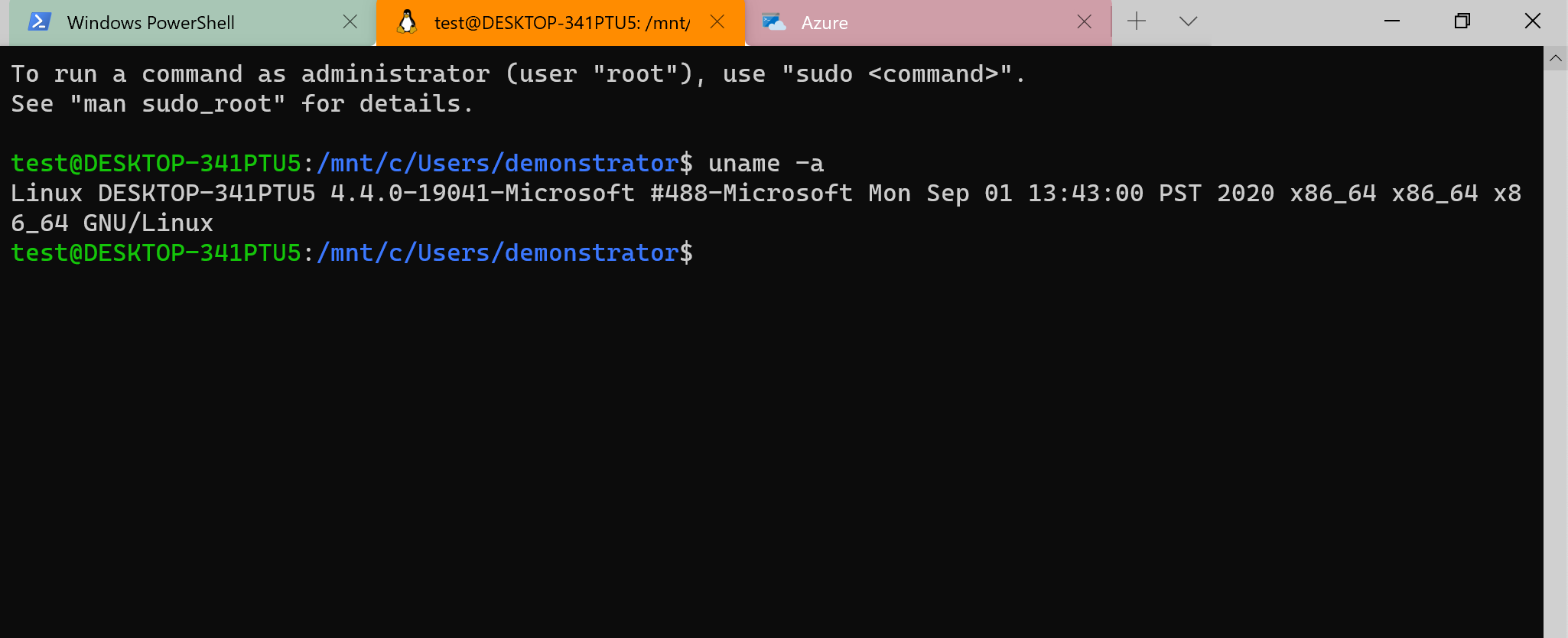
Windows Terminal is Microsoft's updated release for a GUI terminal emulator. It supports the use of many different command-line tools, including Command Prompt, PowerShell, and Windows Subsystem for Linux. The terminal allows for the use of customizable themes, configurations, command-line arguments, and custom actions. It is a versatile tool for managing multiple shell types and will quickly become a staple for most.
To install Terminal with Chocolatey:
Windows
PS C:\htb> choco install microsoft-windows-terminal

Chocolatey v0.10.15
2 validations performed. 1 success(es), 1 warning(s), and 0 error(s).

Validation Warnings:
- A pending system reboot request has been detected, however, this is
being ignored due to the current Chocolatey configuration. If you
want to halt when this occurs, then either set the global feature
using:
choco feature enable -name=exitOnRebootDetected
or pass the option --exit-when-reboot-detected.

Installing the following packages:
microsoft-windows-terminal
By installing you accept licenses for the packages.
Progress: Downloading microsoft-windows-terminal 1.6.10571.0... 100%

microsoft-windows-terminal v1.6.10571.0 [Approved]
microsoft-windows-terminal package files install completed. Performing other installation steps.
Progress: 100% - Processing The install of microsoft-windows-terminal was successful.
Software install location not explicitly set, could be in package or
default install location if installer.

Chocolatey installed 1/1 packages.
See the log for details (C:\ProgramData\chocolatey\logs\chocolatey.log).
Windows Subsystem for Linux 2 (WSL2) is the second iteration of Microsoft's architecture that allows users to run Linux instances, providing the ability to run Bash scripts and other apps like Vim, Python, and more. WSL also allows us to interact with the Windows operating system and file structure from a Unix instance. Best of all, it’s all done without the use of a hypervisor like VirtualBox or Hyper-V.
What does this mean for us? Having the ability to interact with and utilize Linux native tools/applications from our Windows host provides us with a hybrid environment, and all the flexibility that comes with it. To install the subsystem, the quickest route is to utilize chocolatey.
Chocolatey - WSL2
Windows
PS C:\htb> choco install WSL2

Chocolatey v0.10.15
2 validations performed. 1 success(es), 1 warning(s), and 0 error(s).
Installing the following packages:
wsl2
By installing you accept licenses for the packages.
Progress: Downloading wsl2 2.0.0.20210122... 100%

wsl2 v2.0.0.20210122 [Approved]
wsl2 package files install completed. Performing other installation steps.
...SNIP...
wsl2 may be able to be automatically uninstalled.
The install of wsl2 was successful.
Software installed as 'msi', install location is likely default.

Chocolatey installed 1/1 packages.
See the log for details (C:\ProgramData\chocolatey\logs\chocolatey.log).
Once WSL is installed, we can add the Linux platform of our choice. The most common one to find is Ubuntu on the Microsoft store. Current Linux distributions supported for WSL are but not limited to:
To install the distribution of our choice, just click the link above, and it will take us to the Microsoft Store page for the distro. Once we have it installed, we need to open a PowerShell prompt and type bash.

Moving forward, we can use it as a regular OS alongside our Windows install.
Since we will be using this platform as a penetration testing host, we may run into issues with Windows Defender finding our tools unsavory. Windows Defender will scan, quarantine, or remove anything it deems potentially harmful. To make sure Defender does not mess up our plans, we will add some exclusion rules to ensure our tools stay in place.
Windows Defender Exemptions for the Tools' Folders.
C:\Users\your user here\AppData\Local\Temp\chocolatey\C:\Users\your user here\Documents\git-repos\C:\Users\your user here\Documents\scripts\These three folders are just a start. As we add more tools and scripts, we may need to add more exclusions. To exclude these files, we will run the following PowerShell command.
Adding Exclusions
Windows
PS C:\htb> Add-MpPreference -ExclusionPath "C:\Users\your user here\AppData\Local\Temp\chocolatey\"
We can repeat the same steps for each folder we wish to exclude.
Chocolatey for package management is an obvious choice for automating the initial install of core tools and applications. Combined with PowerShell, it's possible to design a script that pulls everything for us in one run. Here is an example script to install some of our requirements. As usual, before executing any scripts, we need to change the execution policy. Once we have our initial script built, we can modify it as our toolkit changes and reuse it to speed up our setup process.
Choco Build Script
Code: powershell
# Choco build script

write-host "*** Initial app install for core tools and packages. ***"

write-host "*** Configuring chocolatey ***"
choco feature enable -n allowGlobalConfirmation

write-host "*** Beginning install, go grab a coffee. ***"
choco upgrade wsl2 python git vscode openssh openvpn netcat nmap wireshark burp-suite-free-edition heidisql sysinternals putty golang neo4j-community openjdk

write-host "*** Build complete, restoring GlobalConfirmation policy. ***"
choco feature disable -n allowGlobalConfirmation
When scripting with Chocolatey, the developers recommend several rules for us to follow:
choco or choco.exe as the command in your scripts. cup or cinst tends to misbehave when used in a script.n, it is recommended that we use the extended option like -name.-force in scripts. It overrides Chocolatey's behavior.Not all of our packages can be acquired from Chocolatey. Fortunately for us, the majority of what is left resides in Github. We can set up a script for these as well, downloading the repositories and binaries we need and extracting them to our scripts folder. Below, we will build out a quick example of a Git script. First, let us see what it looks like to clone a repository to our local host.
Git Clone
Windows
PS C:\htb> git clone https://github.com/dafthack/DomainPasswordSpray.git

Cloning into 'DomainPasswordSpray'...
remote: Enumerating objects: 149, done.
remote: Counting objects: 100% (6/6), done.
remote: Compressing objects: 100% (5/5), done.
Receiving objects:  94% (141/149)(delta 1), reused 5 (delta 1), pack-reused 143
Receiving objects: 100% (149/149), 51.70 KiB | 3.69 MiB/s, done.
Resolving deltas: 100% (52/52), done.
PS C:\Users\demonstrator\Documents\scripts> ls

    Directory: C:\Users\demonstrator\Documents\scripts

Mode                 LastWriteTime         Length Name
----                 -------------         ------ ----
d-----         4/16/2021   4:58 PM                DomainPasswordSpray

PS C:\Users\demonstrator\Documents\scripts> cd .\DomainPasswordSpray\
PS C:\Users\demonstrator\Documents\scripts\DomainPasswordSpray> ls

    Directory: C:\Users\demonstrator\Documents\scripts\DomainPasswordSpray

Mode                 LastWriteTime         Length Name
----                 -------------         ------ ----
-a----         4/16/2021   4:58 PM          19419 DomainPasswordSpray.ps1
-a----         4/16/2021   4:58 PM           1086 LICENSE
-a----         4/16/2021   4:58 PM           2678 README.md
We issued the git clone command with the URL to the repository we needed. From the output, we can tell it created a new folder in our scripts folder then populated it with the files from the GitHub repository.
It is standard practice to prepare ones penetration testing VMs against the most common operating systems and their patch levels. This is especially necessary if we want to mirror our target machines and test our exploits before applying them to real machines. For example, we can install a Windows 10 VM that is built on different patches and releases. This will save us considerable time in the course of our penetration tests, as we will likely not need to configure them again. These VMs will help us refine our approach and our exploits, and help us better understand how an interconnected system might react—because it may be that we only get one attempt to execute the exploit.
The good thing here is that we do not have to set up 20 VMs for this but can work with snapshots. For example, we can start with Windows 10 version 1607 (OS build 14393) and update our system step by step and create a snapshot of the clean system from each of these updates and patches. Updates and patches can be downloaded from the Microsoft Update Catalog. We just need to use the Kb article designation, and there we will find the appropriate files to download and patch our systems.
Tools that can be used to install older versions of Windows:
Backups and recovery mechanisms are one of the most important safeguards against data loss, system compromise and business interruption.
When we simulate cyberattacks, we look at backups and recovery systems through a dual lens: as protective measures that can mitigate the damage and as high priority targets that attackers could exploit. To understand the importance of these systems, we need to examine how they perform under stress, what role they play in incident response, and in what real-world cases they have improved or degraded an organization's security. The best way to understand this is to develop our own backup and (disaster) recovery strategies.
For example, in a ransomware attack on Colonial Pipeline in 2021, the attackers encrypted key systems and demanded millions in ransom. The company's ability to quickly restore operations depended on robust backups that were isolated from the attacked network.
Recovery processes are equally important as they determine how quickly a company can return to normality after an intrusion. As penetration testers, we can simulate scenarios where systems are locked down or data is exfiltrated, and assess the speed and accuracy of recovery if the events are detected at all (yes, unfortunately this still happens). A poor recovery process can exacerbate the damage, as seen with Equifax in 2017, where a poor incident response exacerbated the exposure of 147 million people's data.
Let’s take a look at a few solution that we can use to properly backup your system and restore it if necessary.
Pika Backup is a user-friendly backup solution with a GUI which allows us to create backups locally and remotely. A big advantage is that it doesn’t copy files it already copied. It copies only new files or files that have been modified since the last backup. Additionally it supports encryption which adds another layer of security and its easy to set up.
Backups and Recovery
# Update
cry0l1t3@hbt[/htb]$ sudo apt update -y

# Install Pika Backup
cry0l1t3@hbt[/htb]$ sudo apt install flatpak -y
cry0l1t3@hbt[/htb]$ flatpak remote-add --if-not-exists flathub https://flathub.org/repo/flathub.flatpakrepo
cry0l1t3@hbt[/htb]$ flatpak install flathub org.gnome.World.PikaBackup

# Run Pika Backup
cry0l1t3@hbt[/htb]$ flatpak run org.gnome.World.PikaBackup
Once we have started Pika Backup we can setup the backup process and configure it the way we need.

Pika Backup uses BorgBackup repositories, which are directories containing (encrypted and) deduplicated archives. Deduplicated archives is a type of data archive where redundant copies can be identified and removed to reduce storage space and improve efficiency. Each data in an archive is split into a smaller chunk and based on its content it is assigned to a unique hash. If a chunk’s hash matches an existing one it will be discarded. In production environments where the host can be access through the internet (e.g. web server) it is recommended to follow the 3-2-1 rule:

We can specify the location where the local repository can be created. In this example, we will use a connected HDD with a directory called backup.

Once the directory for the repository is specified, we can setup the encryption phrase that Pika Backup uses in order to encrypt all our archives. The same way as BorgBackup, Pika Backup employs AES-256-CTR encryption which provides high security.

After the encryption has been set, we can move on and initiate the first backup or dive deeper into the configuration—exploring things such as the schedule, included, and excluded files and directories. In this example, we’re going to backup just the home directory as you can see in the Files to Back up section and exclude all Caches.

For the archives we can specify an archive index of our choice. We also can run the Data Integrity Check manually which checks the latest backup archives with the current status and makes updates if any files has been modified since the last backup.

In the Schedule tab we can specify how often a backup needs to be created. The recommended schedule is to do a backup daily for 2 weeks period.

Once everything is set up, we can launch the backup process and wait until its finished.

Duplicati is a cross-platform backup solution also with strong capabilities. It also supports AES-256 for encryption, with optional asymmetric encryption using GPG (RSA or similar for key exchange). Data is encrypted client-side and it supports strong password-based key derivation. A great advantage for many people is the number of remote destinations Duplicati supports:
The installation process is also very simple but instead of using a GUI, Duplicati is uses a webserver for management. Let’s download the installation package and install it.
Backups and Recovery
cry0l1t3@hbt[/htb]$ cd ~/Downloads
cry0l1t3@hbt[/htb]$ sudo apt install ./duplicati-2.1.0.5_stable_2025-03-04-linux-x64-gui.deb
cry0l1t3@hbt[/htb]$ duplicati
Once installed, we can navigate to http://localhost:8200 and will see a webpage similar to this:

In the Add backup tab we can start to specify our general backup settings, give it a name, set encryption and the passphrase for it.

In this example, we’ll configure Duplicati to make backups and send them to a remote server. One of the most recommended and most secure methods is the file transfer through SSH/SFTP by using SSH keys. Therefore, we need to generate a separate SSH key by using the ssh-keygen command.
Backups and Recovery
cry0l1t3@hbt[/htb]$ ssh-keygen -t ed25519

Generating public/private ed25519 key pair.

Enter file in which to save the key (/home/cry0l1t3/.ssh/id_ed25519): duplicati
Enter passphrase (empty for no passphrase): ******************
Enter same passphrase again: ******************

Your identification has been saved in duplicati
Your public key has been saved in duplicati.pub
The key fingerprint is:
SHA256:2mKNI0ZOfVMuwkFenV4NtUv0hwiHTir0gGYfR/Lhm8Q cry0l1t3@ubuntu
The key's randomart image is:
+--[ED25519 256]--+
|     .o.+..oo+o  |
|    +o+*..=o.o.+ |
|   o oo=E=... + o|
|     oooo=o  . ..|
|    o +.S .   .  |
|   +   B o       |
|    + * o        |
|   . o o         |
|                 |
+----[SHA256]-----+
Once the SSH key has been created we now can specify the storage type, remote IP addres and port, path on the server, username and in Advanced options we can add the authentication method ssh-key.

After that we can select the source data that needs to be backed up. A huge advantage that Duplicati provides is the filter functionality using regular expressions.

As the last step we can configure the schedule for the backups.

It is highly recommended that your backups (especially when they are stored on a remote server) are encrypted at rest and in transit. This means that your data should be stored in repositories and during the transfer. Both Pika Backup and Duplicati support this functionality and therefore help organizations to fullfil compliance regulations like GDPR and HIPPA.
We also recommend to simulate a Disaster Recovery situation where your server all of the sudden doesn’t work properly anymore or data has been lost and you need to recover the last state of it from scratch. While going through this process you will learn what kind of things can happen during recovery and if your process works as expected. Keep in mind that you should keep notes and document the process step-by-step so you have a continuity plan in place that you can use to restore your data. We also recommend to simulate this situation twice a year or once a quarter to ensure that the process you have set up works as expected. Because when things brake, your continuity plan is your last to restore everything you have built.
A Virtual Private Server (VPS) is an isolated environment created on a physical server using virtualization technology. A VPS is fundamentally part of Infrastructure-as-a-Service (IaaS) solutions. This solution offers all the advantages of an ordinary server, with specially allocated resources and complete management freedom. We can freely choose the operating system and applications we want to use, with no configuration restrictions. This VM uses the resources of a physical server and provides users with various server functionalities comparable to those of a dedicated server. It is therefore also referred to as a Virtual Dedicated Server (VDS).
A VPS positions itself as a compromise between inexpensive shared hosting and the usually costly rental of dedicated server technology. This hosting model's idea is to offer users the most comprehensive possible range of functions at manageable prices. The virtual replication of individual computer systems on a standard host system involves significantly less effort for a web hoster than the provision of separate hardware components for each customer. Extensive independence of the individual guest systems is achieved through encapsulation. Each VPS on the shared hardware base acts isolated from other, parallel operating systems. In most cases, VPS is used for the following purposes, but not limited to:
| Webserver | LAMP/XAMPP stack | Mail server | DNS server |
| Development server | Proxy server | Test server | Code repository |
| Pentesting | VPN | Gaming server | C2 server |
We can choose from a range of Windows and Linux operating systems to provide the required operating environment for our desired application or software during installation. Windows servers can cost twice as much as Linux servers on some providers. You should keep this in mind when selecting a provider.
| Provider | Price | RAM | CPU Cores | Storage | Transfer/Bandwidth |
| Linode | $12/mo | 2GB | 1 CPU | 50 GB | 2 TB |
| DigitalOcean | $10/mo | 2GB | 1 CPU | 50 GB | 2 TB |
| OneHostCloud | $14.99/mo | 2GB | 1 CPU | 50 GB | 2 TB |
Whether we are on an internal or external penetration test, a VPS that we can use is of great importance to us in many different cases. We can store all our resources on it and access them from almost any point with internet access. Apart from the fact that we first have to set up the VPS, we also have to prepare the corresponding folder structure and its services. In this example, we will deal with the provider called Linode and set up our VPS there. For the other providers, the configuration options look almost identical.
First, we need to select the location closest to us. This will ensure an excellent connection to our server. If we need to perform a penetration test on another continent, we can also set up a VPS there using our automation scripts and perform the penetration test from there. We should still read the individual information about their components carefully and understand what kind of VPS we will be working with in the future. In Linode, we can choose one of the four different servers. For our purposes, the Shared CPU server is sufficient for now. For the Linux Distribution, we select which operating system should be installed on the VPS. ParrotOS is based on Debian, just like Ubuntu. Here we can choose one of these two or go to advanced options and upload our ISO.

Linode’s Marketplace offers many different applications that have been preconfigured and can be installed right away.

Next, we need to choose the performance level for our VPS. This is one of the points where the cost can change a lot. For our purposes, however, we can choose one of the first two options on the top. However, here we need to select the performance for which we want to use the VPS. If the VPS is to be used for advanced purposes and provides many requests and services, 1024MB memory will not be enough. Therefore, it is always advisable to first set up the installation of our OS locally in a VM and then check the services' load.

After that, in the Security section we need to specify root's password and we also can add SSH keys, which we can use to log in to the VPS via SSH later. We can also generate these keys later on our VPS or our VM or own host operating system. Let's use our VM to generate the key pair. Let’s generate a new SSH key and add it to our VPS.
Generate SSH Keys
VPS Setup
┌─[cry0l1t3@parrot]─[~]
└──╼ $ ssh-keygen -t ed25519 -f vps-ssh

Generating public/private rsa key pair.
Enter passphrase (empty for no passphrase): ******************
Enter same passphrase again: ******************
Your identification has been saved in vps-ssh
Your public key has been saved in vps-ssh.pub
The key fingerprint is:
SHA256:zXyVAWK00000000000000000000VS4a/f0000+ag cry0l1t3@parrot
The key's randomart image is:
<SNIP>
With the command shown above, we generate two different keys. The vps-ssh is the private key and must not be shared anywhere or with anyone. The second vps-ssh.pub is the public key which we can now insert in the Linode control panel.
SSH Keys
VPS Setup
┌─[cry0l1t3@parrot]─[~]
└──╼ $ ls -l vps*-rw------- 1 cry0l1t3 cry0l1t3 3434 Mar 30 12:23 vps-ssh
-rw-r--r-- 1 cry0l1t3 cry0l1t3  741 Mar 30 12:23 vps-ssh.pub

┌─[cry0l1t3@parrot]─[~]
└──╼ $ cat vps-ssh.pub

Once everything is set up, we can click on Create Linode and wait until it finished the installation. After the VPS is ready, we can access it via SSH.
SSH Using Password
VPS Setup
cry0l1t3@htb[/htb]$ ssh root@<vps-ip-address>

root@VPS's password:

[root@VPS ~]#
After that, we should add a new user for the VPS to not run our services with root or administrator privileges. For this, we can then generate another SSH key and insert it for this user.
Adding a New Sudo User
VPS Setup
[root@VPS ~]# adduser cry0l1t3
[root@VPS ~]# usermod -aG sudo cry0l1t3
[root@VPS ~]# su - cry0l1t3
Password: ********

[cry0l1t3@VPS ~]$
Adding Public SSH Key to VPS
VPS Setup
[cry0l1t3@VPS ~]$ mkdir ~/.ssh
[cry0l1t3@VPS ~]$ echo '<vps-ssh.pub>' > ~/.ssh/authorized_keys
[cry0l1t3@VPS ~]$ chmod 600 ~/.ssh/authorized_keys
Once we have added this to the authorized_keys file, we can use the private key to log in to the system via SSH.
Using SSH Keys
VPS Setup
Cry0l1t3@htb[/htb]$ ssh cry0l1t3@<vps-ip-address> -i vps-ssh

[cry0l1t3@VPS ~]$
When it comes to server management, one of the most critical aspects (besides security) is to keep the server fast, reliable, and ready to handle the tasks it was build for. It is therefore highly recommended to keep the server up-to-date and set it up in such way that it has enough resources to handle everything needed. Another important aspect is the access to the server. Instead of setting up all the services we want to use, and then focusing on restricting the ways the server can be accessed—we will do it the other way around. Otherwise, certain access points to our own server might be overlooked, making ourselves vulnerable. Therefore, when we start building a remote server, first we need to ensure the server has only 1-way of access using secure protocol for communication. The best approach is to ensure that at the beginning the server can be accessed only through SSH using a authentication key and not a password.
Hardening SSH access is one important aspect. Another one is that we also need to focus on is key management. When we have to manage just a few servers, that might be pretty easy and straightforward. When your responsibility rises to manage a few hundred servers however, there is a high need to manage them efficiently. In such a case, organizations and businesses use a combination of Teleport and Ansible.
When configuring your server, it is recommended to keep the Zero Trust principle in mind - No one and nothing - whether inside or outside a network - can be trusted automatically. Think of it like a high-security building. Even if you're an employee, you need to show your ID and pass a checkpoint every time you enter, and you only get access to the rooms you need.
SSH Agent is a program that runs in the background and is usually installed on most Linux systems by default. We use the ssh tool to connect to our remote servers securely and the SSH agent helps by storing and managing your SSH keys, which are like your ID used to prove your identity to the server. Let's first ensure we harden our SSH server and make it a little bit more secure. On Ubuntu and Debian distributions we can find the SSH server configuration file in /etc/ssh/sshd_config.
Server Side
Server Management
cry0l1t3@MyVPS:~$ vim /etc/ssh/sshd_config
You will see many different settings that can be enabled, but the first ones we highly recommend you to change are the following:
Code: bash
PermitRootLogin no
PubkeyAuthentication yes
PasswordAuthentication no
X11Forwarding no
Port 4444
AllowUsers cry0l1t3
In this example, we disabled the access for the user root through SSH and allow connections on TCP port 4444 for the user cry0l1t3 only through ssh key authentication method. Once these changes have been made we need to restart the SSH server.
Server Management
cry0l1t3@MyVPS:~$ sudo service ssh restart
In order to use the SSH agent there are a few things we need to do. First, we need a highly secure SSH key. One of the most effective methods is the following:
Client Side
Server Management
cry0l1t3@htb:~$ ssh-keygen -t ed25519 -f ~/.ssh/cry0l1t3

Generating public/private ed25519 key pair.
Enter passphrase (empty for no passphrase): ****************************
Enter same passphrase again: ****************************

Your identification has been saved in /home/cry0l1t3/.ssh/cry0l1t3
Your public key has been saved in /home/cry0l1t3/.ssh/cry0l1t3.pub
The key fingerprint is:
SHA256:5TNgGHaqFsIhfqbsFPxa2PllgV2NZdHacaxNddlA0WI cry0l1t3@MyVPS
The key's randomart image is:
+--[ED25519 256]--+
|. .   o ..++o.=+*|
|oo . .o=.... oE=+|
| +oo..ooo . o.*. |
|. O..o ..+ . o . |
| = =o  oS +      |
|o o.. o    o     |
| o   .           |
|                 |
|                 |
+----[SHA256]-----+
Ensure that at this point you add your SSH public key (<your_key>.pub) to the remote server into ~/.ssh/authorized_keys and set the appropriate permissions for this file.
Server Management
# Remote Server
cry0l1t3@MyVPS:~$ sudo chmod 600 ~/.ssh/authorized_keys
Then, we need to add the private key to the SSH agent and create a configuration file for the SSH agent in the .ssh directory.
Server Management
cry0l1t3@MyVPS:~$ ssh-add ~/.ssh/cry0l1t3
Enter passphrase for /home/cry0l1t3/.ssh/cry0l1t3:
Identity added: /home/cry0l1t3/.ssh/cry0l1t3 (cry0l1t3@MyVPS)

cry0l1t3@MyVPS:~$ vim ~/.ssh/config
In this configuration file we will setup the name we want to use for the server, its IP address or domain, the identity file, the port, the user, and tell SSH to only use the key specified. and not try other keys. This makes the connections a bit faster and substantially more secure.
Code: bash
Host MyVPS
    HostName <IP Address/domain name>
    IdentityFile ~/.ssh/cry0l1t3
    Port 4444
    User cry0l1t3
    IdentitiesOnly yes
With the next command we start the SSH agent in our terminal session. If you want to start the SSH agent automatically, you can add this command to your ~/.bashrc or ~/.zshrc file.
Server Management
cry0l1t3@htb:~$ eval $(ssh-agent)
Now, we can use SSH client just by typing the name (MyVPS) we have set for that server and connect to it.
Server Management
cry0l1t3@htb:~$ ssh MyVPS
Password management is the practice of creating, storing, and organizing passwords and secrets to keep the access to accounts and systems secure, while requiring less effort to use. Since most people use one password (which often is not even secure), having a password manager that can generate and store complex passwords is highly recommended. There are many different options that you can choose from:
| Proton | Bitwarden | 1Password | Passbolt | Psono | Passky | OpenBao |
|---|---|---|---|---|---|---|
You can use any of these managers since all of them provide suitable solutions to securely store the data. Except for Psono and Passbolt, all of the mentioned managers utlize end-to-end-encryption (E2EE), which allows only the user to decrypt it. E2EE is a security model where data is encrypted on the sender's device and can only be decrypted by the recipient's device. No one in between (including service providers) can access the unencrypted (plaintext) data.
Psono uses client-side encryption and Passbolt makes use of GPG encryption. GPG encryption utilizes private and public keys like SSH. The public key (which can be shared with others) is used for encryption and only the one who holds the private key (which never should be shared with others) can decrypt the data. Client-side encryption means that the data is encrypted on the device before being sent.
Additionally, Linode has preconfigured images on their marketplace that can be used to quickly self-host such managers.

Git is a distributed version control system (DVCS) designed to help developers manage changes to files, particularly code, over time. It allows to collaborate on a project with multiple people, track the history of changes, and maintain different versions of their work efficiently.
For example, if you release a new version of your software or tool and something breaks, you always can jump back to the previous version. Additionally, you can work on as many features at the same time as you want without breaking the original version of your software, then merge them to the original branch as soon as it's tested. This process is also known as Continuous Integration and Continuous Delivery or Deployment (CI/CD).
Besides developing tools and software, we can use private repositories for our own preferences and needs. For example, we can store our dotfiles (configuration files) for our environment or services. This makes the configuration of new VMs more streamlined since we can easily clone the repository and replace the necessary configuration files.
There are many providers that use this technology and many of them can be self-hosted if needed.
| Github | Gitlab | BitBucket | Gitea | OneDev |
|---|---|---|---|---|
Linode also provides preconfigured images that can be used right away.

Network security is one of the most critical aspects of cybersecurity and requires the utmost attention. Since this part is where we set the rules for access, it is paramount we do it well. Afterwards, we mostly just need to monitor and ensure that it stays as hardened as we want. However, even this is a massive workload.
Since we are focusing on security (and at the same time at efficiency), we need something that allows us to configure the access to remote servers in a way that's quick and easy. Some of these solutions are offered by:
| Netbird | Tailscale | Twingate |
|---|---|---|
Zero Trust Network Access (ZTNA) is what these providers are focusing on and it's a relatively new framework. Redefining secure access, ZTNA represents a significant departure from traditional perimeter-based models such as VPNs. Based on the principle of never trust, always verify, ZTNA authenticates and authorizes every user, every device and every single connection attempt based on identity, context, device and security status, ensuring granular access to resources that have been set by the administrators instead of broad network or group access.
On the one hand, it makes our network resources much more secure. On the other hand, it can become very complex to manage every single device and resource. Which solution to use depends on the use case.
Netbird excels in use cases requiring simple, automated setup for secure access to cloud and on-premises resources, like connecting developer workstations to private repositories.
Tailscale is a WireGuard-based virtual private cloud and requires minimal configuration which makes it perfect for use cases such as securing remote employees connections to internal services (e.g., CI/CD pipelines, internal dashboards) or enabling site-to-site networking without complex firewall rules.
Twingate's Relay and Connector architecture and API-first design make it ideal for things like securing access to databases, Kubernetes clusters, or legacy applications in multi-cloud or on-premises environments.
It is highly recommended to try each of them for free and figure out which one fits your needs best. Since these providers offer similar services, each of them has different philosophy and focus. Which one is right is a question that can only be answered once you have an idea of how your network is going to look. In this case we will go with Netbird.
Netbird's open-source nature and WireGuard-based peer-to-peer (P2P) mesh network make it ideal for teams with technical expertise to manage infrastructure, particularly for securing hybrid environments with distributed devices, such as remote work setups, servers, internal resources, or even small branch offices. A huge advantage of Netbird is that it can be self-hosted.
By visiting Netbird's page, you can register for free. Their registration process is fairly straightforward and doesn't require much explanation. Once you have confirmed your email address, you will get access to their dashboard that will look similar to this:
Dashboard

As you can see in the dashboard above, there are 5 peers on the network. You will see the name of each peer, its internal IP address, domain name, last seen, OS, and Netbird client version used by the system.
Now that we have set up our VPS, we can add it to our internal network on Netbird. To do this, we need to set up so-called "Setup Keys," which tell Netbird to which network the client belongs.
Therefore, you can click on Create Setup Key and specify the name for that setup key.
Setup Keys

A popup will appear showing you the setup key that you need to copy. This key will be used on the VPS to connect it to the network.

After you have copied it, you will see another popup window showing you the instructions for each operating system that you can use to connect the peer using the setup key.

For Ubuntu in our example, we will use the curl command with the provided URL which downloads a shell script and executes it for automatic installation. It will ask you for a password, and after the installation it will show you that the netbird client is up and running.
Network Security
cry0l1t3@MyVPS:~$ curl -fsSL https://pkgs.netbird.io/install.sh | sh

The installation will be performed using apt package manager
[sudo] password for cry0l1t3: *****************

<SNIP>

NetBird service has already been loaded
Netbird service has been started
Installation has been finished. To connect, you need to run NetBird by executing the following command:

netbird up
Next, we will use the generated Setup Key and specify it in the Netbird client using the following command:
Network Security
cry0l1t3@MyVPS:~$ netbird up --setup-key 826BC181-63D4-4875-84C3-9949FDEA48EE

Connected
We should see a message saying that our peer is now connected to the network. When Netbird starts running, it creates a new network interface which usually is called wt0. We can use ifconfig or ip addr to check if there is a new network interface.
Network Security
cry0l1t3@MyVPS:~$ ifconfig wt0

wt0: flags=209<UP,POINTOPOINT,RUNNING,NOARP>  mtu 1280
        inet 100.108.232.34  netmask 255.255.0.0  destination 100.108.232.34
        unspec 00-00-00-00-00-00-00-00-00-00-00-00-00-00-00-00  txqueuelen 1000  (UNSPEC)
        RX packets 0  bytes 0 (0.0 B)
        RX errors 0  dropped 0  overruns 0  frame 0
        TX packets 0  bytes 0 (0.0 B)
        TX errors 0  dropped 0 overruns 0  carrier 0  collisions 0
Once confirmed, we need to go to Netbird's dashboard. Here, you will see the peer appearing on the dashboard asking for approval. Keep in mind that even if someone stole your Setup Key and tried to connect to your network, this peer still would need approval by the administrator.

After approval, we can test the connection by trying to connect to it via SSH.
Network Security
cry0l1t3@htb:~$ ssh cry0l1t3@myvps.netbird.cloud

The authenticity of host 'myvps.netbird.cloud (100.108.232.34)' can't be established.
ED25519 key fingerprint is SHA256:NuxuseOH6mjejxr7dGWmBEYb4dHCi24eSFm+9qnn4lI.
This key is not known by any other names.
Are you sure you want to continue connecting (yes/no/[fingerprint])? yes

Warning: Permanently added 'myvps.netbird.cloud' (ED25519) to the list of known hosts.

cry0l1t3@myvps.netbird.cloud's password: *******************

Welcome to Ubuntu 24.04.2 LTS (GNU/Linux 6.11.0-21-generic x86_64)

<SNIP>

cry0l1t3@MyVPS:~$
Next, since the connection works, we can configure the firewall to allow incoming connections only on the wt0 interface and reject anything else except outgoing connections. We can use the ufw tool or iptables. For simplicity, we will use ufw.
Configure Firewall
Network Security
# Allow incoming connection only from the netbird interface wt0
# Reset ufw to default state
ufw --force reset

# Allow all incoming traffic on wt0 interface
ufw allow in on wt0

# Set default policies
ufw default deny incoming
ufw default allow outgoing

# Enable ufw
ufw --force enable

# Display ufw status
ufw status
Optionally, we can harden our SSH server even further by telling it to listen only on the wt0 interface with the following script.
Alternative SSH Configuration
Code: bash
#!/bin/bash

# Get the IP address of wt0
WT0_IP=$(ip addr show wt0 | grep -oP 'inet \K[\d.]+')

# Backup current SSH configuration
SSHD_CONF="/etc/ssh/sshd_config"
BACKUP_CONF="/etc/ssh/sshd_config.bak_$(date +%F_%H-%M-%S)"
cp /etc/ssh/sshd_config /etc/ssh/sshd_config.bak

# Check if ListenAddress is already set
if grep -q "^ListenAddress" "$SSHD_CONF"; then
    # Replace existing ListenAddress
    sed -i "s/^ListenAddress.*/ListenAddress $WT0_IP/" "$SSHD_CONF"
else
    # Add ListenAddress
    echo "ListenAddress $WT0_IP" >> "$SSHD_CONFIG"
fi

# Ensure SSH is not listening on 0.0.0.0 or ::
sed -i '/^ListenAddress 0.0.0.0/d' "$SSHD_CONFIG"
sed -i '/^ListenAddress ::/d' "$SSHD_CONFIG"

# Test SSH configuration
if sshd -t; then
    echo "SSH configuration is valid."
else
    echo "Error: Invalid SSH configuration. Restoring backup."
    cp "$BACKUP_CONFIG" "$SSHD_CONFIG"
    exit 1
fi

# Restart SSH service
systemctl restart sshd
if [ $? -eq 0 ]; then
    echo "SSH service restarted successfully."
else
    echo "Error: Failed to restart SSH service."
    exit 1
fi
Another necessary step in our configuration and setup of our VPS is the hardening of the system and access. We should limit our access to the VPS to SSH and disable all other services on the VPS. Finally, we will reduce the attack vectors to a minimum and provide only one possible access to our VPS, which we will secure in the best possible way. We should keep in mind that, if possible, we should not store any sensitive data on the VPS, or at least only for a short period when we perform an internal penetration test. In doing so, we should follow the principle that someone could gain access to the system sooner or later.
However, since in this case, the VPS is only used as a source for our organization and tools and we can access these resources via SSH, we should secure and harden the SSH server accordingly so that no one else (or at least no one other than the team members) can access it. There are many ways to harden it, and this includes the following precautions, but not limited to:
It is highly recommended to try these settings and precautions first in a local VM we have created before making these settings on a VPS.
One of the first steps in hardening our system is updating and bringing the system up-to-date. We can do this with the following commands:
Update the System
VPS Hardening
cry0l1t3@MyVPS:~$ sudo apt update -y && sudo apt full-upgrade -y && sudo apt autoremove -y && sudo apt autoclean -y
SSH is always installed on the VPS, giving us guaranteed access to the server in advance. Now we can change some of the settings in the configuration file /etc/ssh/sshd_config to enforce these security measures for our SSH server. In this file, we will comment out, change or add some lines. The entire list of possible settings that can be made for the SSH daemon can be found on the man page.
Install Fail2Ban
VPS Hardening
cry0l1t3@MyVPS:~$ sudo apt install fail2ban -y
Once we have installed it, we can find the configuration file at /etc/fail2ban/jail.conf. We need to make a copy of this file to prevent our changes from being overwritten during updates.
Fail2Ban Config Backup
VPS Hardening
cry0l1t3@MyVPS:~$ sudo cp /etc/fail2ban/jail.conf /etc/fail2ban/jail.local
In this file, we will find the field commented out with # [sshd]. In most cases, we will find the first line commented out there. Otherwise, we add this and two more, as shown in the following example:
/etc/fail2ban/jail.local
Code: bash
...SNIP...

# [sshd]
enabled = true
bantime = 4w
maxretry = 3
With this, we enable monitoring for the SSH server, set the ban time to four weeks, and allow a maximum of 3 attempts. The advantage of this is that once we have configured our 2FA feature for SSH, fail2ban will ban the IP address that has entered the verification code incorrectly three times too. We should make the following configurations in the /etc/ssh/sshd_config file:
Editing OpenSSH Config
VPS Hardening
cry0l1t3@MyVPS:~$ sudo cp /etc/ssh/sshd_config /etc/ssh/sshd_config.bak
cry0l1t3@MyVPS:~$ sudo vim /etc/ssh/sshd_config
| Settings | Description |
|---|---|
| LogLevel VERBOSE | Gives the verbosity level that is used when logging messages from SSH daemon. |
| PermitRootLogin no | Specifies whether root can log in using SSH. |
| MaxAuthTries 3 | Specifies the maximum number of authentication attempts permitted per connection. |
| MaxSessions 5 | Specifies the maximum number of open shell, login, or subsystem (e.g., SFTP) sessions allowed per network connection. |
| HostbasedAuthentication no | Specifies whether rhosts or /etc/hosts.equiv authentication together with successful public key client host authentication is allowed (host-based authentication). |
| PermitEmptyPasswords no | When password authentication is allowed, it specifies whether the server allows login to accounts with empty password strings. |
| ChallengeResponseAuthentication yes | Specifies whether challenge-response authentication is allowed. |
| UsePAM yes | Specifies if PAM modules should be used for authentification. |
| X11Forwarding no | Specifies whether X11 forwarding is permitted. |
| PrintMotd no | Specifies whether SSH daemon should print /etc/motd when a user logs in interactively. |
| ClientAliveInterval 600 | Sets a timeout interval in seconds, after which if no data has been received from the client, the SSH daemon will send a message through the encrypted channel to request a response from the client. |
| ClientAliveCountMax 0 | Sets the number of client alive messages which may be sent without SSH daemon receiving any messages back from the client. |
| AllowUsers \ |
This keyword can be followed by a list of user name patterns, separated by spaces. If specified, login is allowed only for user names that match one of the patterns. |
| Protocol 2 | Specifies the usage of the newer protocol which is more secure. |
| AuthenticationMethods publickey,keyboard-interactive | Specifies the authentication methods that must be successfully completed for a user to be granted access. |
| PasswordAuthentication no | Specifies whether password authentication is allowed. |
| DebianBanner no | Disables the banner with its version. |
With the configuration shown above, we have already taken essential steps to harden our SSH. Therefore, we can now go one step further and configure 2-factor authentication (2FA). With this, we use a third-party software called Google Authenticator, which generates a six-digit code every 30 seconds that is needed to authenticate our identity. These six-digit codes represent a so-called One-Time-Password (OTP). 2FA has proven itself an authentication method, not least because of its relatively high-security standard compared to the time required for implementation. Two different and independent authentication factors verify the identity of a person requesting access. We can find more information about 2FA here.
We will use Google Authenticator as our authentication application on our Android or iOS smartphone. For this, we need to download and install the application from the Google/Apple Store. A guide on setting up Google Authenticator on our smartphone can be found here. To configure 2FA with Google Authenticator on our VPS, we need the Google-Authenticator PAM module. We can then install it and execute it to start configuring it as follows:
Installing Google-Authenticator PAM Module
VPS Hardening
cry0l1t3@MyVPS:~$ sudo apt install libpam-google-authenticator -y
cry0l1t3@MyVPS:~$ google-authenticator
Do you want authentication tokens to be time-based (y/n) y

Warning: pasting the following URL into your browser exposes the OTP secret to Google:
  https://www.google.com/chart?chs=200x200&chld=M|0&cht=qr&chl=otpauth://totp/cry0l1t3@MyVPS%3Fsecret%...SNIP...%26issuer%3DMyVPS

   [ ---- QR Code ---- ]

Your new secret key is: ***************
Enter code from app (-1 to skip):
If we follow these steps, then a QR code and a secret key will appear in our terminal, which we can then scan with the Google Authenticator app or enter the secret key there. Once we have scanned the QR code or entered the secret key, we will see the first OTP (six-digit number) on our smartphone. We enter this in our terminal to synchronize and authorize Google Authenticator on our smartphone and our VPS with Google.
The module will then generate several emergency scratch codes (backup codes), which we should save safely. These will be used in case we lose our smartphone. Should this happen, we can then log in with the backup codes.
Google-Authenticator Configuration
VPS Hardening
Enter code from app (-1 to skip): <Google-Auth Code>

Code confirmed
Your emergency scratch codes are:
  21323478
  43822347
  60232018
  73234726
  45456791

Do you want me to update your "/home/cry0l1t3/.google_authenticator" file? (y/n) y

Do you want to disallow multiple uses of the same authentication
token? This restricts you to one login about every 30s, but it increases
your chances to notice or even prevent man-in-the-middle attacks (y/n) y

By default, a new token is generated every 30 seconds by the mobile app.
In order to compensate for possible time-skew between the client and the server,
we allow an extra token before and after the current time. This allows for a
time skew of up to 30 seconds between authentication server and client. If you
experience problems with poor time synchronization, you can increase the window
from its default size of 3 permitted codes (one previous code, the current
code, the next code) to 17 permitted codes (the 8 previous codes, the current
code, and the 8 next codes). This will permit for a time skew of up to 4 minutes
between client and server.
Do you want to do so? (y/n) n

If the computer that you are logging into isn't hardened against brute-force
login attempts, you can enable rate-limiting for the authentication module.
By default, this limits attackers to no more than 3 login attempts every 30s.
Do you want to enable rate-limiting? (y/n) y
Next, we need to configure the PAM module for the SSH daemon. To do this, we first create a backup of the file and open the file with a text editor such as Vim.
2FA PAM Configuration
VPS Hardening
cry0l1t3@MyVPS:~$ sudo cp /etc/pam.d/sshd /etc/pam.d/sshd.bak
cry0l1t3@MyVPS:~$ sudo vim /etc/pam.d/sshd
We comment out the "@include common-auth" line by putting a "#" in front of it. Besides, we add two new lines at the end of the file, as follows:
/etc/pam.d/sshd
Code: bash
#@include common-auth...SNIP...

auth required pam_google_authenticator.so
auth required pam_permit.so
Next, we need to adjust our settings in our SSH daemon to allow this authentication method. In this configuration file (/etc/ssh/sshd_config), we need to add two new lines at the end of the file as follows:
/etc/ssh/sshd_config
Code: bash
...SNIP...

AuthenticationMethods publickey,keyboard-interactive
PasswordAuthentication no
Finally, we have to restart the SSH server to apply the new configurations and settings.
Restart SSH Server
VPS Hardening
cry0l1t3@MyVPS:~$ sudo service ssh restart
Now we can test this and try to login to the SSH server with our SSH key and check if everything works as intended.
2FA SSH Login
VPS Hardening
cry0l1t3@MyVPS:~$ ssh cry0l1t3@VPS -i ~/.ssh/vps-ssh

Enter passphrase for key 'cry0l1t3': *************
Verification code: <Google-Auth Code>
Finally, we can transfer all our resources, scripts, notes, and other components to the VPS using SCP.
SCP Syntax
VPS Hardening
cry0l1t3@MyVPS:~$ scp -i <ssh-private-key> -r <directory to transfer> <username>@<IP/FQDN>:<path>
Resources Transfer
VPS Hardening
cry0l1t3@MyVPS:~$ scp -i ~/.ssh/vps-ssh -r ~/HackTheBox cry0l1t3@VPS:~/
Enter passphrase for key 'cry0l1t3': *************
Verification code: <Google-Auth Code>
We should now have an understanding of using common virtualization platforms such as VMWare Workstation/Player and VirtualBox and be comfortable with setting up VMs from scratch. After practicing the examples in this Module, we should also be comfortable setting up and hardening both a Windows and Linux attack machine for our penetration testing purposes. Finally, it is worth replicating the steps for standing up a VPS using a provider such as Vultr and practicing hardening it based on the steps in this section. It is important for us to be able to configure, harden, and maintain the systems that we use during our assessments.
For us it will be crucial to work in a terminal. The decision which terminal to use has also a great impact on our efficiency and productivity. A wide variety of terminal emulators exist, each providing different features which are great for different purposes. There are many to choose from, each developed on their own principles and focus. Some of them provide you a one-in-all solution, while others focus on speed or customization.
| Alacritty | Ghostty | Wave Terminal |
|---|---|---|
Ghostty focuses on speed and performance while also allows you to customize the most necessary parts and provides many features.
Alacritty on the other hand focuses on minimalism and performace, which makes it very fast due to GPU acceleration but provides less options for customization.
Wave Terminal is a visually stunning new AI-native terminal emulator designed for developer workflows, with a focus on modern UI, inline rendering, and persistent sessions but requires way more resources which can make it slower.
It is highly recommended to experiment with new customizations and tools on a local VM first that has a snapshot that you always can use to jump back if something goes wrong. Therefore, we will use another VM in the next examples and then apply those customization later.
Wave Terminal is a noval terminal emulator designed for developers, which is meant to enhance workflows by integrating modern AI-driven features with traditional command line functionalities. One of the biggest advantages of this terminal is that you have everything in one place (including a chromium-based browser) that reduces the aspect of switching between different windows.
Let’s download this terminal, install it, and take a closer look at it.

To install Wave Terminal on Ubuntu we can use the snap package manager to install it.
The Terminal Emulator
cry0l1t3@ubuntu:~$ sudo snap install --classic waveterm
[sudo] password for cry0l1t3:  *********************

waveterm 0.11.2 from Command Line Inc (commandlinedev✓) installed

cry0l1t3@ubuntu:~$ waveterm
Wave Terminal provides many different shortcuts which enhance tspeed and productivity once you become familiar with it. You will be greeted by a popup window showing you some of the shortcuts which later on can be changed.

When we start Wave Terminal for the first time we will see the following parts:

When we look at the documentation, there are 6 main sections covered that provide better understanding of what can be done with this terminal emulator.

Since the Wave Terminal utilizes ReactJS components, it makes it highly customizable in terms of design. You can change the overall theme for the terminal and for the command line separately. In the command line window you will see a settings button in the top right corner which shows you many options.

Wave Terminal provides workspaces that hold desired collection of windows and widgets. When you right-click on the workspace tab you can customize the theme for it as well.

Having a browser in a terminal might seem a little bit too much for most people, since its affects the performance of the terminal negatively. However, having everything on one screen is one of the key aspects for productivity and efficiency. Especially, since the Wave Terminal uses tiling window management to efficiently place the windows without overlapping them.
Many people love to have 2, 3 or even 4 monitors and a laptop on their desk which, might look great, but turning your head 360 degrees to find the right piece of information is everything but efficient.
Efficiency comes from simplicity. The most efficient and simple way to solve a task (theoretically) is by using one single click. When we watch movies about “hackers” infiltrating a network within a few seconds, we are impressed not only by their knowledge but more about their efficiency and speed.
Therefore, when we want to be efficient and productive, we need to keep things simple. A simple point of orientation to measure your productivity and efficiency is the following:
If you need more than 1 screen to handle your work comfortably, you didn’t optimize your setup/environment well enough.Now, let’s take a look at the built-in browser and download a custom background image.

Once downloaded, we can use the built-in wsh command to control the Wave Terminal. It's important keep in mind that the wsh command is only available through the Wave Terminal.
Now, let’s change the background of the Wave Terminal with the image we have downloaded using the following command:
The Terminal Emulator
cry0l1t3@ubuntu:~$ wsh setbg ~/Downloads/krgw3Cr1X7OIXLzBSB3uTh1FtKIk8hyo.jpg

background set
Once done, we should see the background changed which will look similar to this:

Workspaces
As already mentioned, Wave Terminal allows you to create several workspaces which can serve for specific needs and environments. For example, we can have one workspace for our work, another one for a personal project, and a third one for private needs.

Resizing Blocks
Additionally, the built-in tiling window manager makes it possible to resize the windows either by using the keyboard or by using the mouse.

Besides that we also can reorganize the windows by moving them to the desired position. For example, we can move the performance monitor above the file manager.

This will result in a new windows layout which will look similar to this:

With the shortcut CTRL + M we can “magnify”/maximize the selected window to almost full-size. This is a great feature that helps us to focus on a single window without being distracted by others.

Now, let’s take a look at some commands that wsh provides.
The Terminal Emulator
cry0l1t3@ubuntu:~$ wsh help
wsh is a small utility that lets you do cool things with Wave Terminal, right from the command line

Usage:
  wsh [command]

Available Commands:
  ai          Send a message to an AI block
  completion  Generate the autocompletion script for the specified shell
  conn        manage Wave Terminal connections
  deleteblock delete a block
  edit        edit a file
  editconfig  edit Wave configuration files
  editor      edit a file (blocks until editor is closed)
  file        manage files across different storage systems
  getmeta     get metadata for an entity
  getvar      get variable(s) from a block
  help        Help about any command
  launch      launch a widget by its ID
  notify      create a notification
  readfile    read a blockfile
  run         run a command in a new block
  setbg       set background image or color for a tab
  setconfig   set config
  setmeta     set metadata for an entity
  setvar      set variable(s) for a block
  ssh         connect this terminal to a remote host
  term        open a terminal in directory
  version     Print the version number of wsh
  view        preview/edit a file or directory
  wavepath    Get paths to various waveterm files and directories
  web         web commands
  workspace   Manage workspaces
  wsl         connect this terminal to a local wsl connection

Flags:
  -b, --block string   for commands which require a block id
  -h, --help           help for wsh
With the wsh view . command, we can open the file manager for the specified directory (. - current directory). This opens up a new window right next to the command line with all the necessary information we usually would type ls for.

We now can select the .bashrc file in the file manager and it will open the file in a built-in text editor which allows us to modify the file right away.

Again, maximizing/magnifying the window makes it easier and more comfortable to work with.

Next, let’s take a quick look at the configuration documentation. By using the wsh editconfig we can edit the configuration file without the need to search for it. In the documentation page we will see many different keys that can be set, like web:defaulturl for the built-in browser. Let’s set it to https://academy.hackthebox.com.

Once saved, let’s click on the Web widget on the right side panel and check if it’s opening the right page.

Let’s adapt the entire terminal theme to the style of Hack The Box.

Code: bash
{
  "hackthebox": {
    "display:name": "Hack The Box",
    "display:order": 1,
    "black": "#000000",
    "red": "#ff3e3e",
    "green": "#9fef00",
    "yellow": "#ffaf00",
    "blue": "#004cff",
    "magenta": "#9f00ff",
    "cyan": "#2ee7b6",
    "white": "#ffffff",
    "brightBlack": "#666666",
    "brightRed": "#ff8484",
    "brightGreen": "#c5f467",
    "brightYellow": "#ffcc5c",
    "brightBlue": "#5cb2ff",
    "brightMagenta": "#c16cfa",
    "brightCyan": "#5cecc6",
    "brightWhite": "#ffffff",
    "gray": "#a4b1cd",
    "cmdtext": "#a4b1cd",
    "foreground": "#a4b1cd",
    "selectionBackground": "#313f55",
    "background": "#1a2332",
    "cursorAccent": "#313f55"
  }
}
Now, let’s download another HTB wallpaper and set it as the new background for the terminal.
The Terminal Emulator
cry0l1t3@ubuntu:~$ wsh setbg ~/Downloads/hackthebox.jpg

background set
Once all the settings have been saved, the terminal should look like following:

The shell is the main environment that we work with from our pentesting VM. Because of this, we need to ensure that the environment suits all our needs and is configured exactly the way we want. Even better, we could use a configuration script to set it up on other machines in the same way. So, spinning up a new VM will need just require a few commands in order to configure the shell the way we need and our work, productivity, and efficiency won’t suffer.
One of the most customizable and feature-rich shells is the Z Shell (ZSH).
Zsh includes many features and extensions it can utilize. These include advanced tab completion, syntax highlighting, autosuggestions, and several others. However, some of these features require initial configuration, although the installation process and integration are relatively simple. First, let us access our Ubuntu VPS and install Zsh.
The Shell
cry0l1t3@ubuntu:~$ sudo apt install zsh -y
cry0l1t3@ubuntu:~$ zsh
After Zsh is installed and executed for the first time, a configuration page will appear. In this case, you may type q to exit without making changes, as the configuration will be performed manually.
The Shell
This is the Z Shell configuration function for new users,
zsh-newuser-install.
You are seeing this message because you have no zsh startup files
(the files .zshenv, .zprofile, .zshrc, .zlogin in the directory
~).  This function can help you with a few settings that should
make your use of the shell easier.

You can:

(q)  Quit and do nothing.  The function will be run again next time.

(0)  Exit, creating the file ~/.zshrc containing just a comment.
     That will prevent this function being run again.

(1)  Continue to the main menu.

(2)  Populate your ~/.zshrc with the configuration recommended
     by the system administrator and exit (you will need to edit
     the file by hand, if so desired).

--- Type one of the keys in parentheses ---
Now, you should see a shell prompt like this:
The Shell
ubuntu%
One of the most used extensions (framework) is the so called ohmyzsh. OhMyZsh is a framework that manages and extends the configuration and functionality of zsh. It simplifies the process of customizing Zsh even further by providing a collection of plugins, themes, and tools.
The installation of OhMyZsh is straightforward as well, and only requires a single command.
Oh-my-zsh
The Shell
ubuntu% sh -c "$(curl -fsSL https://raw.githubusercontent.com/ohmyzsh/ohmyzsh/master/tools/install.sh)"

Cloning Oh My Zsh...
remote: Enumerating objects: 1439, done.
remote: Counting objects: 100% (1439/1439), done.
remote: Compressing objects: 100% (1374/1374), done.
remote: Total 1439 (delta 42), reused 1250 (delta 37), pack-reused 0 (from 0)
Receiving objects: 100% (1439/1439), 3.28 MiB | 20.34 MiB/s, done.
Resolving deltas: 100% (42/42), done.
From https://github.com/ohmyzsh/ohmyzsh
 * [new branch]      master     -> origin/master
branch 'master' set up to track 'origin/master'.
Already on 'master'
/home/cry0l1t3

Looking for an existing zsh config...
Found /home/cry0l1t3/.zshrc. Backing up to /home/cry0l1t3/.zshrc.pre-oh-my-zsh
Using the Oh My Zsh template file and adding it to /home/cry0l1t3/.zshrc.


Time to change your default shell to zsh:
Do you want to change your default shell to zsh? [Y/n] y

Changing your shell to /usr/bin/zsh...
[sudo] password for cry0l1t3: ********************

Shell successfully changed to '/usr/bin/zsh'.

         __                                     __
  ____  / /_     ____ ___  __  __   ____  _____/ /_
 / __ \/ __ \   / __ `__ \/ / / /  /_  / / ___/ __ \
/ /_/ / / / /  / / / / / / /_/ /    / /_(__  ) / / /
\____/_/ /_/  /_/ /_/ /_/\__, /    /___/____/_/ /_/
                        /____/                       ....is now installed!

Before you scream Oh My Zsh! look over the `.zshrc` file to select plugins, themes, and options.

• Follow us on X: https://x.com/ohmyzsh
• Join our Discord community: https://discord.gg/ohmyzsh
• Get stickers, t-shirts, coffee mugs and more: https://shop.planetargon.com/collections/oh-my-zsh


➜  ~
Once installed, you will see a new shell prompt with an arrow.
Next, let’s download the autosuggestions and syntax-highlighting plugins and install them. These plugins we will place in the ~/.oh-my-zsh/custom directory, where we store custom plugins.
These plugins will be placed in the ~/.oh-my-zsh/custom directory, where custom plugins are stored.
The Shell
➜  ~ git clone https://github.com/zsh-users/zsh-autosuggestions ${ZSH_CUSTOM:-~/.oh-my-zsh/custom}/plugins/zsh-autosuggestions
➜  ~ git clone https://github.com/zsh-users/zsh-syntax-highlighting.git ${ZSH_CUSTOM:-~/.oh-my-zsh/custom}/plugins/zsh-syntax-highlighting
After we have the plugins downloaded, we need to configure Zsh to use them. We can do this by editing the ~/.zshrc file and searching for the plugins section. Inside of plugins we “activate” the installed plugins but putting the plugin names inside the brackets.

A full list of available plugins for Zsh you can find here. It is highly recommended to go through this list and grab all the necessary plugins you need.
Another very beneficial addition to Zsh is the Powerlevel10k theme which makes the shell look great and comfortable to the eye. It’s one of the most popular themes for Zsh, known for its speed, flexibility, and visually appealing prompts that display contextual information like Git status, directory paths, and system details.
To install it we can use the following commands:
Powerlevel10k
The Shell
➜  ~ git clone --depth=1 https://github.com/romkatv/powerlevel10k.git ~/powerlevel10k
➜  ~ echo 'source ~/powerlevel10k/powerlevel10k.zsh-theme' >>~/.zshrc
➜  ~ exec zsh
You will be prompted with a configuration page for powerlevel10k, which will ask a series of questions in order to produce desired theme . Feel free to design it the way you want, and remember you always can reconfigure it again. After going through this process, you will see a similar shell like this:

We highly suggest exploring the documentation of Powerlevel10k so you can learn about the various plugins and determine which ones are right for you. If you install too many plugins, it can slow down the shell dramatically which again, reduces the speed and efficiency of your work.
A terminal multiplexer is a tool that allows multiple terminal sessions to be managed within a single terminal window or session. We can create, switch between, and organize multiple terminal instances simultaneously, enhancing our productivity on the command line. A multiplexer allows us to split the terminal into multiple windows, create panes (tabs), and quickly navigate between them using simple shortcuts.
For example, we can open an SSH connection in one command-line window, split it vertically, and open the manual page in another. Additionally, we can create a third window to write a script that automates the current process. Essentially, this setup allows us to maintain the SSH session, read the manual while configuring a service, and take notes—all within the same terminal.
As we have seen with the Wave Terminal, having everything organized on one single screen makes it possible work on many different environments at the same time without the need of having multiple monitors. Additionally, having a functionality that allows us to pick one of the windows and concentrate on it increases the focus for our work without being distracted by any other windows.

Ghostty is one of the fastest terminal emulators available. In addition to its speed, it is highly customizable and includes a built-in multiplexer. Let us install it on our VPS and test it. The easiest way to install Ghostty on an Ubuntu system is by using the Snap package manager:
The Multiplexer
cry0l1t3@ubuntu:~$ snap install ghostty --classic

ghostty v1.1.3 from Ken VanDine✪ installed
Once installed, we can launch Ghostty and be greeted with a terminal that looks similar to the following:

Inside the home directory, there is a hidden subdirectory named ~/.config. Within it, the ghostty folder contains a configuration file that can be edited to customize Ghostty. More information can be found in the Ghostty documentation.

This configuration enables us to use simple shortcuts to navigate and manage windows and panes within the Ghostty terminal.

You can use the Ghostty configuration by Zerebos to design your Ghostty configuration using a web application here.
We can also configure a preferred theme for Ghostty. Navigate to ~/.config/ghostty and create a new directory named themes to store your desired themes. For example, to create a HackTheBox theme, use the following steps:
The Multiplexer
cry0l1t3@ubuntu:~$ cd .config/ghostty
cry0l1t3@ubuntu:~/.config/ghostty$ mkdir themes
cry0l1t3@ubuntu:~/.config/ghostty$ vim HackTheBox
Add the following color palette to the file and save it. This tells the Ghostty terminal which colors it should use for each component.
Code: bash
palette = 0=#41444d
palette = 1=#fc2f52
palette = 2=#25a45c
palette = 3=#ff936a
palette = 4=#3476ff
palette = 5=#7a82da
palette = 6=#4483aa
palette = 7=#cdd4e0
palette = 8=#8f9aae
palette = 9=#ff6480
palette = 10=#3fc56b
palette = 11=#f9c859
palette = 12=#10b1fe
palette = 13=#ff78f8
palette = 14=#5fb9bc
palette = 15=#ffffff
background = #282c34
foreground = #b9c0cb
cursor-color = #ffcc00
cursor-text = #282c34
selection-background = #b9c0ca
selection-foreground = #272b33
Once the file is saved, execute the following command to list available themes. The newly created HackTheBox theme will now appear with your custom color palette.
The Multiplexer
cry0l1t3@ubuntu:~/.config/ghostty/themes$ ghostty +list-themes

Having a clean, well constructor terminal emulator in our workspace increases the satisfaction and joy during our work process. If we are immersed in an environment that's pleasing and fun to us at the same time, it will boost our effectiveness and productivity as a side effect.
However, there is still a problem we haven't addressed yet. The limitation of Ghostty is that it does not support session reattachment over SSH. Since the multiplexing is local to the instance, remote users must re-create their sessions from scratch when reconnecting.
In contrast, Terminal Multiplexer (Tmux) is a terminal multiplexer that allows users to create, manage, detach, and reattach terminal sessions—even across SSH connections. Tmux is structured into three main components:
Sessions represents an independent Tmux instance with its own set of windows and panes that can run in the background. Those sessions can be detached/reattached and shared with others for collaborative work. A Window is a single screen within a session, similar to a tab in a browser that contains one or more panes. A Pane is a subdivision of a window that can run side-by-side where we can have multiple command lines open at the same window.
Let’s install Tmux and test it using the following commands:
The Multiplexer
cry0l1t3@ubuntu:~$ sudo apt install tmux -y
cry0l1t3@ubuntu:~$ tmux
Once Tmux is launched, you will see a new green status bar at the bottom. This bar shows you the session name, window index and name, pane title, time, and date.

The learning curve to use Tmux is a little bit larger and requires more time. However, if you really get familiar with Tmux it will change the way you work and enhance your producitivity a lot. Having the same Tmux config in place on all the servers you are working on, creates for you an environment that feels the same no matter at which server you are connected to. Since you’re working always in the same environment, navigation, creation, modification, and management will increase in a short period of time. Besides, setting up a new server will feel like you have worked with it for a long period of time.
You will no longer need to reorient yourself with a new server setup. Once configured, servers will feel like directories you simply navigate and manage.
Now, let’s create the Tmux configuration file that we can store in our home directory as .tmux.conf with the following settings:
Code: bash
# Config Management
unbind r
bind r source-file ~/.tmux.conf \; display "Config reloaded."

# Control
set -g prefix C-space
set -g mouse on

# History
set-option -g history-limit 50000

# Numbering
set -g base-index 1
setw -g pane-base-index 1

# Panes
bind x split-window -v
bind y split-window -h

bind-key h select-pane -L
bind-key j select-pane -D
bind-key k select-pane -U
bind-key l select-pane -R
After saving the configuration file, reload the Tmux session to apply changes:
The Multiplexer
cry0l1t3@ubuntu:~$ tmux source .tmux.conf
With the configuration in place, we can now use the defined shortcuts to split windows and create panes. For example, pressing Ctrl + Space activates the Tmux prefix, after which pressing x splits the window vertically.
Tmux supports a wide array of plugins. The most essential is the Tmux Plugin Manager (TPM), which simplifies plugin installation and management. We can clone the TPM repository from Github using:
The Multiplexer
cry0l1t3@ubuntu:~$ git clone https://github.com/tmux-plugins/tpm ~/.tmux/plugins/tpm
cry0l1t3@ubuntu:~$ vim .tmux.conf
At the bottom of the configuration file we should add the following lines:
Code: bash
<SNIP>

# List of plugins
set -g @plugin 'tmux-plugins/tpm'
set -g @plugin 'tmux-plugins/tmux-sensible'

# Other examples:
# set -g @plugin 'github_username/plugin_name'
# set -g @plugin 'github_username/plugin_name#branch'
# set -g @plugin 'git@github.com:user/plugin'
# set -g @plugin 'git@bitbucket.com:user/plugin'

# Initialize TMUX plugin manager (keep this line at the very bottom of tmux.conf)
run '~/.tmux/plugins/tpm/tpm'
Once we've saved the changes, we need to press the prefix key (CTROL + Space) and tell Tmux to install the plugins by pressing SHIFT + i.
Code: bash
CTRL + Space
SHIFT + i
After the installation Tmux will ask you to press ESCAPE to continue with your session.
The Multiplexer
Already installed "tpm"
Installing "tmux-sensible"
  "tmux-sensible" download success

TMUX environment reloaded.

Done, press ESCAPE to continue.
When we look at the structure of Tmux`s plugin directory, it will appear similar to this:
The Multiplexer
cry0l1t3@ubuntu:~$ tree -d .tmux

.tmux
└── plugins
    ├── tmux-sensible
    └── tpm
        ├── bin
        ├── bindings
        ├── docs
        ├── lib
        │   └── tmux-test
        ├── scripts
        │   └── helpers
        └── tests
            └── helpers

13 directories
Tmux themes customize the visual interface of the terminal, including the status bar, message prompts, and pane borders. Themes are defined in the .tmux.conf file and integrate well with Zsh, Oh-My-Zsh, and Powerlevel10k. Some of the most popular theme plugins are:
Code: bash
'wfxr/tmux-power'
'jimeh/tmux-themepack'
'dracula/tmux'
'arcticicestudio/nord-tmux'
'catppuccin/tmux'
Let us extend our Tmux configuration with the catppuccin theme and custom color variables by reproducing the Tmux.conf file shown below:
Tmux.conf
Code: bash
# Config Management
unbind r
bind r source-file ~/.tmux.conf \; display "Config reloaded."
# Control
set -g prefix C-space
set -g mouse on
# History
set-option -g history-limit 50000
# Numbering & Naming
set -g base-index 1
setw -g pane-base-index 1
set-option -g automatic-rename on
set-option -g automatic-rename-format '#{b:pane_current_path}'
# Windows
unbind W
bind-key W command-prompt -p "Window name:" "new-window -n '%%'" # New Window
bind-key t command-prompt -p "New name:" "rename-window '%%'" # Rename Window
# Switch Windows
bind-key 0 select-window -t 0
bind-key 1 select-window -t 1
bind-key 2 select-window -t 2
bind-key 3 select-window -t 3
bind-key 4 select-window -t 4
bind-key 5 select-window -t 5
bind-key 6 select-window -t 6
bind-key 7 select-window -t 7
bind-key 8 select-window -t 8
bind-key 9 select-window -t 9
# Panes
bind-key P command-prompt -p "Rename pane:" "select-pane -T '%%'"
bind x split-window -v
bind y split-window -h
bind-key h select-pane -L
bind-key j select-pane -D
bind-key k select-pane -U
bind-key l select-pane -R
# List of plugins
set -g @plugin 'tmux-plugins/tpm'
# Theme
set -g @plugin 'catppuccin/tmux#v2.1.3'
run ~/.config/tmux/plugins/catppuccin/tmux/catppuccin.tmux
# Options to make tmux more pleasant
set -g mouse on
set -g default-terminal "tmux-256color"
# Configure the catppuccin plugin
set -g @catppuccin_flavor "mocha"
set -g @catppuccin_window_status_style "rounded"
#----------------------------- Custom Theme
# Define color variables inspired by Catppuccin Mocha, mapped to HackTheBox colors
set -g @rosewater "#ffffff" # BrightWhite
set -g @flamingo "#ff8484" # BrightRed
set -g @pink "#c16cfa" # BrightPurple
set -g @mauve "#9f00ff" # Purple
set -g @red "#ff3e3e" # Red
set -g @maroon "#ff8484" # BrightRed
set -g @peach "#ffcc5c" # BrightYellow
set -g @yellow "#ffaf00" # Yellow
set -g @green "#9fef00" # Green
set -g @teal "#2ee7b6" # Cyan
set -g @sky "#5cecc6" # BrightCyan
set -g @sapphire "#5cb2ff" # BrightBlue
set -g @blue "#004cff" # Blue
set -g @lavender "#ffffff" #"#c16cfa" # BrightPurple
set -g @text "#a4b1cd" # Foreground
set -g @subtext1 "#666666" # BrightBlack
set -g @subtext0 "#313f55" # SelectionBackground
set -g @overlay2 "#666666" # BrightBlack
set -g @overlay1 "#313f55" # SelectionBackground
set -g @overlay0 "#313f55" # CursorColor
set -g @surface2 "#666666" # BrightBlack
set -g @surface1 "#313f55" # SelectionBackground
set -g @surface0 "#313f55" # CursorColor
set -g @base "#1a2332" # Background
set -g @mantle "#000000" # Black
set -g @crust "#000000" # Black
set -g @thm_bg "#1a2332"
# Plugins
set -g @plugin 'tmux-plugins/tmux-online-status'
set -g @plugin 'tmux-plugins/tmux-battery'
# Configure Online
set -g @online_icon "ok"
set -g @offline_icon "nok"
# Status bar position and transparency
set -g status-position bottom
set -g status-style "bg=#{@thm_bg},fg=#{@text}" # Transparent background
# Status left: Session name, pane command, and path
set -g status-left-length 100
set -g status-left ""
set -ga status-left "#{?client_prefix,#{#[bg=#{@red},fg=#{@base},bold] #S },#{#[bg=default,fg=#{@mauve}] #S }}"
set -ga status-left "#[bg=default,fg=#{@overlay0}] │ "
set -ga status-left "#[bg=default,fg=#{@blue}] #{pane_current_command} "
set -ga status-left "#[bg=default,fg=#{@overlay0}] │ "
set -ga status-left "#[bg=default,fg=#{@teal}] #{=/-32/...:#{s|$USER|~|:#{b:pane_current_path}}} "
set -ga status-left "#[bg=default,fg=#{@overlay0}]#{?window_zoomed_flag, │ ,}"
set -ga status-left "#[bg=default,fg=#{@yellow}]#{?window_zoomed_flag, zoom ,}"
# Status right: Battery, online status, VPN status, date/time
set -g status-right-length 100
set -g status-right ""
set -ga status-right "#{?#{e|>=:10,#{battery_percentage}},#{#[bg=#{@red},fg=#{@base}]},#{#[bg=default,fg=#{@peach}]}} #{battery_icon} #{battery_percentage} "
set -ga status-right "#[bg=default,fg=#{@overlay0}] │ "
set -ga status-right "#[bg=default]#{?#{==:#{online_status},ok},#[fg=#{@sapphire}] on ,#[fg=#{@red},bold] off }"
set -ga status-right "#[bg=default,fg=#{@overlay0}] │ "
set -ga status-right "#[bg=default,fg=#{@green}] #(~/vpn_status.sh) "
set -ga status-right "#[bg=default,fg=#{@overlay0}] │ "
set -ga status-right "#[bg=default,fg=#{@sky}] %Y-%m-%d %H:%M "
# Window status with rounded tabs and extra padding
set -g window-status-format "#[fg=#{@overlay0}]#[fg=#{@text},bg=#{@overlay0}] #I:#W #[fg=#{@overlay0},bg=default]"
set -g window-status-current-format "#[fg=#{@green}]#[fg=#{@base},bg=#{@green}] #I:#W #[fg=#{@green},bg=default]"
set -g window-status-style "bg=default"
set -g window-status-last-style "bg=default,fg=#{@green}"
set -g window-status-activity-style "bg=#{@red},fg=#{@base}"
set -g window-status-bell-style "bg=#{@red},fg=#{@base},bold"
set -gF window-status-separator " " # Add space between window tabs
# Pane borders
setw -g pane-border-status off # Hide pane border status
setw -g pane-active-border-style "bg=default,fg=#{@green}"
setw -g pane-border-style "bg=default,fg=#{@surface0}"
setw -g pane-border-lines single
# Automatic window renaming
set -wg automatic-rename on
set -g automatic-rename-format "Window"
# Justify window status
set -g status-justify "absolute-centre"
# Simulate bottom padding by adding a blank line
set -g status-format[1] ""
# Bootstrap tpm
if "test ! -d ~/.tmux/plugins/tpm" \
"run 'git clone https://github.com/tmux-plugins/tpm ~/.tmux/plugins/tpm && ~/.tmux/plugins/tpm/bin/install_plugins'"
# Initialize TMUX plugin manager
run '~/.tmux/plugins/tpm/tpm'
Now, let’s save it and initiate the installation of the plugins.
Code: bash
Ctrl + Space
Shift + i
Once installed and reloaded, we will see a status bar that looks like following:
Wave Terminal

Ghostty

We highly recommend you to go through the Tmux Getting Started documentation and get your hands dirty with tmux. Remember, the learning curve will be a little steeper, but the result will be more than worth the effort and time you invested in the end.
We will often encounter situations where we need to modify and/or write our own code. Code development, with Python for example, involves writing, testing, and debugging in order to solve problems or automate complex tasks. This demands our complete focus as it requires us to apply concentrated, logical thinking while maintaining an astute technical awareness. We will certainly have a hard time if our working environment is not setup properly.
We have three different options we can go with. Either we use a GUI editor, or we use an terminal-based editor, or we use both. Since we mainly work in the terminal, having a feature-rich terminal-based code editor is more efficient than any other solution. However, the GUI editors are more user-friendly and require less time to become familiar with. The improved learning curve comes at the cost of consuming more computer resources. For example, it may cause memory issues with multiple instances on 16GB RAM.
Let's take a look at one of the most widely used (and appreciated) GUI editors on the market.
VSCode is a graphical integrated development environment (IDE) that is known for being user-friendly and has an extensive list of extensions. It also provides many built-in tools for debugging, Git, and numerous language support features. At the same time, its highly customizable and has an integrated terminal. Let’s download VSCode and install it.

In our example, we are using Ubuntu, and therefore have chosen to download and install the debian-based package.
The Code Editor
cry0l1t3@ubuntu:~$ sudo apt install ./code_1.99.3-1744761595_amd64.deb
cry0l1t3@ubuntu:~$ code
The first launch may take several seconds. Once it's fully started, you will see the following window where you can begin to configure and customize your VSCode IDE.

Let's set the color scheme of the IDE to HackTheBox. First, run the commands shown below:
Code: bash
Ctrl + p
ext install silofy.hackthebox
This will install the HackTheBox color scheme, which you can set as your preferred theme for VSCode.

After that, your VSCode will look similar to this:

When we paste a snippet of python code into a new file, the beautiful color set accentuates the structure of the code, making it much easier to read and edit.

For python development in particular, we have curated a list of useful extensions that will further enhance your experience with VSCode.
It is highly recommended to read through their documentations and see how each of the extension can be configured and adapted to your needs.
Neovim is a terminal-based text editor that offers a high degree of customization and wide range of extensions. It is significantly faster than VSCode and emphasizes keyboard-driven workflows, which is ideal for users who prefer to manage everything within a single screen. Neovim is also very lightweight, requiring minimal RAM and CPU resources—making it well-suited for handling multiple sessions or working with large codebases. However, Neovim depends on additional plugins, such as DAP for debugging, which are less intuitive and require manual configuration.
Now, let's download and install Neovim with the commands shown below:
The Code Editor
cry0l1t3@ubuntu:~$ curl -LO https://github.com/neovim/neovim/releases/latest/download/nvim-linux-x86_64.tar.gz
cry0l1t3@ubuntu:~$ sudo rm -rf /opt/nvim
cry0l1t3@ubuntu:~$ sudo tar -C /opt -xzf nvim-linux-x86_64.tar.gz
cry0l1t3@ubuntu:~$ echo 'export PATH="$PATH:/opt/nvim-linux-x86_64/bin"' >> ~/.zshrc
There is a pre-configured Neovim framework called NvChad that includes an enhanced UI, startup time, and curated plugins to make it an IDE-like experience. Let’s download it and replace the default Neovim configuration with the new one.
The Code Editor
cry0l1t3@ubuntu:~$ # NvChad
cry0l1t3@ubuntu:~$ git clone https://github.com/NvChad/starter ~/.config/nvim
If you are not familiar with Neovim/Vim and it’s functionalities, we recommend you to go through the built-in tutor which teaches the basics of Neovim/Vim. In order to start the vimtutor you can use the following command:
The Code Editor
cry0l1t3@ubuntu:~$ vimtutor
Skipping the tutor might result in the awkward situation, where you realize you cannot exit Neovim/Vim.
Fearlessly moving onwards, when we start Neovim by running the command nvim, we are met with the following screen.

Once again, we recommend reading the documentation to become familiar with using vim, as Neovim/Vim will allow you to write and edit code or files very fast once you are proficient. Also, NvChad provides a theme selection that we can open with the key Space + t + h . Here, we will find a variety of prebuilt themes and can select the one that suits our tastes.

In this section we will cover a few more tools to further enhance your productivity and efficiency. Specifically, we will be focusing on tools that supplement:
First, let’s start with FZF. FZF is a terminal-based fuzzy finder designed to interactively filter and search lists with fuzzy matching. It allows us to search for strings to match items scattered across another string with instant feedback. Also, it allows us to integrate other tools like batcat or eza (that will be discussed later in this section) to see the contents of our matches, without the need to exit the FZF window.
Basically, it replaces the find command, which often produces a lot of input for us to sift through without being able to filter out certain strings. To install FZF we can use the following commands:
FZF
cry0l1t3@ubuntu:~$ git clone --depth 1 https://github.com/junegunn/fzf.git ~/.fzf

Cloning into '/home/cry0l1t3/.fzf'...
remote: Enumerating objects: 145, done.
remote: Counting objects: 100% (145/145), done.
remote: Compressing objects: 100% (136/136), done.
remote: Total 145 (delta 5), reused 58 (delta 2), pack-reused 0 (from 0)
Receiving objects: 100% (145/145), 347.52 KiB | 1.96 MiB/s, done.
Resolving deltas: 100% (5/5), done.
Downloading bin/fzf ...
  % Total    % Received % Xferd  Average Speed   Time    Time     Time  Current
                                 Dload  Upload   Total   Spent    Left  Speed
  0     0    0     0    0     0      0      0 --:--:-- --:--:-- --:--:--     0
100 1571k  100 1571k    0     0  1728k      0 --:--:-- --:--:-- --:--:-- 9685k
  - Checking fzf executable ... 0.61.3


cry0l1t3@ubuntu:~$ ~/.fzf/install

Do you want to enable fuzzy auto-completion? ([y]/n) y
Do you want to enable key bindings? ([y]/n) y

Generate /home/cry0l1t3/.fzf.bash ... OK
Generate /home/cry0l1t3/.fzf.zsh ... OK

Do you want to update your shell configuration files? ([y]/n) y

Update /home/cry0l1t3/.bashrc:
  - [ -f ~/.fzf.bash ] && source ~/.fzf.bash
    + Added

Update /home/cry0l1t3/.zshrc:
  - [ -f ~/.fzf.zsh ] && source ~/.fzf.zsh
    + Added

Finished. Restart your shell or reload config file.
   source ~/.bashrc  # bash
   source ~/.zshrc   # zsh

Use uninstall script to remove fzf.

For more information, see: https://github.com/junegunn/fzf
Once installed, we can edit the .zshrc file and assign an alias to the fzf command.
FZF
cry0l1t3@ubuntu:~$ vim .zshrc
Code: bash
<SNIP>

# Aliases
alias ff="fzf --style full --preview 'fzf-preview.sh {}' --bind 'focus:transform-header:file --brief {}'"

<SNIP>
Now, we need to reload the .zshrc file for the Zsh.
FZF
cry0l1t3@ubuntu:~$ source ~/.zshrc
After that, if you type ff it will open up an interactive interface where you can see the contents of the current directory with the contents of the mycode.py file.

Eza is a modern alternative to the command ls. It provides colorful, detailed file listings with Git status, icons, and advanced features like hyperlinks. Also, it distinguishes file types with colors and optional icons if you are using the Nerd Font. We can even edit the theme and the colors that Eza uses.
Since ls is one of the most common commands we use on Linux systems, having a better and more efficient tool makes our lives much easier long-term. To install it we can run the following commands:
FZF
cry0l1t3@ubuntu:~$ sudo apt install eza -y
cry0l1t3@ubuntu:~$ vim ~/.zshrc
Now, we can assign different aliases to the eza command to get different representations of the listings.
Code: bash
<SNIP>

# Aliases
alias ff="fzf --style full --preview 'fzf-preview.sh {}' --bind 'focus:transform-header:file --brief {}'"
alias ls='eza $eza_params'
alias l='eza --git-ignore $eza_params'
alias ll='eza --all --header --long $eza_params'
alias llm='eza --all --header --long --sort=modified $eza_params'
alias la='eza -lbhHigUmuSa'
alias lx='eza -lbhHigUmuSa@'
alias lt='eza --tree $eza_params'
alias tree='eza --tree $eza_params'

<SNIP>
Once again, after editing the .zshrc file we need to reload it.
FZF
cry0l1t3@ubuntu:~$ source ~/.zshrc
Now, we can test the different commands and check the results.

Bat is a cat with wings. It provides syntax highlighting for a large number of languages and comes with built-in git integration that allows us to see modifications within the files.
FZF
cry0l1t3@ubuntu:~$ sudo apt install bat
Here you can see the difference between the standard tool cat and batcat. Feel free to add an alias for cat which is replaced by batcat with necessary options that you can find at their repository.

Btop is a system monitor tool for the terminal which replaces the htop and top tools. It is also colorful and can be customized depending on your needs and preferences. It can monitor CPU, memory, disk, network and processes which makes it a great tool for debugging performance issues. You can install the tool with the following command:
FZF
cry0l1t3@ubuntu:~$ sudo apt install btop -y

Remote desktop connections allow users to access and control a computer, a server, or its desktop environment remotely over a network. It is used in cases where physical access is impractical and inconvenient. For example, if an employee needs help with certain settings on his Windows machine, we can provide assistance without having to go to the office. All we would need to do is to connect to his computer remotely using the Remote Desktop Protocol.
In order to do this, we need an RDP client that can handle the task. They are many different tools available for this, but we will cover only three of them:
XfreeRDP |
RDesktop |
Rustdesk |
|---|---|---|
Xfreerdp is a command line client that allows us to connect to RDP servers that support network level authentication, TLS encryption, and credential passing. It is optimized for low-latency connection with the support for H.264 compression, ensuring that even if the connection is not at its best state, we most likely will be able to do the work we need.
Pwnbox has xfreerdp pre-installed and can be used from the terminal. If you want to install it on another Debian based distribution, you can use the following command:
Remote Desktop
cry0l1t3@ubuntu:~$ sudo apt install xfreerdp -y
Once installed, we can specify the username (/u:), the password (/p:) and the remote RDP host (/v:) we wish to connect to. This will initialize the RDP connection, where you will be asked if you want to trust this device. After you have confirmed this, a new window will appear that displays desktop of the remote host.

Rdesktop is an older, open-source RDP client which is lightweight but also less actively maintained than FreeRDP. This results in limited support for modern RDP features like network level authentication and modern TLS encryption. It can be installed using the following command:
Remote Desktop
cry0l1t3@ubuntu:~$ sudo apt install rdesktop -y
To establish an RDP connection, like with xfreerdp we can specify a username (-u), a password (-p) and the target domain (-d) if needed. The remote host IP address doesn’t need a flag but will be added at the end of the command.

Rustdesk is an open-source alternative to TeamViewer and AnyDesk, but serves a different purpose. By default you cannot connect to an RDP server right away, as it requires a session ID and password that's generated on each host. This requires user interaction on both the administrator and user sides. On the one hand, an administrator cannot manage the host without the user giving him access to it. But on the other side, if RDP is deactivated, a remote session to a Windows or Linux host will be much harder to achieve from attacker’s perspective.
We can visit their homepage and download the necessary package. You can either use the client only or self-host the service.

Once we have downloaded the client we can install it by using the following command:
Remote Desktop
cry0l1t3@ubuntu:~$ cd ~/Downloads
cry0l1t3@ubuntu:~$ sudo apt install ./rustdesk-1.3.9-x86_64.deb -y
After the installation, we can run it and will see the following screen with a session ID and a one-time password.

In this example, we also have downloaded the same client to a Windows machine and launched it. Now, we will take the session ID and the one-time password from the Windows host and use it on our Linux host to connect.

After entering the session ID we will be asked for the one-time password of the Windows host.

When the credentials are provided correctly we will see a new window showing the remove desktop connection.

This is especially useful when we need to help someone remotely. Rustdesk is one of the best solutions for such tasks, since all connections use end-to-end encryption (E2EE) based on NaCl by default—ensuring data privacy and security during all remote sessions. Additionally, it supports file transfers, clipboard sharing, multi-monitor setups, session recording, live chat, and TCP tunneling. This set of features make this tool both secure and efficient, which is ideal for our purposes.
A container cannot be defined as a virtual machine, but rather an isolated group of processes—running on a single host—that corresponds to a complete application, including its configuration and dependencies. This application is packaged in a precisely defined, reusable format. Unlike a typical VM on VMware Workstation, a container does not include its own operating system or kernel. It is, therefore, not a virtualized operating system. For this reason, containers are significantly slimmer than conventional virtual machines. Due to not actually being virtual machines, they are referred to as application virtualization in this context.
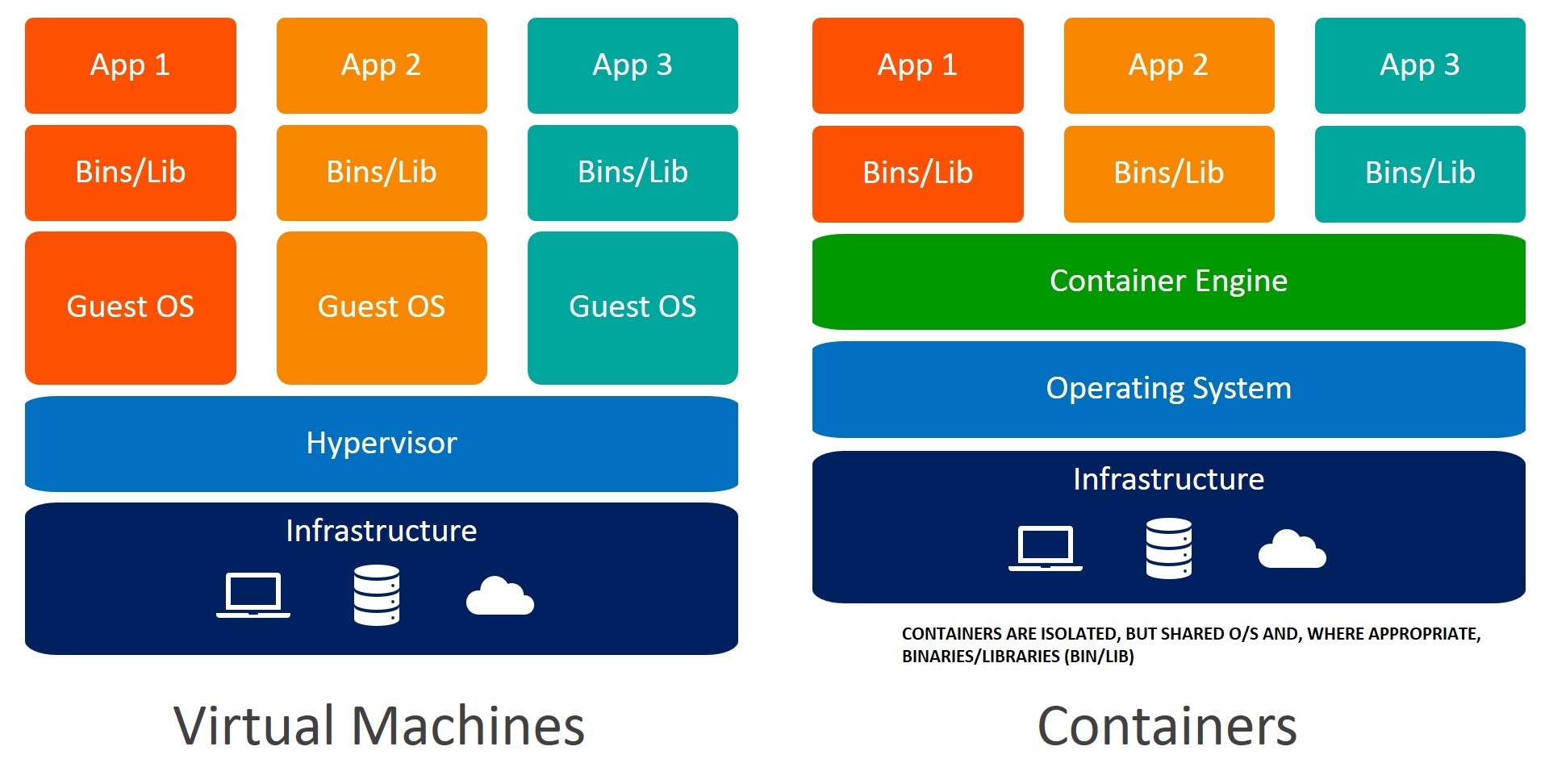
Resource: https://wiki.geant.org
A significant issue when rolling out new applications or new releases is that each application depends on certain aspects of its environment. These include, for example, local settings or function libraries. Often, the settings in the development environment differ from those in the test environment and production. It can then happen quickly that, contrary to expectations, an application works differently or not at all in production.
| Virtual Machine | Container |
|---|---|
| Contain applications and the complete operating system | Contain applications and only the necessary operating system components such as libraries and binaries |
| A hypervisor such as VMware ESXi provides virtualization | The operating system with the container engine provides its own virtualization |
| Multiple VMs run in isolation from each other on a physical server | Several containers run isolated from each other on one operating system |
Application containers are technically based on functions that have been available under the Linux operating system for some time. The kernel uses these functions to isolate applications. Thus, applications run isolated from each other as a process in different user accounts. However, they belong at the same time to a familiar Linux environment. The cooperation of various applications is also possible, and if the containers run on the same system, a container daemon is used—for example, the Linux Container Daemon (LXD). LXD is a similar technology to Linux Containers (LXC). LXC is a container-based virtualization technology at the operating system level. Technically, LXC combines isolated namespaces and the Linux kernel "cgroups" to implement isolated environments for code execution. Historically, LXC was also the basis for the widely used Docker virtualization technology. Using LXD, Linux operating system containers can be configured and controlled via a defined set of commands. It is therefore suitable for automating mass container management and is used in cloud computing and data centers.
An image of the file system forms the basis of each container. We can choose whether to use an image that has already been created or to create one ourselves. Containers are also characterized by outstanding scalability. Improved scalability is ideally suited to the requirements of the now highly dynamic IT infrastructure in companies. Indeed, the high scalability of containers makes it possible to ideally adapt the capacities for the users' provision of applications. Meanwhile, even large container setups can be managed without any problems because of orchestration systems such as Apache Mesos or Google Kubernetes. These systems distribute the containers over the existing hardware based on predefined rules and monitor them.
Docker is open-source software that can isolate applications in containers, similar to operating system virtualization. This approach significantly simplifies the deployment of applications. The application data stored in the containers can be transported and installed easily. The use of containers ensures that computer resources are strictly separated from each other. Docker stores programs together with their dependencies in images. These form the basis for virtualized containers that can run on almost any operating system. This makes applications portable and uncomplicated, whether during development or when scaling SaaS clusters.
Docker Engine is the main component of container virtualization. The software provides the interface between host resources and running containers. Any system that has Docker Engine installed can use Docker containers. Originally, Docker was designed to be used on Linux systems. However, with virtualization via VMware or Hyper-V, the engine also works on Windows or Mac OS devices. Docker can therefore be used in virtually all common scenarios.
Docker Installation
Containers
cry0l1t3@htb:~$ sudo apt update -y
cry0l1t3@htb:~$ sudo apt install docker.io -y
Containers
C:\> IEX((new-object net.webclient).DownloadString('https://chocolatey.org/install.ps1'))
C:\> choco upgrade chocolatey
C:\> choco install docker-desktop
Vagrant is a tool that can create, configure and manage virtual machines or virtual machine environments. The VMs are not created and configured manually but are described as code within a Vagrantfile. To better structure the program code, the Vagrant file can include additional code files. The code can then be processed using the Vagrant CLI. In this way, we can create, provision, and start our own VMs. Moreover, if the VMs are no longer needed, they can be destroyed just as quickly and easily. Out of the box, Vagrant offers providers for VMware and Docker.
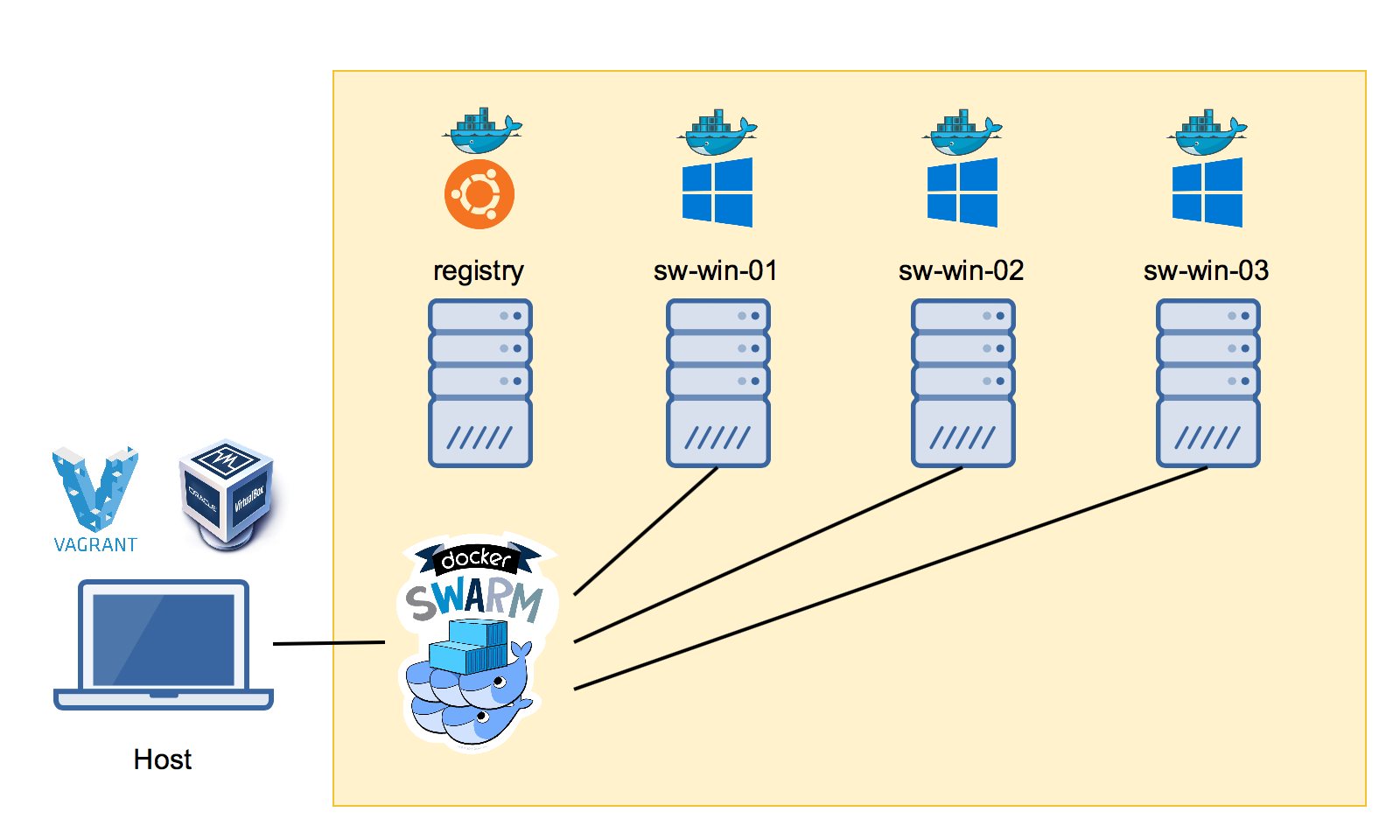 Resource: https://stefanscherer.github.io/content/images/2016/03/windows\_swarm\_demo.png
Vagrant Installation
Containers
# Linux
cry0l1t3@htb:~$ sudo apt update -y
cry0l1t3@htb:~$ sudo apt install virtualbox virtualbox-dkms vagrant
Containers
# Windows
C:\> IEX((new-object net.webclient).DownloadString('https://chocolatey.org/install.ps1'))
C:\> choco upgrade chocolatey
C:\> cinst virtualbox cyg-get vagrant
It is highly recommended to play around with different containers and experiment to get a feel for them. We should look at the documentation and read through it to understand how the containers work and what they depend on. It will also help us understand what advantages and disadvantages they bring.
Sandboxing and isolation are security techniques that are used to restrict and control the execution environment of applications like browsers, preventing unauthorized access to system resources, data, or other processes. For example, if we receive a suspicious link, we can launch a browser in a sandbox which doesn’t have access to any files on our system and open the link in that isolated browser.
Isolation is a security concept that involves separating processes, applications, or entire environments to prevent them from interacting with each other or accessing unauthorized resources.
Sandboxing is part of isolation and is a security mechanism that runs the processes and applications in a restricted environment.
Firejail is a sandboxing tool which creates and restricts a running environment of untrusted applications and processes. It is lightweight and it uses kernel security features to isolate the processes. It comes with many pre-configured profiles for thousands of applications and its very easy to use.
In order to install it we need to add a new repository and download it using the APT package manager. Once installed we can launch it by using firejail.
Isolation & Sandboxing
cry0l1t3@ubuntu:~$ sudo add-apt-repository ppa:deki/firejail
cry0l1t3@ubuntu:~$ sudo apt-get update
cry0l1t3@ubuntu:~$ sudo apt-get install firejail firejail-profiles

firejail
Next, we can install firetools which is a simple GUI to manage the sandboxes. Let’s install it:
Isolation & Sandboxing
cry0l1t3@ubuntu:~$ sudo apt install firetools -y
cry0l1t3@ubuntu:~$ firetools
You will see a new sidebar showing a few applications with the corresponding profiles. When you click on one of the applications it will launch it in a sandbox with the preconfigured profile.
At the top left corner you will see an icon to launch the configuration board for firejail.

At this point we can select the application we want to sandbox and launch it.

This will create a new sandbox and execute the application inside this sandbox.

However, like any other application, firejail is not 100% bulletproof. Firejail’s reliance on namespaces and seccomp has known vulnerabilities—especially if syscalls aren’t properly filtered—and a kernel exploit exists that could bypass firejail’s restrictions.
Kasm Workspaces on the other hand is a containerized virtual desktop and application streaming platform that delivers secure, isolated workspaces through a browser. It focuses on zero-trust principles and remote browser isolation (RBI). Unlike Firejail, which runs locally on Linux, Kasm is a server-based solution using Docker containers to isolate applications and desktops which can be self-hosted as well.

In order to install it, we need to download a .tar.gz archive and execute the script with the following commands:
Isolation & Sandboxing
cry0l1t3@ubuntu:~$ cd /tmp
cry0l1t3@ubuntu:~$ curl -O https://kasm-static-content.s3.amazonaws.com/kasm_release_1.17.0.bbc15c.tar.gz
cry0l1t3@ubuntu:~$ tar -xf kasm_release_1.17.0.bbc15c.tar.gz
cry0l1t3@ubuntu:~$ sudo bash kasm_release/install.sh
Once the installation is finished, you will see a set of different credentials for different users, database, and tokens.

When we visit the https://localhost page to access the login page of KASM, we will use the administrator credentials generated by the installation script to login.

In the main dashboard we will see all the statistics about users, successful logins, failed logs, workspaces, and much more.

When we go to Workspaces (sidebar) > Registry, we will find a set of pre-configured images available for download. These images are used to launch an isolated environment inside a Docker container whenever we initiate it.
KASM Workspaces also provide an image of Parrot OS.

For demonstration purposes we will download an image of the Brave browser.

Once installed, we can switch over to the Workspaces (at the top) and see the available image of the Brave browser that we just downloaded. When we click on it, it will create a new isolated container.

After the container has been loaded, we can use it as a default browser.

These disposable workspaces are ephemeral environments that are destroyed after each session, ensuring no persistent data or tracking. More about KASM seamless integration can be found here.
Since nearly every modern business relies on the internet in some way—whether through web servers, APIs, or HTTP(S) requests—it is essential to have tools in our environment that make interacting with these technologies efficient, fast, and easy to manage.
These tools should be capable of handling the following tasks for us:
Curlie is one of the best tools that we can use for such purposes. It is built upon curl and httpie which enhances the overall functionality. We can download the tool using the following command:
HTTP Utilities
cry0l1t3@ubuntu:~$ curl -sS https://webinstall.dev/curlie | bash
Now, let’s compare curlie with curl by requesting the same API endpoint.

As you can see, it provides a colorful and structured output in a user-friendly way with way more information than curl. Additionally, it makes analysis of requests and debugging much easier.
Postman is a widely used platform and tool for API development, testing, and collaboration. It offers both a graphical user interface (GUI) and a command line interface to streamline workflows. Postman is designed to simplify the process of designing, testing, documenting, and monitoring APIs, making it a go-to tool for many developers and testers working with REST, GraphQL, gRPC, and other API types. While Postman is well-suited for collaborative work, in our case—where we primarily perform one-off API requests—it is somewhat excessive. Compared to curlie, it is slower and includes many features that are unnecessary for simple API endpoint testing.
However, if your use case involves more than basic testing, Postman is an excellent tool to consider. The installation package can be downloaded from the official website.

After downloading the package, we can extract the contents and run the binary.
HTTP Utilities
cry0l1t3@ubuntu:~$ cd ~/Downloads
cry0l1t3@ubuntu:~$ tar -xzvf ./postman-linux-x64.tar.gz
cry0l1t3@ubuntu:~$ cd Postman
cry0l1t3@ubuntu:~$ ./Postman
We should see a registration/login page in a new window. However, registration is not required initially, and we can subsequently skip the registration/login process.

Now, we should see a dashboard with history requests, a URL input field for the API endpoint, a table for the query parameters, and a response field where the results of our requests are displayed.

Let's provide a URL, add the headers, and send the request.

In the response window below, we will see the entire response received from the API (which we can analyze step by step.)

A terminal-based alternative to Postman is Posting.sh. This lightweight tool provides a terminal based user interface with an intuitive keyboard-centric workflow. This means that we can quickly perform all of our HTTP-related actions and requests via keyboard, never touching the mouse.

Let's install it, then create a new directory where all our requests will be stored:
HTTP Utilities
cry0l1t3@ubuntu:~$ sudo apt install pipx -y
cry0l1t3@ubuntu:~$ pipx install posting
cry0l1t3@ubuntu:~$ mkdir myrequests && cd myrequests
cry0l1t3@ubuntu:~$ posting
At the bottom, you will see a new panel showing the shortcuts that can be used to control the user interface, which is The similar to Postman’s. Once we have sent out our request, the response window will display the contents of the data we receive from the API.

Using an AI/LLM locally comes with a lot of benefits. One of the most reasons people use local AI is privacy since all the data that the AI/LLM model is processing doesn’t require an internet connection. A local setup also ensures offline accessibility which is a critical feature for those in regions with unstable internet connectivity.
Another important aspect is that the model can be customized and fine-tuned which enhances the efficiency and align with our needs. But it also comes with a drawback because it requires local CPU/GPU resources and older graphic cards will barely able to handle the huge amount of computing to serve as a stable resource for the local AI/LLM. However, on the other hand you won’t have any additional costs except the ones used to produce the electricity.
One of the most efficient and easiest application that can be used to host a local AI/LLM is LM Studio. It allows us to discover a diverse array of models from different resources like Hugging Face, download them and let those models solve our tasks. Another advantages is that it eliminates the need and dependency of an external server which at the same time allows us to use the locally hosted server with the AI/LLM for terminal based applications. It also offers three different modes:
The developer mode is the one where the most customization and configuration is available. Let’s visit their homepage and download LM Studio.

Once downloaded, let’s go into the Downloads directory and run it with the following commands:
Self Hosting AI
cry0l1t3@ubuntu:~$ cd ~/Downloads
cry0l1t3@ubuntu:~$ ./LM-Studio
A new window will appear which will ask you to download your first LLM and load it.

After the LLM has been downloaded, we will need to tell LM Studio which model it needs to use. In the middle at the top you will see a select field that you can click and will show you models that you have downloaded. At the bottom you will see the modes. It’s recommended to change to the developer mode since it enables the most functions. Then at the top right, you will see a button that expands a sidebar with even more configuration options.

On the left sidebar, you will see a search button that will open a new window with a list of available LLMs. Feel free to look around and check which model fit your hardware. LM Studio will tell if your hardware meets the requirements for a specific LLM or not.

When we click on the shell button in the left sidebar we will see an option with settings to launch a local API server. This allows us to make API requests through the terminal or code to ask the locally hosted LLM to process certain information.

Let’s run the server and use curlie to make a simple request.

LM Studio also comes with a python library which allows us to use downloaded LLMs to programmatically utilize them in our code. Therefore, we need to create a virtual environment with venv first and activate it using the following commands:
AI in the Terminal
cry0l1t3@ubuntu:~$ python3 -m venv .
cry0l1t3@ubuntu:~$ source ./bin/activate
After that, you will see the name of the virtual environment that we just created in your prompt which indicates that we currently are working in it. It allows us to install python libraries in an isolated environment instead of globally on the system.

Next, let’s install the lmstudio python library and write a simple python code using the following commands:
AI in the Terminal
cry0l1t3@ubuntu:~$ pip install lmstudio
cry0l1t3@ubuntu:~$ nvim mycode.py
The python code consists of importing the lmstudio library that we’ve just installed, the assignment of the LLM model that we have downloaded with LM Studio before, and a request that we send to the LLM to process. At the end we print the result of the generated response from the LLM.

Let’s see how it works by executing it.

As you can see, it will reply in the markdown format but can be enhanced further if needed. More information about configuration and advanced use cases like configuring the LLM for structured output can be found here.
Now, we have a simple program that allows us to use a locally hosted AI/LLM in our terminal.
Now, let’s connect the Wave Terminal with LM Studio server. In Wave Terminal, we can click on the AI widget in the right sidebar and a new chat window will appear. At the top of this chat window we can select an AI preset that we want to use. Presets are configuration files that tell Wave Terminal which AI model you want to use and where it should send requests to. At this stage, we can create a new preset and configure it like following:

Make sure that your LM Studio server is running. Once you have added all the necessary details and saved them, you will find a new preset in the list.

More information about preset settings can be found here. Once we have selected the Local LLM preset, we can interact with it just as we would with Grok, Claude, or ChatGPT. The main difference is that it runs locally, and no data is submitted to third parties.

Warp Terminal is a relatively new terminal emulator designed to enhance productivity through AI integration and collaboration tools. It features an IDE-like interface and is available for Windows, macOS, and Linux systems. One of its standout features is Warp AI, which leverages natural language processing to offer real-time command suggestions, explanations, and error debugging. For example, typing "list" might prompt Warp to suggest ls -al, along with a plain-language explanation of its function. Users can also interact with Warp AI conversationally, asking it to generate code or troubleshoot issues without leaving the terminal.
However, a huge disadvantage is that you (as a non-enterprise user) cannot use your own LLM without subscribing to the Enterprise plan. However, if you want to install Warp Terminal and try it out, you can download the installation package from the homepage and install it with the following commands:
AI in the Terminal
cry0l1t3@ubuntu:~$ cd ~/Downloads
cry0l1t3@ubuntu:~$ sudo apt install ./warp-terminal_0.2025.04.23.08.11.stable.01_amd64.deb
cry0l1t3@ubuntu:~$ warp-terminal

Finally, use whatever tool and setup that feels best for you and meets your needs. Setting up a cross-platform environment will increase your productivity and efficiency dramatically. The best outcome is when you can work on a single screen without needing to use your mouse. Optimize your environment in such a way that you can move around and make changes to files and systems quickly and efficiently.
We also highly recommend you to apply/set up the same settings for all systems Windows, Linux, and MacOS. Prepare a script for each and store these scripts on Github or your VPS. Ensure that the keystrokes are cross-platform compatible and consistent so you don’t need to remember what settings you set for each of your systems. Take your time to configure your setup and get familiar with it. Design it the way you want and make it look beautiful and comfortable for you.
This will greatly enhance your productivity and efficiency in the long run—and make your work more enjoyable as well.

