The cheat sheet is a useful command reference for this module.
| Command | Description |
|---|---|
tcpdump --version |
Prints the tcpdump and libpcap version strings then exits. |
tcpdump -h |
Prints the help and usage information. |
tcpdump -D |
Prints a list of usable network interfaces from which tcpdump can capture. |
tcpdump -i (interface name or #) |
Executes tcpdump and utilizes the interface specified to capture on. |
tcpdump -i (int) -w file.pcap |
Runs a capture on the specified interface and writes the output to a file. |
tcpdump -r file.pcap |
TCPDump will read the output from a specified file. |
| `tcpdump -r/-w file.pcap -l \ | grep 'string'` |
tcpdump -i (int) host (ip) |
TCPDump will start a capture on the interface specified at (int) and will only capture traffic originating from or destined to the IP address or hostname specified after host. |
tcpdump -i (int) port (#) |
Will filter the capture for anything sourcing from or destined to port (#) and discard the rest. |
tcpdump -i (int) proto (#) |
Will filter the capture for any protocol traffic matching the (#). For example, (6) would filter for any TCP traffic and discard the rest. |
tcpdump -i (int) (proto name) |
Will utilize a protocols common name to filter the traffic captured. TCP/UDP/ICMP as examples. |
| Switch/Filter | Description |
|---|---|
D |
Will display any interfaces available to capture from. |
i |
Selects an interface to capture from. ex. -i eth0 |
n |
Do not resolve hostnames. |
nn |
Do not resolve hostnames or well-known ports. |
e |
Will grab the ethernet header along with upper-layer data. |
X |
Show Contents of packets in hex and ASCII. |
XX |
Same as X, but will also specify ethernet headers. (like using Xe) |
v, vv, vvv |
Increase the verbosity of output shown and saved. |
c |
Grab a specific number of packets, then quit the program. |
s |
Defines how much of a packet to grab. |
S |
change relative sequence numbers in the capture display to absolute sequence numbers. (13248765839 instead of 101) |
q |
Print less protocol information. |
r file.pcap |
Read from a file. |
w file.pcap |
Write into a file |
host |
Host will filter visible traffic to show anything involving the designated host. Bi-directional |
src / dest |
src and dest are modifiers. We can use them to designate a source or destination host or port. |
net |
net will show us any traffic sourcing from or destined to the network designated. It uses / notation. |
proto |
will filter for a specific protocol type. (ether, TCP, UDP, and ICMP as examples) |
port |
port is bi-directional. It will show any traffic with the specified port as the source or destination. |
portrange |
Portrange allows us to specify a range of ports. (0-1024) |
less / greater "< >" |
less and greater can be used to look for a packet or protocol option of a specific size. |
and / && |
and && can be used to concatenate two different filters together. for example, src host AND port. |
or |
or Or allows for a match on either of two conditions. It does not have to meet both. It can be tricky. |
not |
not is a modifier saying anything but x. For example, not UDP. |
| Command | Description |
|---|---|
tshark -h |
Prints the help menu. |
tshark -D |
List available interfaces to capture from. |
tshark -i (int) |
Capture on a selected interface. Replace (int) with the interface name or number. |
tshark -i eth0 -f "host (ip)" |
apply a filter with (-f) looking for a specific host while utilizing tshark |
D |
Will display any interfaces available to capture from and then exit out. |
L |
Will list the Link-layer mediums you can capture from and then exit out. (ethernet as an example) |
i |
choose an interface to capture from. (-i eth0) |
f |
packet filter in libpcap syntax. Used during capture. |
c |
Grab a specific number of packets, then quit the program. Defines a stop condition. |
a |
Defines an autostop condition. It can be after a duration, specific file size, or after a certain number of packets. |
r (pcap-file) |
Read from a file. |
W (pcap-file) |
Write into a file using the pcapng format. |
P |
Will print the packet summary while writing into a file (-W) |
x |
will add Hex and ASCII output into the capture. |
h |
See the help menu |
| Capture Filter | Description |
|---|---|
host x.x.x.x |
Capture only traffic pertaining to a certain host |
net x.x.x.x/24 |
Capture traffic to or from a specific network (using slash notation to specify the mask) |
src/dst net x.x.x.x/24 |
Using src or dst net will only capture traffic sourcing from the specified network or destined to the target network |
port # |
will filter out all traffic except the port you specify |
not |
will capture everything except the variable specified. ex. not port 80 |
and |
AND will concatenate your specified ports. ex. host 192.168.1.1 and port 80 |
portrange x-x |
Portrange will grab traffic from all ports within the range only |
ip / ether / tcp |
These filters will only grab traffic from specified protocol headers. |
broadcast / multicast / unicast |
Grabs a specific type of traffic. one to one, one to many, or one to all. |
| Display Filter | Description |
|---|---|
ip.addr == x.x.x.x |
Capture only traffic pertaining to a certain host. This is an OR statement. |
ip.addr == x.x.x.x/24 |
Capture traffic pertaining to a specific network. This is an OR statement. |
ip.src/dst == x.x.x.x |
Capture traffic to or from a specific host. |
dns / tcp / ftp / arp / ip |
filter traffic by a specific protocol. There are many more options. |
tcp.port == x |
filter by a specific tcp port. |
src.port / dst.port ==x |
will capture everything except the port specified. |
and / or / not |
AND will concatenate, OR will find either of two options, NOT will exclude your input option. |
tcp.stream eq # |
Allows us to follow a tcp session in which we captured the entire stream. Replace (#) with the session to reassemble. |
http |
Will filter for any traffic matching the http protocol. |
http && image-jfif |
This filter will display any packet with a jpeg image file. |
ftp |
Filters for the ftp protocol. |
ftp.request.command |
Will filter for any control commands sent over ftp control channel. |
ftp-data |
Will show any objects transfered over ftp. |
| Command | Description |
|---|---|
sudo * |
Sudo will run the command that proceeds it with elevated privileges. |
which (application) |
Utilizes which to determine if (application) is installed on the host. Replace the application with what you are looking for. ex. which tcpdump |
sudo apt install (application) |
Uses elevated privileges to install an application package if it does not exist on the host. ex. sudo apt install wireshark |
man (application) |
Displays the manual pages for an application. ex. man tcpdump. |
| Port Number | Protocol | Description |
|---|---|---|
20 |
FTP-Data | Data channel for passing FTP files. |
21 |
FTP-Command | Control channel for issuing commands to an FTP server. |
22 |
SSH | Secure Shell Service port. Provides secure remote communications |
23 |
Telnet | Telnet service provides cleartext communications between hosts. |
25 |
SMTP | Simple Mail Transfer protocol. Utilized for email transmissions between servers. |
53 |
DNS | Domain Name Services. Provides name resolution with multiple protocols |
69 |
TFTP | Trivial File Transfer Protocol. A lightweight, minimal-function transfer protocol. |
80 |
HTTP | HyperText Transfer Protocol. Provides dynamic web services |
88 |
Kerberos | Providing cryptographic network authentication |
110 |
POP3 | Mail service utilized by clients to retrieve email from a server. |
111 |
RPC | Remote Procedure Call. Remote service for managing network file systems. |
115 |
SFTP | SSH File Transfer Protocol. An extension of SSH providing secure and reliable FTP services. |
123 |
NTP | Network Time Protocol. Provides timing and sync services for network devices. |
137 |
Netbios-NS | Local network name resolution. |
139 |
Netbios-SSN | Provides session services for data transfer. Services like SMB can utilize it. |
179 |
BGP | Border Gateway Protocol. BGP is a protocol for exchanging routing info with autonomous systems worldwide. |
389 |
LDAP | Lightweight Directory Access Protocol. System agnostic authentication and authorization services. |
443 |
HTTPS | HyperText Transfer Protocol Secure. An extension of HTTP utilizing SSL/TLS for encrypting the communications. |
445 |
SMB | Server Message Block. SMB allows for the sharing of services, files, networking ports, and printers between hosts. |
Network Traffic Analysis (NTA) can be described as the act of examining network traffic to characterize common ports and protocols utilized, establish a baseline for our environment, monitor and respond to threats, and ensure the greatest possible insight into our organization's network.
This process helps security specialists determine anomalies, including security threats in the network, early and effectively pinpoint threats. Network Traffic Analysis can also facilitate the process of meeting security guidelines. Attackers update their tactics frequently to avoid detection and leverage legitimate credentials with tools that most companies allow in their networks, making detection and, subsequently, response challenging for defenders. In such cases, Network Traffic Analysis can again prove helpful. Everyday use cases of NTA include:
Collecting real-time traffic within the network to analyze upcoming threats. |
Setting a baseline for day-to-day network communications. |
Identifying and analyzing traffic from non-standard ports, suspicious hosts, and issues with networking protocols such as HTTP errors, problems with TCP, or other networking misconfigurations. |
Detecting malware on the wire, such as ransomware, exploits, and non-standard interactions. |
| NTA is also useful when investigating past incidents and during threat hunting. |
Try to picture a threat actor targeting and infiltrating our network. If they wish to breach the network, attackers must inevitably interact and communicate with our infrastructure. Network communication takes place over many different ports and protocols, all being utilized concurrently by employees, equipment, and customers. To spot malicious traffic, we would need to use our knowledge of typical network traffic within our enclave. Doing so will narrow down our search and help us quickly find and disrupt adversarial communication.
For example, if we detect many SYN packets on ports that we never (or rarely) utilize in our network, we can conclude that this is most likely someone trying to determine what ports are open on our hosts. Actions like this are typical markers of a portscan. Performing such an analysis and coming to such conclusions requires specific skills and knowledge.
The skills we are about to list and describe require theoretical and practical knowledge acquired over time. We do not have to know everything by heart, but we should know what to look for when certain aspects of the content seem unfamiliar. This applies not only to NTA but also to most other topics we will deal with in cybersecurity.
TCP/IP Stack & OSI Model
This understanding will ensure we grasp how networking traffic and the host applications interact.
Basic Network Concepts
Understanding what types of traffic we will see at each level includes an understanding of the individual layers that make up the TCP/IP and OSI model and the concepts of switching and routing. If we tap a network on a backbone link, we will see much more traffic than usual, and it will be vastly different from what we find tapping an office switch.
Common Ports and Protocols
Identifying standard ports and protocols quickly and having a functional understanding of how they communicate will ensure we can identify potentially malicious or malformed network traffic.
Concepts of IP Packets and the Sublayers
Foundational knowledge of how TCP and UDP communicate will, at a minimum, ensure we understand what we see or are searching for. TCP, for example, is stream-oriented and allows us to follow a conversation between hosts easily. UDP is quick but not concerned with completeness, so it would be harder to recreate something from this packet type.
Protocol Transport Encapsulation
Each layer will encapsulate the previous. Being able to read or dissect when this encapsulation changes will help us move through data quicker. It is easy to see hints based on encapsulation headers.
The list below contains many different tools and equipment types that can be utilized to perform network traffic analysis. Each will provide a different way to capture or dissect the traffic. Some offer ways to copy and capture, while others read and ingest. This module will explore just a few of these (Wireshark and tcpdump mostly). Keep in mind these tools are not strictly geared for admins. Many of these can be used for malicious reasons as well.
Common Traffic Analysis Tools
| Tool | Description |
|---|---|
tcpdump |
tcpdump is a command-line utility that, with the aid of LibPcap, captures and interprets network traffic from a network interface or capture file. |
Tshark |
TShark is a network packet analyzer much like TCPDump. It will capture packets from a live network or read and decode from a file. It is the command-line variant of Wireshark. |
Wireshark |
Wireshark is a graphical network traffic analyzer. It captures and decodes frames off the wire and allows for an in-depth look into the environment. It can run many different dissectors against the traffic to characterize the protocols and applications and provide insight into what is happening. |
NGrep |
NGrep is a pattern-matching tool built to serve a similar function as grep for Linux distributions. The big difference is that it works with network traffic packets. NGrep understands how to read live traffic or traffic from a PCAP file and utilize regex expressions and BPF syntax. This tool shines best when used to debug traffic from protocols like HTTP and FTP. |
tcpick |
tcpick is a command-line packet sniffer that specializes in tracking and reassembling TCP streams. The functionality to read a stream and reassemble it back to a file with tcpick is excellent. |
Network Taps |
Taps (Gigamon, Niagra-taps) are devices capable of taking copies of network traffic and sending them to another place for analysis. These can be in-line or out of band. They can actively capture and analyze the traffic directly or passively by putting the original packet back on the wire as if nothing had changed. |
Networking Span Ports |
Span Ports are a way to copy frames from layer two or three networking devices during egress or ingress processing and send them to a collection point. Often a port is mirrored to send those copies to a log server. |
Elastic Stack |
The Elastic Stack is a culmination of tools that can take data from many sources, ingest the data, and visualize it, to enable searching and analysis of it. |
SIEMS |
SIEMS (such as Splunk) are a central point in which data is analyzed and visualized. Alerting, forensic analysis, and day-to-day checks against the traffic are all use cases for a SIEM. |
| and others. |
Many of the tools mentioned above have their syntax and commands to utilize, but one that is shared among them is Berkeley Packet Filter (BPF) syntax. This syntax is the primary method we will use. In essence, BPF is a technology that enables a raw interface to read and write from the Data-Link layer. With all this in mind, we care for BPF because of the filtering and decoding abilities it provides us. We will be utilizing BPF syntax through the module, so a basic understanding of how a BPF filter is set up can be helpful. For more information on BPF syntax, check out this reference.
Performing analysis can be as simple as watching live traffic roll by in our console or as complex as capturing data with a tap, sending it back to a SIEM for ingestion, and analyzing the pcap data for signatures and alerts related to common tactics and techniques.
At a minimum, to listen passively, we need to be connected to the network segment we wish to listen on. This is especially true in a switched environment where VLANS and switch ports will not forward traffic outside their broadcast domain. With that in mind, if we wish to capture traffic from a specific VLAN, our capture device should be connected to that same network. Devices like network taps, switch or router configurations like span ports, and port mirroring can allow us to get a copy of all traffic traversing a specific link, regardless of what network segment or destination it belongs to.
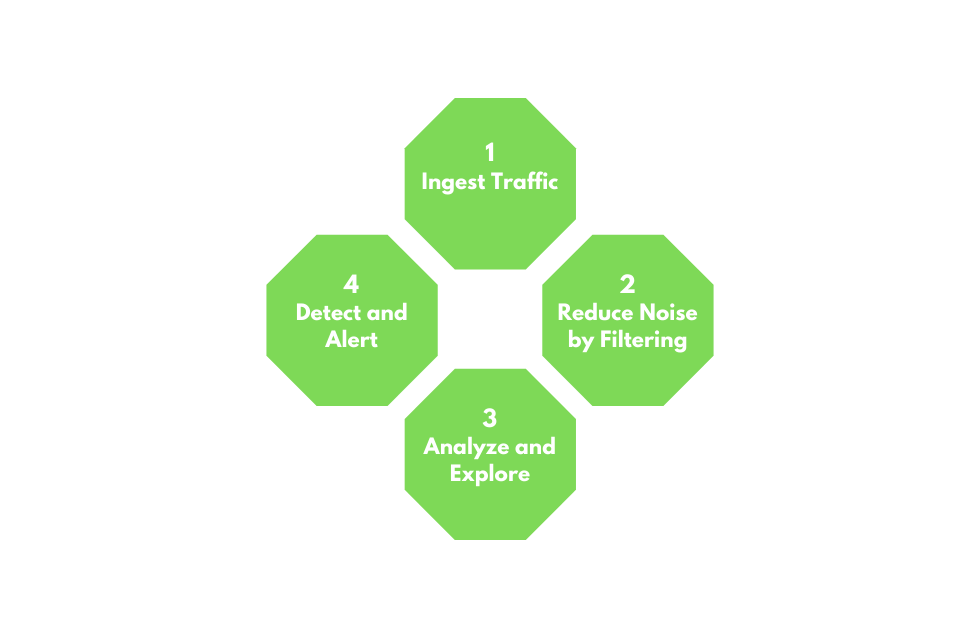
NTA Workflow
Traffic analysis is not an exact science. NTA can be a very dynamic process and is not a direct loop. It is greatly influenced by what we are looking for (network errors vs. malicious actions) and where we have visibility into our network. Performing traffic analysis can distill down to a few basic tenants.
NTA Workflow
1. Ingest Traffic
Once we have decided on our placement, begin capturing traffic. Utilize capture filters if we already have an idea of what we are looking for.
2. Reduce Noise by Filtering
Capturing traffic of a link, especially one in a production environment, can be extremely noisy. Once we complete the initial capture, an attempt to filter out unnecessary traffic from our view can make analysis easier. (Broadcast and Multicast traffic, for example.)
3. Analyze and Explore
Now is the time to start carving out data pertinent to the issue we are chasing down. Look at specific hosts, protocols, even things as specific as flags set in the TCP header. The following questions will help us:
4. Detect the Root Issue
5. Fix and Monitor
Fix and monitor is not a part of the loop but should be included in any workflow we perform. If we make a change or fix an issue, we should continue to monitor the source for a time to determine if the issue has been resolved.
This section serves as a quick refresher on networking and how some standard protocols we can see while performing traffic captures work. These concepts are at the core of capturing and dissecting traffic. Without a fundamental understanding of typical network flow and what ports and protocols are used, we cannot accurately analyze any traffic we capture. If this is the first time you encounter some of these terms or concepts, we suggest completing the Introduction to Networking Module first.
Networking Models

The image above gives a great view of the Open Systems Interconnect (OSI) model and the Transmission Control Protocol - Internet Protocol (TCP-IP) model side by side. The models are a graphical representation of how communication is handled between networked computers. Let's take a second to compare the two:
Model Traits Comparison.
| Trait | OSI | TCP-IP |
|---|---|---|
| Layers | Seven | Four |
| Flexibility | Strict | Loose |
| Dependency | Protocol independent & generic | Based on common communication protocols |
When examining these two models, we can notice that the OSI model is segmented more than the TCP-IP model. This is because it is broken down into small functional chunks. Layers one through four of the OSI model are focused on controlling the transportation of data between hosts. This control includes everything from the physical medium used for transmission to the protocol utilized to manage the conversation or lack thereof when transporting data. Layers five through seven handle the interpretation, management, and presentation of the encapsulated data presented to the end-user. Think of the OSI model as the theory behind how everything works, whereas the TCP-IP model is more closely aligned with the actual functionality of networking. The TCP-IP model is a bit more blended, and the rules are flexible. The TCP-IP model comprises four layers where layers five, six, and seven of the OSI model align with layer four of the TCP-IP model. Layer three deals with transportation, layer two is the internet layer which aligns with the network layer in OSI, and layer one is the link-layer which covers layers two and one of the OSI model.
Throughout this module, we will examine many different Protocol Data Units (PDU), so a functional understanding of how it appears in theory and on the wire is required. A PDU is a data packet made up of control information and data encapsulated from each layer of the OSI model. The breakout below will show how the layers in the two models match up to a PDU.
PDU Example

When inspecting a PDU, we need to keep the idea of encapsulation in mind. As our data moves down the protocol stack, each layer will wrap the previous layers' data in a new bubble we call encapsulation. This bubble adds the necessary information of that layer into the header of the PDU. This information can vary by level, but it includes what is held by the previous layer, operational flags, any options required to negotiate communications, the source and destination IP addresses, ports, transport, and application layer protocols.
PDU Packet Breakdown
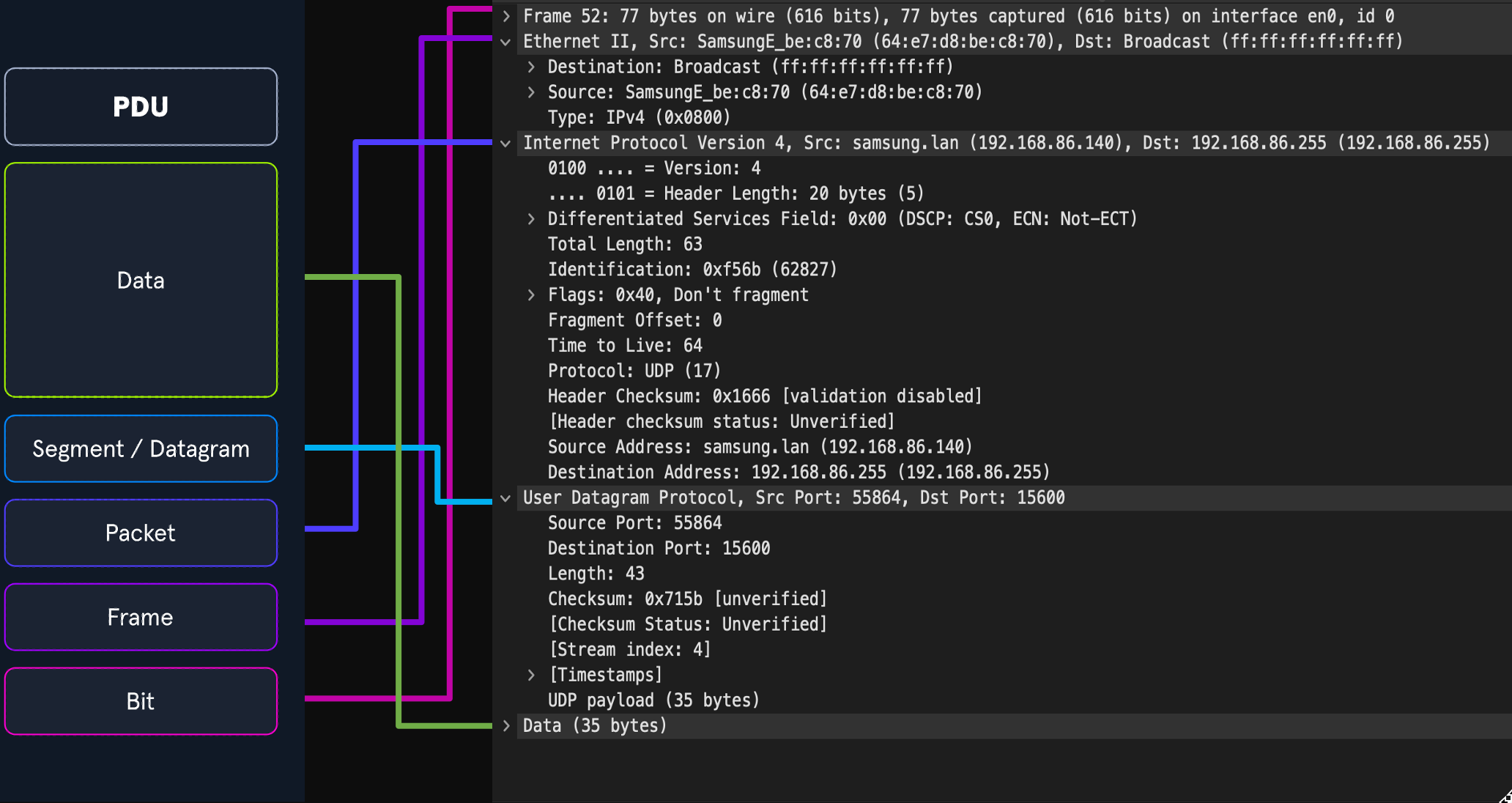
The image above shows us the makeup of a PDU side by side with a packet breakout from Wireshark's Packet Details pane. Please take note that when we see the breakout in Wireshark, it is in reverse order. Wireshark shows us the PDU in reverse because it is in the order that it was unencapsulated.
Now that we have gone over the basic concepts driving networking behavior let us take some time to discuss the addressing mechanisms that enable the delivery of our packets to the correct hosts. We will begin with Media Access Control addresses first.
MAC-Addressing
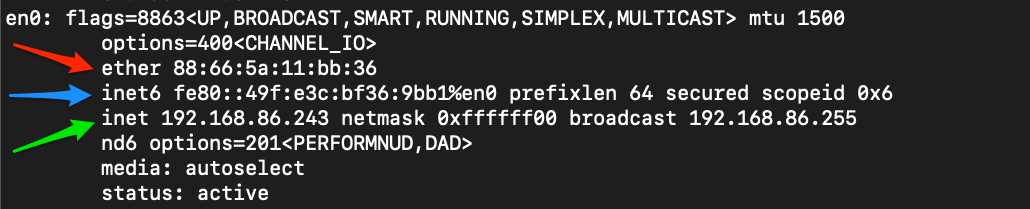
Each logical or physical interface attached to a host has a Media Access Control (MAC) address. This address is a 48-bit six octet address represented in hexadecimal format. If we look at the image below, we can see an example of one by the red arrow.
Mac-Address
MAC-addressing is utilized in Layer two ( the data-link or link-layer depending on which model you look at ) communications between hosts. This works through host-to-host communication within a broadcast domain. If layer two traffic needs to cross a layer three interface, that PDU is sent to the layer three egress interface, and it is routed to the correct network. At layer two, this looks as though the PDU is addressed to the router interface, and the router will take the layer three address into account when determining where to send it next. Once it makes a choice, it strips the encapsulation at layer two and replaces it with new information that indicates the next physical address in the route.
The Internet Protocol (IP) was developed to deliver data from one host to another across network boundaries. IP is responsible for routing packets, the encapsulation of data, and fragmentation and reassembly of datagrams when they reach the destination host. By nature, IP is a connectionless protocol that provides no assurances that data will reach its intended recipient. For the reliability and validation of data delivery, IP relies on upper-layer protocols such as TCP. Currently, there exist two main versions of IP. IPv4, which is the current dominant standard, and IPv6, which is intended to be the successor of IPv4.
IPv4
The most common addressing mechanism most are familiar with is the Internet Protocol address version 4 (IPv4). IPv4 addressing is the core method of routing packets across networks to hosts located outside our immediate vicinity. The image below shows us an example of an IPv4 address by the green arrow.
IP Address
An IPv4 address is made up of a 32-bit four octet number represented in decimal format. In our example, we can see the address 192.168.86.243. Each octet of an IP address can be represented by a number ranging from 0 to 255. When examining a PDU, we will find IP addresses in layer three (Network) of the OSI model and layer two (internet) of the TCP-IP model. We will not deep dive into IPv4 here, but for the sake of this module, understand what these addresses are, what they do for us, and at which layer they are used.
IPv6
After a little over a decade of utilizing IPv4, it was determined that we had quickly exhausted the pool of usable IP addresses. With such large chunks sectioned off for special use or private addressing, the world had quickly used up the available space. To help solve this issue, two things were done. The first was implementing variable-length subnet masks (VLSM) and Classless Inter-Domain Routing (CIDR). This allowed us to redefine the useable IP addresses in the v4 format changing how addresses were assigned to users. The second was the creation and continued development of IPv6 as a successor to IPv4.
IPv6 provides us a much larger address space that can be utilized for any networked purpose. IPv6 is a 128-bit address 16 octets represented in Hexadecimal format. We can see an example of a shortened IPv6 address in the image below by the blue arrow.
IPv6 Address
Along with a much larger address space, IPv6 provides: Better support for Multicasting (sending traffic from one to many) Global addressing per device Security within the protocol in the form of IPSec Simplified Packet headers allow for easier processing and move from connection to connection without being re-assigned an address.
IPv6 uses four main types of addresses within its schema:
IPv6 Addressing Types
| Type | Description |
|---|---|
Unicast |
Addresses for a single interface. |
Anycast |
Addresses for multiple interfaces, where only one of them receives the packet. |
Multicast |
Addresses for multiple interfaces, where all of them receive the same packet. |
Broadcast |
Does not exist and is realized with multicast addresses. |
When thinking about each address type, it is helpful to remember that Unicast traffic is host to host, while Multicast is one to many, and Anycast is one to many in a group where only one will answer the packet. (think load balancing).
Even with its current state providing many advantages over IPv4, the adoption of IPv6 has been slow to catch on.
Adoption of IPv6
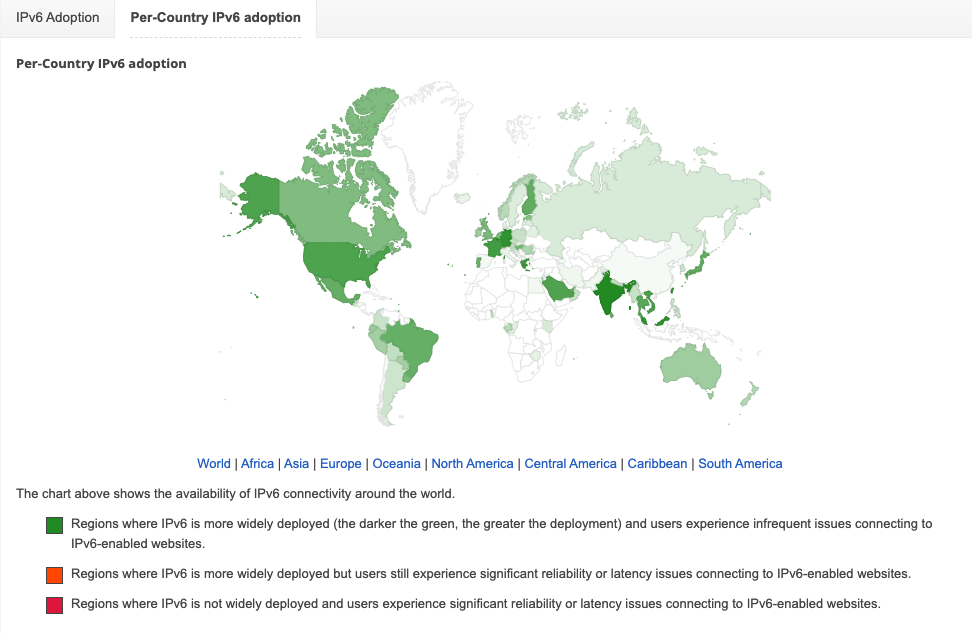
At the time of writing, according to statistics published by Google, the adoption rate is only around 40 percent globally.
The Transport Layer has several mechanisms to help ensure the seamless delivery of data from source to destination. Think about the Transport layer as a control hub. Application data from the higher layers have to traverse down the stack to the Transport layer. This layer directs how the traffic will be encapsulated and thrown to the lower layer protocols ( IP and MAC ). Once the data reaches its intended recipient, the Transport layer, working with the Network / Internet layer protocols, is responsible for reassembling the encapsulated data back in the correct order. The two mechanisms used to accomplish this task are the Transmission Control (TCP) and the User Datagram Protocol (UDP).
TCP vs. UDP
Let us take a second to examine these two protocols side by side.
TCP VS. UDP
| Characteristic | TCP | UDP |
|---|---|---|
Transmission |
Connection-oriented | Connectionless. Fire and forget. |
Connection Establishment |
TCP uses a three-way handshake to ensure that a connection is established. | UDP does not ensure the destination is listening. |
Data Delivery |
Stream-based conversations | packet by packet, the source does not care if the destination is active |
Receipt of data |
Sequence and Acknowledgement numbers are utilized to account for data. | UDP does not care. |
Speed |
TCP has more overhead and is slower because of its built-in functions. | UDP is fast but unreliable. |
By looking at the table above, we can see that TCP and UDP provide two very different data transmission methods. TCP is considered a more reliable protocol since it allows for error checking and data acknowledgment as a normal function. In contrast, UDP is a quick, fire, and forget protocol best utilized when we care about speed over quality and validation.
To put this into perspective, TCP is utilized when moving data that requires completeness over speed. For example, when we use Secure Shell (SSH) to connect from one host to another, a connection is opened that stays active while you issue commands and perform actions. This is a function of TCP, ensuring our conversation with the distant host is not interrupted. If it does get interrupted for some reason, TCP will not reassemble a partial fragment of a packet and send it to the application. We can avoid errors this way. What would happen if we issued a command like sudo passwd user to change the user's password on a remote host, and during the change, part of the message drops. If this were over UDP, we would have no way of knowing what happened to the rest of that message and potentially mess up the user's password or worse. TCP helps prevent this by acknowledging each packet received to ensure the destination host has acquired each packet before assembling the command and sending it to the application for action.
On the other hand, when we require quick responses or utilize applications that require speed over completeness, UDP is our answer. Take streaming a video, for example. The user will not notice a pixel or two dropped from a streaming video. We care more about watching the video without it constantly stopping to buffer the next piece. Another example of this would be DNS. When a host requests a record entry for inlanefreight.com, the host is looking for a quick response to continue the process it was performing. The worst thing that happens if a DNS request is dropped is that it is reissued. No harm, no foul. The user will not receive corrupted data because of this drop.
UDP traffic appears like regular traffic; it is a single packet, with no response or acknowledgment that it was sent or received, so there is not much to show here. However, we can take a look at TCP and how it establishes connections.
One of the ways TCP ensures the delivery of data from server to client is the utilization of sessions. These sessions are established through what is called a three-way handshake. To make this happen, TCP utilizes an option in the TCP header called flags. We will not deep dive into TCP flags now; know that the common flags we will see in a three-way handshake are Synchronization (SYN) and acknowledgment (ACK). When a host requests to have a conversation with a server over TCP;
client sends a packet with the SYN flag set to on along with other negotiable options in the TCP header.server will respond with a TCP packet that includes a SYN flag set for the sequence number negotiation and an ACK flag set to acknowledge the previous SYN packet sent by the host.client will respond with a TCP packet with an ACK flag set agreeing to the negotiation.Let us take a quick look at this in action to be familiar with it when it appears in our packet output later on in the module.
TCP Three-way Handshake
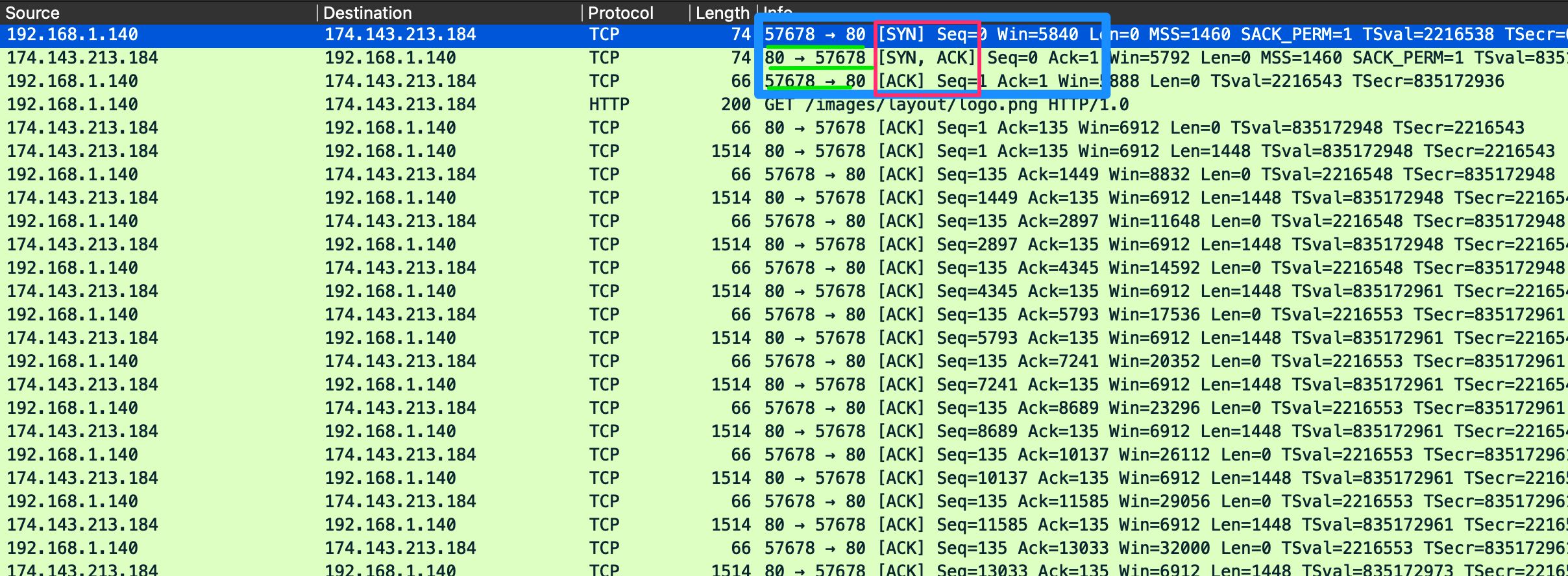
When examining this output, we can see the start of our handshake on line one. Looking at the information highlighted in the red box, we can see our initial Syn flag is set. If we look at the port numbers underlined in green, we can see two numbers, 57678 and 80. The first number is the random high port number in use by the client, and the second is the well-known port for HTTP used by the server to listen for incoming web request connections. In line 2, we can see the server's response to the client with an SYN / ACK packet sent to the same ports. On line 3, we can see the client acknowledge the server's synchronization packet to establish the connection.
Packet 4 shows us that the HTTP request was sent, and a session is established to stream the data for the image requested. We can see as the stream continues that TCP sends acknowledgments for each chunk of data sent. This is an example of typical TCP communication.
We have seen how a session is established with TCP; now, let us examine how a session is concluded.
TCP Session Teardown
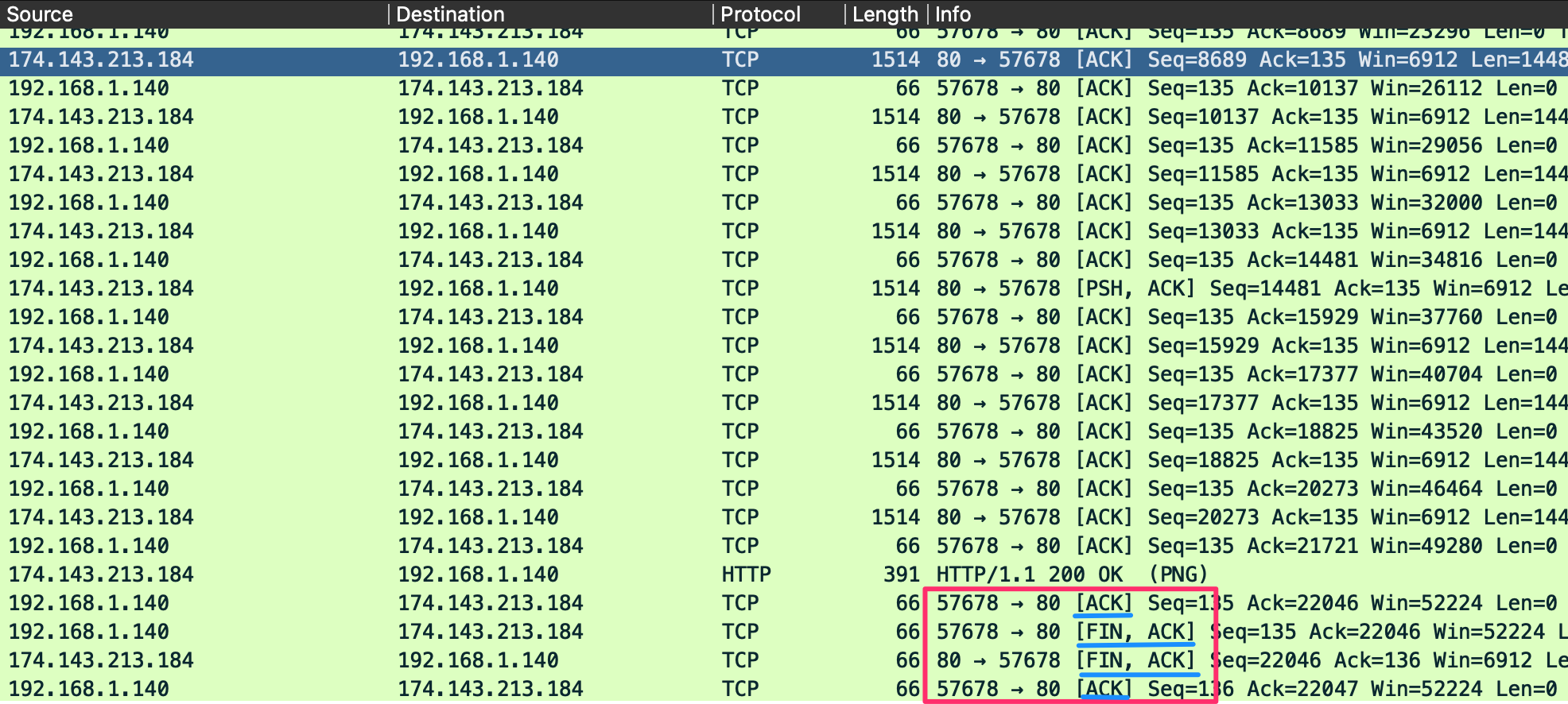
In the image above, a set of packets similar to our three-way handshake visible at the end of the output. This is how TCP gracefully shuts connections. Another flag we will see with TCP is the FIN flag. It is used for signaling that the data transfer is finished and the sender is requesting termination of the connection. The client acknowledges the receipt of the data and then sends a FIN and ACK to begin session termination. The server responds with an acknowledgment of the FIN and sends back its own FIN. Finally, the client acknowledges the session is complete and closes the connection. Before session termination, we should see a packet pattern of:
FIN, ACKFIN, ACK,ACKIf we look at the image above detailing a session, we will see that this is the case. An output similar to this is considered an adequately terminated connection.
We have seen how lower-level networking functions, now let us look at some of the upper layer protocols that handle our applications. It takes many different applications and services to maintain a network connection and ensure that data can be transferred between hosts. This section will outline just a vital few.
Hypertext Transfer Protocol (HTTP) is a stateless Application Layer protocol that has been in use since 1990. HTTP enables the transfer of data in clear text between a client and server over TCP. The client would send an HTTP request to the server, asking for a resource. A session is established, and the server responds with the requested media (HTML, images, hyperlinks, video). HTTP utilizes ports 80 or 8000 over TCP during normal operations. In exceptional circumstances, it can be modified to use alternate ports, or even at times, UDP.
HTTP Methods
To perform operations such as fetching webpages, requesting items for download, or posting your most recent tweet all require the use of specific methods. These methods define the actions taken when requesting a URI. Methods:
| Method | Description |
|---|---|
HEAD |
required is a safe method that requests a response from the server similar to a Get request except that the message body is not included. It is a great way to acquire more information about the server and its operational status. |
GET |
required Get is the most common method used. It requests information and content from the server. For example, GET http://10.1.1.1/Webserver/index.html requests the index.html page from the server based on our supplied URI. |
POST |
optional Post is a way to submit information to a server based on the fields in the request. For example, submitting a message to a Facebook post or website forum is a POST action. The actual action taken can vary based on the server, and we should pay attention to the response codes sent back to validate the action. |
PUT |
optional Put will take the data appended to the message and place it under the requested URI. If an item does not exist there already, it will create one with the supplied data. If an object already exists, the new PUT will be considered the most up-to-date, and the object will be modified to match. The easiest way to visualize the differences between PUT and POST is to think of it like this; PUT will create or update an object at the URI supplied, while POST will create child entities at the provided URI. The action taken can be compared with the difference between creating a new file vs. writing comments about that file on the same page. |
DELETE |
optional Delete does as the name implies. It will remove the object at the given URI. |
TRACE |
optional Allows for remote server diagnosis. The remote server will echo the same request that was sent in its response if the TRACE method is enabled. |
OPTIONS |
optional The Options method can gather information on the supported HTTP methods the server recognizes. This way, we can determine the requirements for interacting with a specific resource or server without actually requesting data or objects from it. |
CONNECT |
optional Connect is reserved for use with Proxies or other security devices like firewalls. Connect allows for tunneling over HTTP. (SSL tunnels) |
Notice that we have required or optional listed beside each method. As a requirement by the standard, GET and HEAD must always work and exist with standard HTTP implementations. This is true only for them. The methods trace, options, delete, put and post are optional functionalities one can allow. An example of this is a read-only webpage like a blog post. The client PC can request a resource from the page but not modify, add, or delete the resource or resources.
For more information on HTTP as a protocol or how it operates, see RFC:2616.
HTTP Secure (HTTPS) is a modification of the HTTP protocol designed to utilize Transport Layer Security (TLS) or Secure Sockets Layer (SSL) with older applications for data security. TLS is utilized as an encryption mechanism to secure the communications between a client and a server. TLS can wrap regular HTTP traffic within TLS, which means that we can encrypt our entire conversation, not just the data sent or requested. Before the TLS mechanism was in place, we were vulnerable to Man-in-the-middle attacks and other types of reconnaissance or hijacking, meaning anyone in the same LAN as the client or server could view the web traffic if they were listening on the wire. We can now have security implemented in the browser enabling everyone to encrypt their web habits, search requests, sessions or data transfers, bank transactions, and much more.
Even though it is HTTP at its base, HTTPS utilizes ports 443 and 8443 instead of the standard port 80. This is a simple way for the client to signal the server that it wishes to establish a secure connection. Let's look at an output of HTTPS traffic and discern how a TLS handshake functions for a minute.
TLS Handshake Via HTTPS
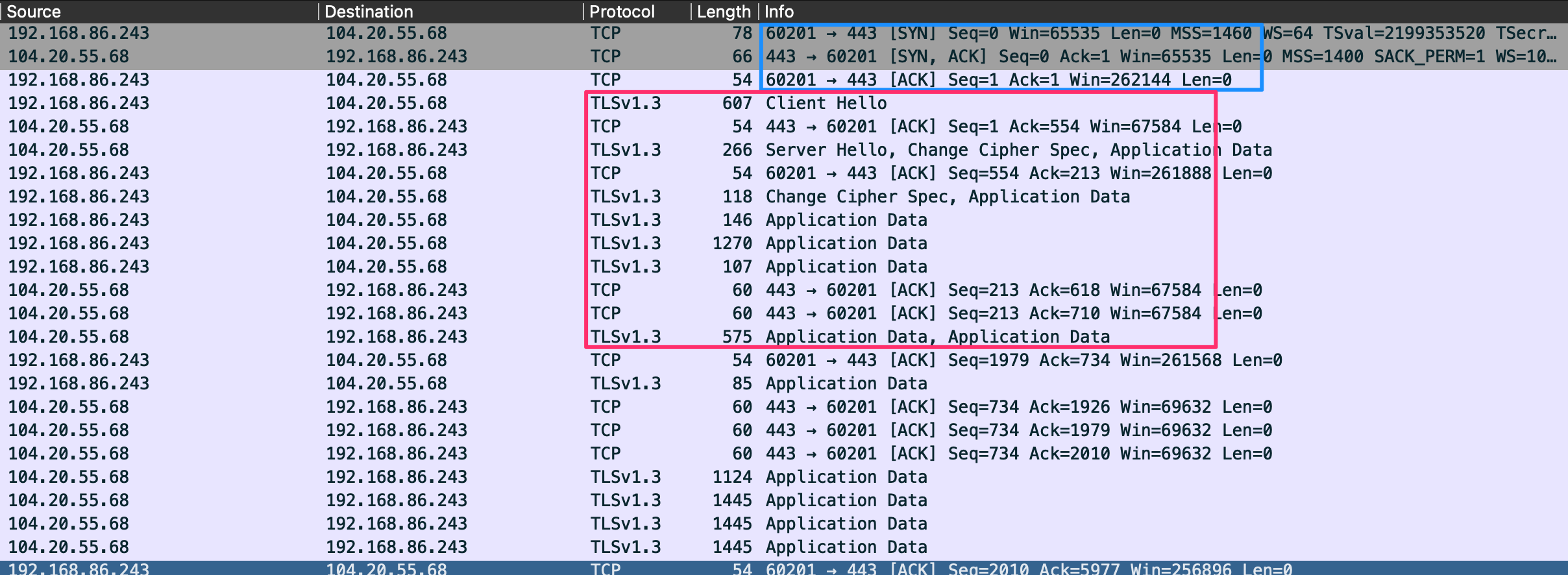
In the first few packets, we can see that the client establishes a session to the server using port 443 boxed in blue. This signals the server that it wishes to use HTTPS as the application communication protocol.
Once a session is initiated via TCP, a TLS ClientHello is sent next to begin the TLS handshake. During the handshake, several parameters are agreed upon, including session identifier, peer x509 certificate, compression algorithm to be used, the cipher spec encryption algorithm, if the session is resumable, and a 48-byte master secret shared between the client and server to validate the session.
Once the session is established, all data and methods will be sent through the TLS connection and appear as TLS Application Data as seen in the red box. TLS is still using TCP as its transport protocol, so we will still see acknowledgment packets from the stream coming over port 443.
To summarize the handshake:
Encryption in itself is a complex and lengthy topic that deserves its own module. This section is a simple summary of how HTTP and TLS provide security within the HTTPS application protocol. For more information on how HTTPS functions and how TLS performs security operations, see RFC:2246.
File Transfer Protocol (FTP) is an Application Layer protocol that enables quick data transfer between computing devices. FTP can be utilized from the command-line, web browser, or through a graphical FTP client such as FileZilla. FTP itself is established as an insecure protocol, and most users have moved to utilize tools such as SFTP to transfer files through secure channels. As a note moving into the future, most modern web browsers have phased out support for FTP as of 2020.
When we think about communication between hosts, we typically think about a client and server talking over a single socket. Through this socket, both the client and server send commands and data over the same link. In this aspect, FTP is unique since it utilizes multiple ports at a time. FTP uses ports 20 and 21 over TCP. Port 20 is used for data transfer, while port 21 is utilized for issuing commands controlling the FTP session. In regards to authentication, FTP supports user authentication as well as allowing anonymous access if configured.
FTP is capable of running in two different modes, active or passive. Active is the default operational method utilized by FTP, meaning that the server listens for a control command PORT from the client, stating what port to use for data transfer. Passive mode enables us to access FTP servers located behind firewalls or a NAT-enabled link that makes direct TCP connections impossible. In this instance, the client would send the PASV command and wait for a response from the server informing the client what IP and port to utilize for the data transfer channel connection.
FTP Command & Response Examples
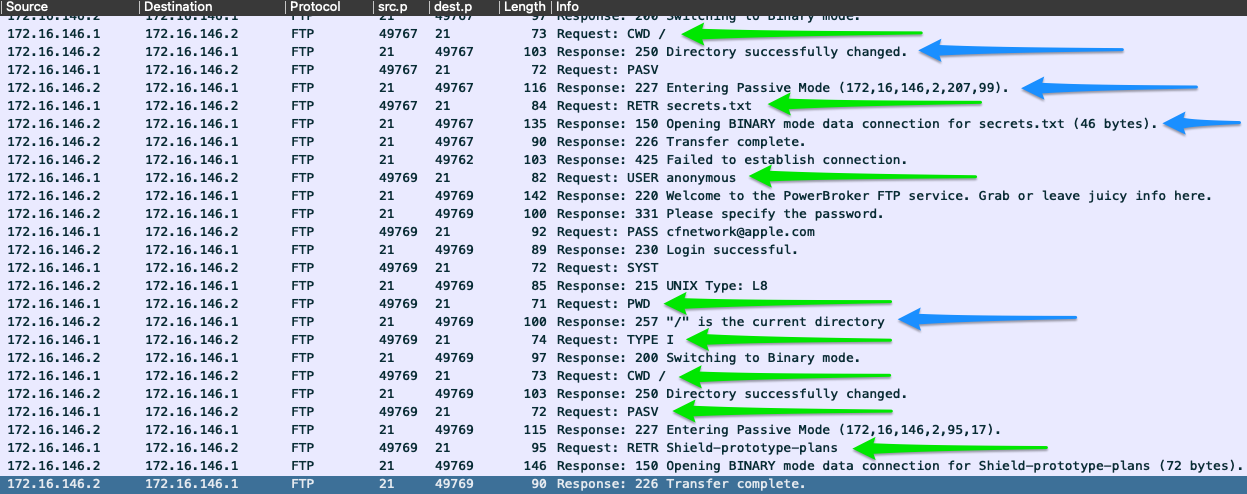
The image above shows several examples of requests issued over the FTP command channel green arrows, and the responses sent back from the FTP server blue arrows. This is all pretty standard stuff. For a list of each command and what it is doing, check out the table below.
When looking at FTP traffic, some common commands we can see passed over port 21 include:
FTP Commands
| Command | Description |
|---|---|
USER |
specifies the user to log in as. |
PASS |
sends the password for the user attempting to log in. |
PORT |
when in active mode, this will change the data port used. |
PASV |
switches the connection to the server from active mode to passive. |
LIST |
displays a list of the files in the current directory. |
CWD |
will change the current working directory to one specified. |
PWD |
prints out the directory you are currently working in. |
SIZE |
will return the size of a file specified. |
RETR |
retrieves the file from the FTP server. |
QUIT |
ends the session. |
This is not an exhaustive list of the possible FTP control commands that could be seen. These can vary based on the FTP application or shell in use. For more information on FTP, see RFC:959.
Server Message Block (SMB) is a protocol most widely seen in Windows enterprise environments that enables sharing resources between hosts over common networking architectures. SMB is a connection-oriented protocol that requires user authentication from the host to the resource to ensure the user has correct permissions to use that resource or perform actions. In the past, SMB utilized NetBIOS as its transport mechanism over UDP ports 137 and 138. Since modern changes, SMB now supports direct TCP transport over port 445, NetBIOS over TCP port 139, and even the QUIC protocol.
As a user, SMB provides us easy and convenient access to resources like printers, shared drives, authentication servers, and more. For this reason, SMB is very attractive to potential attackers as well.
Like any other application that uses TCP as its transport mechanism, it will perform standard functions like the three-way handshake and acknowledging received packets. Let us take a second to look at some SMB traffic to familiarize ourselves.
SMB On The Wire
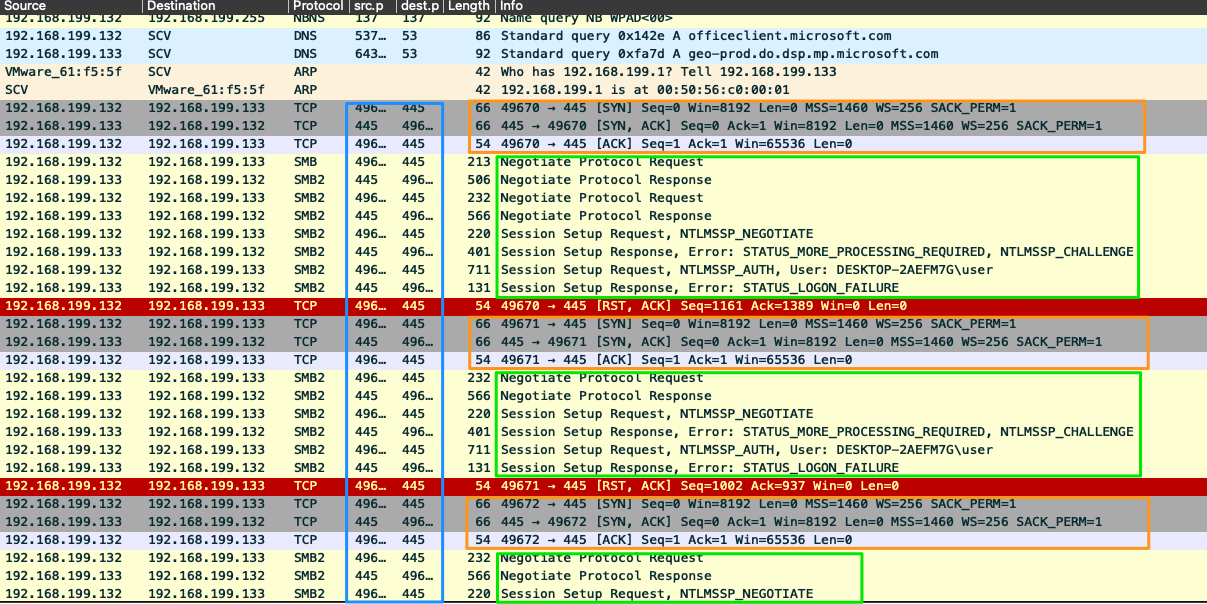
Looking at the image above, we can see that it performs the TCP handshake each time it establishes a session orange boxes. When looking at the source and destination ports blue box, port 445 is being utilized, signaling SMB traffic over TCP. If we look at the green boxes, the info field tells us a bit about what is happening in the SMB communication. In this example, there are many errors, which is an example of something to dig deeper into. One or two auth failures from a user is relatively common, but a large cluster of them repeating can signal a potential unauthorized individual trying to access a user's account or use their credentials to move. This is a common tactic of attackers, grab an authenticated user, steal their credentials, utilize them to move laterally, or access resources they typically would be denied access to.
This is just one example of SMB use. Another common thing we will see is file-share access between servers and hosts. For the most part, this is regular communication. However, if we see a host access file shares on other hosts, this is not common. Please pay attention to who is requesting connections, where to, and what they are doing.
Network Traffic Analysis is a dynamic process that can change depending on the tools we have on hand, permissions given to us by the organization, and our network's visibility. Our goal is to provide a repeatable process we can begin to utilize when performing traffic analysis.
Traffic Analysis is a detailed examination of an event or process, determining its origin and impact, which can be used to trigger specific precautions and/or actions to support or prevent future occurrences. With network traffic, this means breaking down the data into understandable chunks, examining it for anything that deviates from regular network traffic, for potentially malicious traffic such as unauthorized remote communications from the internet over RDP, SSH, or Telnet, or unique instances preceding network issues. While performing our analysis, we are also looking to see what the trends look like within the traffic and determine if it matches a baseline of typical operational traffic.
Traffic analysis is a highly versatile and essential tool to have in our defensive toolbox. Without the ability to monitor traffic, we are working with a massive piece of the puzzle missing. Analytics on network usage, top-talking hosts and servers, and internal communications are all crucial pieces that provide us, the administrators and defenders, a way to see and correct issues before or soon after they happen. Visibility is probably the most beneficial thing it provides. With this visibility, we can capture traffic over different periods to set a baseline for our environment. This baseline makes it easier to see when a change has occurred. In more advanced implementations for NTA that include other tools like IDS/IPS, firewalls, host and network logs, and additional information being fed into Tools like Splunk or ELK Stack, having the ability to monitor traffic is invaluable. The tools help us quickly alert on malicious actions happening. Many defensive tools have signatures built for most of the common attacks and toolkits.
Having proper defensive capabilities is vital for everyone, but what about daily operations? How can NTA help us? Watching network traffic live can make it easy to troubleshoot a connection issue or determine if our infrastructure and the corresponding protocols are functioning correctly. If we can see where the traffic is going, we can determine if there is an issue.
Lastly, this is a dynamic skill, and using automated tools to aid us is perfectly fine. Just do not rely on them solely. Utilize the skills you have and perform manual checks as well. This will help us by putting eyes on our network. We will have checks and balances between ourselves and the tools since the tools can be beaten. Malicious actors are finding ways to bypass security measures all the time. The human eye is still our best resource for finding the bad.
Traffic capturing and analysis can be performed in two different ways, active or passive. Each has its dependencies. With passive, we are just copying data that we can see without directly interacting with the packets. For active traffic capture and analysis, the needs are a bit different. Active capture requires us to take a more hands-on approach. This process can also be referred to as in-line traffic captures. With both, how we analyze the data is up to us. We can perform the capture and analysis once done, or we can perform analysis in real-time while the traffic is live. The table below lays out the dependencies for each.
Traffic Capture Dependencies
| Dependencies | Passive | Active | Description |
|---|---|---|---|
Permission |
☑ |
☑ |
Depending on the organization we are working in, capturing data can be against policy or even against the law in some sensitive areas like healthcare or banking. Be sure always to obtain permission in writing from someone with the proper authority to grant it to you. We may style ourselves as hackers, but we want to stay in the light legally and ethically. |
Mirrored Port |
☑ |
☐ | A switch or router network interface configured to copy data from other sources to that specific interface, along with the capability to place your NIC into promiscuous mode. Having packets copied to our port allows us to inspect any traffic destined to the other links we could normally not have visibility over. Since VLANs and switch ports will not forward traffic outside of their broadcast domain, we have to be connected to the segment or have that traffic copied to our specific port. When dealing with wireless, passive can be a bit more complicated. We must be connected to the SSID we wish to capture traffic off of. Just passively listening to the airwaves around us will present us with many SSID broadcast advertisements, but not much else. |
Capture Tool |
☑ |
☑ |
A way to ingest the traffic. A computer with access to tools like TCPDump, Wireshark, Netminer, or others is sufficient. Keep in mind that when dealing with PCAP data, these files can get pretty large quickly. Each time we apply a filter to it in tools like Wireshark, it causes the application to parse that data again. This can be a resource-intensive process, so make sure the host has abundant resources. |
In-line Placement |
☐ | ☑ |
Placing a Tap in-line requires a topology change for the network you are working in. The source and destination hosts will not notice a difference in the traffic, but for the sake of routing and switching, it will be an invisible next hop the traffic passes through on its way to the destination. |
Network Tap or Host With Multiple NIC's |
☐ | ☑ |
A computer with two NIC's, or a device such as a Network Tap is required to allow the data we are inspecting to flow still. Think of it as adding another router in the middle of a link. To actively capture the traffic, we will be duplicating data directly from the sources. The best placement for a tap is in a layer three link between switched segments. It allows for the capture of any traffic routing outside of the local network. A switched port or VLAN segmentation does not filter our view here. |
Storage and Processing Power |
☑ |
☑ |
You will need plenty of storage space and processing power for traffic capture off a tap. Much more traffic is traversing a layer three link than just inside a switched LAN. Think of it like this; When we passively capture traffic inside a LAN, it's like pouring water into a cup from a water fountain. It's a steady stream but manageable. Actively grabbing traffic from a routed link is more like using a water hose to fill up a teacup. There is a lot more pressure behind the flow, and it can be a lot for the host to process and store. |
The last dependency is more of a recommendation than a requirement, but we feel it is necessary to mention it. Having an understanding of how day-to-day traffic flows is critical to being successful. It is possible to perform traffic analysis without one, but it will be much harder and time-consuming. The baseline will enable us to quickly filter out common traffic for that network while performing our analysis. Doing so can speed our process up and help spot the outliers or issues much sooner. Let us look at this scenario for a second:
You are a network administrator for a large corporation with several thousand employees on campus. It has been brought to your attention that a segment of your network is having connectivity issues. Several of those hosts are reporting extremely high latency, along with new files appearing on their desktops. To start getting a picture of what is happening, you attach a computer to that segment and start a capture. After a few minutes have passed, you stop the capture and start your analysis.
Now consider this. Without a baseline of our daily network traffic, how do we know what is typical for that network? We grabbed a ton of information during the capture timeframe, and we need to clear some of it away. This process can take a lot of time since we will have to examine every conversation to ensure it is ok, determine if the hosts we see belong on the network or are rogue assets, among much more. This process quickly became a daunting task, right?
With this scenario and access to a network baseline, we can quickly strip away known-good communications. Utilizing data analysis tools such as the top talkers' module in Wireshark can help identify hosts that may be sending a large amount of data. We can check this against the host's normal baseline to determine if it is out of character. Another way could be to look at connections between internal hosts or common and uncommon ports. Since we could clear our view, we can now see that several user hosts connect on ports 8080 and 445. The ports themselves are not weird, but the fact that it is two user PCs talking to each other over these ports is. Web traffic usually flows from a host to a hosted web server or an intranet web server hosting business applications. The same can be said for SMB traffic. It is very suspicious to see two hosts talking to each other over this port. With what we now know, we can quickly send up a trouble ticket looking for help handling a potential breach now.
When talking about network intrusions, the faster we can get visibility, the less potential damage to our network. Be sure to clearly understand how traffic flows in our networks and how protocols commonly act.
The previous section defined network traffic analysis, the dependencies for performing traffic analysis, and its importance. This section will break down a workflow for performing traffic analysis, and we will become familiar with the key components.
This is not an exact science. It can be a very dynamic process and is not a direct loop. It is greatly influenced by what we are looking for (network errors vs. malicious actions) and where you have visibility into your network. Analysis can be distilled down to a few basic tenants, however.
Descriptive analysis is an essential step in any data analysis. It serves to describe a data set based on individual characteristics. It helps to detect possible errors in data collection and/or outliers in the data set.
What is the issue?Define our scope and the goal. (what are we looking for? which time period?)Define our target(s) (net / host(s) / protocol)Using our workflow, we will determine our issue, what we are looking for, when, and where to find it. Descriptive analysis covers these critical concepts for our analysis.
Diagnostic analysis clarifies the causes, effects, and interactions of conditions. In doing so, it provides insights that are obtained through correlations and interpretation. Characteristic here is a backward-looking view, as in the closely related descriptive analytics, with the subtle difference that it tries to find reasons for events and developments.
Capture network trafficIdentification of required network traffic components (filtering)An understanding of captured network trafficftp-data to find any files transferred and reconstruct them. For HTTP, we can filter on http.request.method == "GET" to see any GET requests that match the filenames we are searching for. This can show us who has acquired the files and potentially other transfers internal to the network on the same protocols.By capturing traffic around the source of our issue, clearing out any known good data, and then taking the time to inspect and understand what is left, we can determine if it is the cause of our problem. In doing so, we just performed diagnostic analysis. We are validating the cause of our problems and examining the events surrounding them.
By evaluating historical and current data, predictive analysis creates a predictive model for future probabilities. Based on the results of descriptive and diagnostic analyses, this method of data analysis makes it possible to identify trends, detect deviations from expected values at an early stage, and predict future occurrences as accurately as possible.
Note-taking and mind mapping of the found resultsSummary of the analysis (what did we find?)By performing an evaluation of the data we have found, comparing it to our baseline traffic, and known bad data such as markers of infiltration or exploitation (like signatures for viruses and other hacking tools), we are performing Predictive Analysis. In this process, we paint a clear picture so that appropriate actions can be taken in response.
Prescriptive analysis aims to narrow down what actions to take to eliminate or prevent a future problem or trigger a specific activity or process. Using the results of our workflow, we can make sound decisions as to what actions are required to solve the problem and prevent it from happening again. To prescribe a solution is the culmination of this workflow. Once done and the problem is solved, it is prudent to reflect on the entire process and develop lessons learned. These lessons, when documented, will enable us to make our processes stronger—document what was done correctly, what actions failed to help, and what could improve.
This workflow is an example of how to begin the analysis process on captured traffic. Above we broke it down into its parts to explain where they fit within the analysis process and with which type of analysis it belongs. We include it here again as a whole so that it can serve as a template.
What is the issue?Define our scope and the goal (what are we looking for? which time period?)Define our target(s) (net / host(s) / protocol)Capture network trafficIdentification of required network traffic components (filtering)An understanding of captured network trafficftp-data to find any files transferred and reconstruct them. For HTTP, we can filter on http.request.method == "GET" to see any GET requests that match the filenames we are searching for. This can show us who has acquired the files and potential other transfers internal to the network on the same protocols.Note-taking and mind mapping of the found results.Summary of the analysis (what did we find?)Often this process is not a once-and-done kind of thing. It is usually cyclic, and we will need to rerun steps based on our analysis of the original capture to build a bigger picture. This could have been a much larger attack than what is in the examples. Suppose a full-scale incident response is deemed necessary. In that case, we may have to reanalyze the PCAP previously captured to look at any conversations that involve the affected hosts within several minutes of the executable transfer to ensure it did not spread over another route, as an example.
1. Know your environment
There are several key components to perform traffic analysis effectively. First, know the environment. If we are unsure if a host belongs in the network, how can we determine if it is rogue or not? Keeping asset inventories and network maps is vital. These will aid in the analysis process.
2. Placement is Key
Next, the placement of our host for capturing traffic is a critical thing. Closest to the source of the issue is the ideal placement of our capturing tool. If the traffic in question is coming from the internet, listening to the inbound links is a great way to see the complete picture. It is as close to the source as we, the administrators, can get. If the problem seems to be isolated to one host on our internal network, try placing the capture tools in the same segment as the problem host and see what traffic is happening within the segment.
3. Persistence
Persistence is the next critical component for us. The issue will not always be easy to spot. It may not even be a frequent event on the network. For example, an attacker's Command and Control server reaching out to the victim's computers may only happen on a time interval of once every several hours, or even once a day or less. This means that if we did not catch it the first time around, it might be a while before it appears in our logs. Don't lose the drive to find the problem. It could mean the difference between stopping the attacker and a full-scale breach like a ransomware attack.
We have spent some time discussing the analysis process and how to start a basic workflow when performing our tasks. Let's take a second to discuss some easy wins when looking at traffic and finding problems.
Start with standard protocols first and work our way into the austere and specific only to the organization. Most attacks will come from the internet, so it has to access the internal net somehow. This means there will be traffic generated and logs written about it. HTTP/S, FTP, E-mail, and basic TCP and UDP traffic will be the most common things seen coming from the world. Start at these and clear out anything that is not necessary to the investigation. After these, check standard protocols that allow for communications between networks, such as SSH, RDP, or Telnet. When looking for these types of anomalies, be mindful of the security policy of the network. Does our organization's security plan and implementations allow for RDP sessions that are initiated outside the enterprise? What about the use of Telnet?
Look for patterns. Is a specific host or set of hosts checking in with something on the internet at the same time daily? This is a typical Command and Control profile setup that can easily be spotted by looking for patterns in our traffic data.
Check anything host to host within our network. In a standard setup, the user's hosts will rarely talk to each other. So be suspicious of any traffic that appears like this. Typically hosts will talk to infrastructure for IP address leases, DNS requests, enterprise services and to find its route out. We will also see hosts talking with local webservers, file shares, and other critical infrastructure for the environment to function like Domain controllers and authentication apps.
Look for unique events. Things like a host who usually visits a specific site ten times a day changing its pattern and only doing so once is curious. Seeing a different User-Agent string not matching our applications or hosts talking to a server out on the internet is also something to be concerned with. A random port only being bound once or twice on a host is also of note. This could be an opening for things like C2 callbacks, someone opening a port to do something non-standard, or an application showing abnormal behavior. In large environments, patterns are expected, so anything sticking out warrants a look.
Don't be afraid to ask for help. This may seem overstated and obvious, but after a bit of time staring at packet captures, things can blend together, and we may not see the whole picture. Having a second set of eyes on the data can be a huge help in spotting stuff that may get glossed over.
In summary, the analysis process is a very dynamic task, and our days will never be the same. Keep learning, understand what is going on around us, and as your skills grow, so will the ability to detect threats. This process does not solely rely on the use of tools such as tcpdump and Wireshark. There are many helpful tools like Snort, Security Onion, Firewalls, and SIEMs that can help enrich our understanding of the environment and provide better protection. Do not be afraid to utilize these in investigations.
Tcpdump is a command-line packet sniffer that can directly capture and interpret data frames from a file or network interface. It was built for use on any Unix-like operating system and had a Windows twin called WinDump. It is a potent and straightforward tool used on most Unix-based systems. It does not require a GUI and can be used through any terminal or remote connection, such as SSH. Nevertheless, this tool can seem overwhelming at first due to the many different functions and filters it offers us. However, once we learn the essential functions, we will find it much easier to use this tool efficiently. To capture network traffic from "off the wire," it uses the libraries pcap and libpcap, paired with an interface in promiscuous mode to listen for data. This allows the program to see and capture packets sourcing from or destined for any device in the local area network, not just the packets destined for us.
TCPDump is available for most Unix systems and Unix derivatives, such as AIX, BSD, Linux, Solaris, and is supplied by many manufacturers already in the system. Due to the direct access to the hardware, we need the root or the administrator's privileges to run this tool. For us that means we will have to utilize sudo to execute TCPDump as seen in the examples below. TCPDump often comes preinstalled on the majority of Linux operating systems.
It should be noted that Windows had a port of TCPDump called Windump. Support for windump has ceased. As an alternative running a Linux distribution such as Parrot or Ubuntu in Windows Subsystem for Linux can be an easy way to have a Linux virtual host right on our computer, allowing for the use of TCPDump and many other Linux built tools.
Locate Tcpdump
To validate if the package exists on our host, use the following command:
Tcpdump Fundamentals
root@htb[/htb]$ which tcpdump
Often it can be found in /usr/sbin/tcpdump. However, if the package does not exist, we can install it with:
Install Tcpdump
Tcpdump Fundamentals
root@htb[/htb]$ sudo apt install tcpdump
We can run the tcpdump package with the --version switch to check our install and current package version to validate our install.
Tcpdump Version Validation
Tcpdump Fundamentals
root@htb[/htb]$ sudo tcpdump --version

tcpdump version 4.9.3
libpcap version 1.9.1 (with TPACKET_V3)
OpenSSL 1.1.1f  31 Mar 2020
Because of the many different functions and filters, we should first familiarize ourselves with the tool's essential features. Let us discuss some basic TCPDump options, demo some commands, and show how to save traffic to PCAP files and read from these.
Basic Capture Options
Below is a table of basic Tcpdump switches we can use to modify how our captures run. These switches can be chained together to craft how the tool output is shown to us in STDOUT and what is saved to the capture file. This is not an exhaustive list, and there are many more we can use, but these are the most common and valuable.
| Switch Command | Result |
|---|---|
| D | Will display any interfaces available to capture from. |
| i | Selects an interface to capture from. ex. -i eth0 |
| n | Do not resolve hostnames. |
| nn | Do not resolve hostnames or well-known ports. |
| e | Will grab the ethernet header along with upper-layer data. |
| X | Show Contents of packets in hex and ASCII. |
| XX | Same as X, but will also specify ethernet headers. (like using Xe) |
| v, vv, vvv | Increase the verbosity of output shown and saved. |
| c | Grab a specific number of packets, then quit the program. |
| s | Defines how much of a packet to grab. |
| S | change relative sequence numbers in the capture display to absolute sequence numbers. (13248765839 instead of 101) |
| q | Print less protocol information. |
| r file.pcap | Read from a file. |
| w file.pcap | Write into a file |
Man Page Utilization
To see the complete list of switches, we can utilize the man pages:
Tcpdump Man Page
Tcpdump Fundamentals
root@htb[/htb]$ man tcpdump
Here are some examples of basic Tcpdump switch usage along with descriptions of what is happening:
Listing Available Interfaces
Tcpdump Fundamentals
root@htb[/htb]$ sudo tcpdump -D

1.eth0 [Up, Running, Connected]
2.any (Pseudo-device that captures on all interfaces) [Up, Running]
3.lo [Up, Running, Loopback]
4.bluetooth0 (Bluetooth adapter number 0) [Wireless, Association status unknown]
5.bluetooth-monitor (Bluetooth Linux Monitor) [Wireless]
6.nflog (Linux netfilter log (NFLOG) interface) [none]
7.nfqueue (Linux netfilter queue (NFQUEUE) interface) [none]
8.dbus-system (D-Bus system bus) [none]
9.dbus-session (D-Bus session bus) [none]
The above command calls tcpdump using sudo privileges and lists the usable network interfaces. We can choose one of these network interfaces and tell tcpdump which interfaces it should listen to.
Choosing an Interface to Capture From
Tcpdump Fundamentals
root@htb[/htb]$ sudo tcpdump -i eth0

tcpdump: verbose output suppressed, use -v[v]... for full protocol decode
listening on eth0, link-type EN10MB (Ethernet), snapshot length 262144 bytes
10:58:33.719241 IP 172.16.146.2.55260 > 172.67.1.1.https: Flags [P.], seq 1953742992:1953743073, ack 2034210498, win 501, length 81
10:58:33.747853 IP 172.67.1.1.https > 172.16.146.2.55260: Flags [.], ack 81, win 158, length 0
10:58:33.750393 IP 172.16.146.2.52195 > 172.16.146.1.domain: 7579+ PTR? 1.1.67.172.in-addr.arpa. (41)
In this terminal, we are calling tcpdump and selecting the interface eth0 to capture traffic. Once we issue the command, tcpdump will begin to sniff traffic and see the first few packets across the interface. By issuing the -nn switches as seen below, we tell TCPDump to refrain from resolving IP addresses and port numbers to their hostnames and common port names. In this representation, the last octet is the port from/to which the connection goes.
Disable Name Resolution
Tcpdump Fundamentals
root@htb[/htb]$ sudo tcpdump -i eth0 -nn

tcpdump: verbose output suppressed, use -v[v]... for full protocol decode
listening on eth0, link-type EN10MB (Ethernet), snapshot length 262144 bytes
11:02:35.580449 IP 172.16.146.2.48402 > 52.31.199.148.443: Flags [P.], seq 988167196:988167233, ack 1512376150, win 501, options [nop,nop,TS val 214282239 ecr 77421665], length 37
11:02:35.588695 IP 172.16.146.2.55272 > 172.67.1.1.443: Flags [P.], seq 940648841:940648916, ack 4248406693, win 501, length 75
11:02:35.654368 IP 172.67.1.1.443 > 172.16.146.2.55272: Flags [.], ack 75, win 70, length 0
11:02:35.728889 IP 52.31.199.148.443 > 172.16.146.2.48402: Flags [P.], seq 1:34, ack 37, win 118, options [nop,nop,TS val 77434740 ecr 214282239], length 33
11:02:35.728988 IP 172.16.146.2.48402 > 52.31.199.148.443: Flags [.], ack 34, win 501, options [nop,nop,TS val 214282388 ecr 77434740], length 0
11:02:35.729073 IP 52.31.199.148.443 > 172.16.146.2.48402: Flags [P.], seq 34:65, ack 37, win 118, options [nop,nop,TS val 77434740 ecr 214282239], length 31
11:02:35.729081 IP 172.16.146.2.48402 > 52.31.199.148.443: Flags [.], ack 65, win 501, options [nop,nop,TS val 214282388 ecr 77434740], length 0
11:02:35.729348 IP 52.31.199.148.443 > 172.16.146.2.48402: Flags [F.], seq 65, ack 37, win 118, options [nop,nop,TS val 77434740 ecr 214282239], length 0
When utilizing the -e switch, we are tasking tcpdump to include the ethernet headers in the capture's output along with its regular content. We can see this worked by examining the output. Usually, the first and second fields consist of the Timestamp and then the IP header's beginning. Now it consists of Timestamp and the source MAC Address of the host.
Display the Ethernet Header
Tcpdump Fundamentals
root@htb[/htb]$ sudo tcpdump -i eth0 -e

tcpdump: verbose output suppressed, use -v[v]... for full protocol decode
listening on eth0, link-type EN10MB (Ethernet), snapshot length 262144 bytes
11:05:45.982115 00:0c:29:97:52:65 (oui Unknown) > 8a:66:5a:11:8d:64 (oui Unknown), ethertype IPv4 (0x0800), length 103: 172.16.146.2.57142 > ec2-99-80-22-207.eu-west-1.compute.amazonaws.com.https: Flags [P.], seq 922951468:922951505, ack 1842875143, win 501, options [nop,nop,TS val 1368272062 ecr 65637925], length 37
11:05:45.989652 00:0c:29:97:52:65 (oui Unknown) > 8a:66:5a:11:8d:64 (oui Unknown), ethertype IPv4 (0x0800), length 129: 172.16.146.2.55272 > 172.67.1.1.https: Flags [P.], seq 940656124:940656199, ack 4248413119, win 501, length 75
11:05:46.047731 00:0c:29:97:52:65 (oui Unknown) > 8a:66:5a:11:8d:64 (oui Unknown), ethertype IPv4 (0x0800), length 85: 172.16.146.2.54006 > 172.16.146.1.domain: 31772+ PTR? 207.22.80.99.in-addr.arpa. (43)
11:05:46.049134 8a:66:5a:11:8d:64 (oui Unknown) > 00:0c:29:97:52:65 (oui Unknown), ethertype IPv4 (0x0800), length 147: 172.16.146.1.domain > 172.16.146.2.54006: 31772 1/0/0 PTR ec2-99-80-22-207.eu-west-1.compute.amazonaws.com. (105)
By issuing the -X switch, we can see the packet a bit clearer now. We get an ASCII output on the right to interpret anything in clear text that corresponds to the hexadecimal output on the left.
Include ASCII and Hex Output
Tcpdump Fundamentals
root@htb[/htb]$ sudo tcpdump -i eth0 -X

tcpdump: verbose output suppressed, use -v[v]... for full protocol decode
listening on eth0, link-type EN10MB (Ethernet), snapshot length 262144 bytes
11:10:34.972248 IP 172.16.146.2.57170 > ec2-99-80-22-207.eu-west-1.compute.amazonaws.com.https: Flags [P.], seq 2612172989:2612173026, ack 3165195759, win 501, options [nop,nop,TS val 1368561052 ecr 65712142], length 37
    0x0000:  4500 0059 4352 4000 4006 3f1b ac10 9202  E..YCR@.@.?.....
    0x0010:  6350 16cf df52 01bb 9bb2 98bd bca9 0def  cP...R..........
    0x0020:  8018 01f5 b87d 0000 0101 080a 5192 959c  .....}......Q...
    0x0030:  03ea b00e 1703 0300 2000 0000 0000 0000  ................
    0x0040:  0adb 84ac 34b4 910a 0fb4 2f49 9865 eb45  ....4...../I.e.E
    0x0050:  883c eafd 8266 3e23 88                   .<...f>#.
11:10:34.984582 IP 172.16.146.2.38732 > 172.16.146.1.domain: 22938+ A? app.hackthebox.eu. (35)
    0x0000:  4500 003f 2e6b 4000 4011 901e ac10 9202  E..?.k@.@.......
    0x0010:  ac10 9201 974c 0035 002b 7c61 599a 0100  .....L.5.+|aY...
    0x0020:  0001 0000 0000 0000 0361 7070 0a68 6163  .........app.hac
    0x0030:  6b74 6865 626f 7802 6575 0000 0100 01    kthebox.eu.....
11:10:35.055497 IP 172.16.146.2.43116 > 172.16.146.1.domain: 6524+ PTR? 207.22.80.99.in-addr.arpa. (43)
    0x0000:  4500 0047 2e72 4000 4011 900f ac10 9202  E..G.r@.@.......
    0x0010:  ac10 9201 a86c 0035 0033 7c69 197c 0100  .....l.5.3|i.|..
    0x0020:  0001 0000 0000 0000 0332 3037 0232 3202  .........207.22.
    0x0030:  3830 0239 3907 696e 2d61 6464 7204 6172  80.99.in-addr.ar
    0x0040:  7061 0000 0c00 01                        pa.....
Pay attention to the level of detail in the output above. We will notice that we have information on the IP header options like time to live, offset, and other flags and more details into the upper layer protocols. Below, we are combining the switches to craft the output to our liking.
Tcpdump Switch Combinations
Tcpdump Fundamentals
root@htb[/htb]$ sudo tcpdump -i eth0 -nnvXX

tcpdump: listening on eth0, link-type EN10MB (Ethernet), snapshot length 262144 bytes
11:13:59.149599 IP (tos 0x0, ttl 64, id 24075, offset 0, flags [DF], proto TCP (6), length 89)
    172.16.146.2.42454 > 54.77.251.34.443: Flags [P.], cksum 0x6fce (incorrect -> 0xb042), seq 671020720:671020757, ack 3699222968, win 501, options [nop,nop,TS val 1154433101 ecr 1116647414], length 37
    0x0000:  8a66 5a11 8d64 000c 2997 5265 0800 4500  .fZ..d..).Re..E.
    0x0010:  0059 5e0b 4000 4006 6d11 ac10 9202 364d  .Y^.@.@.m.....6M
    0x0020:  fb22 a5d6 01bb 27fe f6b0 dc7d a9b8 8018  ."....'....}....
    0x0030:  01f5 6fce 0000 0101 080a 44cf 404d 428e  ..o.......D.@MB.
    0x0040:  aff6 1703 0300 2000 0000 0000 0000 09bb  ................
    0x0050:  38d9 d89a 2d70 73d5 a01e 9df7 2c48 5b8a  8...-ps.....,H[.
    0x0060:  d64d 8e42 2ccc 43                        .M.B,.C
11:13:59.157113 IP (tos 0x0, ttl 64, id 31823, offset 0, flags [DF], proto UDP (17), length 63)
    172.16.146.2.55351 > 172.16.146.1.53: 26460+ A? app.hackthebox.eu. (35)
    0x0000:  8a66 5a11 8d64 000c 2997 5265 0800 4500  .fZ..d..).Re..E.
    0x0010:  003f 7c4f 4000 4011 423a ac10 9202 ac10  .?|O@.@.B:......
    0x0020:  9201 d837 0035 002b 7c61 675c 0100 0001  ...7.5.+|ag\....
    0x0030:  0000 0000 0000 0361 7070 0a68 6163 6b74  .......app.hackt
    0x0040:  6865 626f 7802 6575 0000 0100 01         hebox.eu.....
11:13:59.158029 IP (tos 0x0, ttl 64, id 20784, offset 0, flags [none], proto UDP (17), length 111)
    172.16.146.1.53 > 172.16.146.2.55351: 26460 3/0/0 app.hackthebox.eu. A 104.20.55.68, app.hackthebox.eu. A 172.67.1.1, app.hackthebox.eu. A 104.20.66.68 (83)
    0x0000:  000c 2997 5265 8a66 5a11 8d64 0800 4500  ..).Re.fZ..d..E.
    0x0010:  006f 5130 0000 4011 ad29 ac10 9201 ac10  .oQ0..@..)......
    0x0020:  9202 0035 d837 005b 9d2e 675c 8180 0001  ...5.7.[..g\....
    0x0030:  0003 0000 0000 0361 7070 0a68 6163 6b74  .......app.hackt
    0x0040:  6865 626f 7802 6575 0000 0100 01c0 0c00  hebox.eu........
    0x0050:  0100 0100 0000 ab00 0468 1437 44c0 0c00  .........h.7D...
    0x0060:  0100 0100 0000 ab00 04ac 4301 01c0 0c00  ..........C.....
    0x0070:  0100 0100 0000 ab00 0468 1442 44         .........h.BD
11:13:59.158335 IP (tos 0x0, ttl 64, id 20242, offset 0, flags [DF], proto TCP (6), length 60)
    172.16.146.2.55416 > 172.67.1.1.443: Flags [S], cksum 0xeb85 (incorrect -> 0x72f7), seq 3766489491, win 64240, options [mss 1460,sackOK,TS val 508232750 ecr 0,nop,wscale 7], length 0
    0x0000:  8a66 5a11 8d64 000c 2997 5265 0800 4500  .fZ..d..).Re..E.
    0x0010:  003c 4f12 4000 4006 0053 ac10 9202 ac43  .<O.@.@..S.....C
    0x0020:  0101 d878 01bb e080 1193 0000 0000 a002  ...x............
    0x0030:  faf0 eb85 0000 0204 05b4 0402 080a 1e4b  ...............K
    0x0040:  042e 0000 0000 0103 0307                 ..........
When utilizing the switches, chaining them together as in the example above is best practice.
When looking at the output from TCPDump, it can be a bit overwhelming. Running through these basic switches has already shown us several different views. We are going to take a minute to dissect that output and explain what we are seeing. The image and table below will define each field. Keep in mind that the more verbose we are with our filters, the more detail from each header is shown.
Tcpdump Shell Breakdown

| Filter | Result |
|---|---|
| Timestamp | Yellow The timestamp field comes first and is configurable to show the time and date in a format we can ingest easily. |
| Protocol | Orange This section will tell us what the upper-layer header is. In our example, it shows IP. |
| Source & Destination IP.Port | Orange This will show us the source and destination of the packet along with the port number used to connect. Format == IP.port == 172.16.146.2.21 |
| Flags | Green This portion shows any flags utilized. |
| Sequence and Acknowledgement Numbers | Red This section shows the sequence and acknowledgment numbers used to track the TCP segment. Our example is utilizing low numbers to assume that relative sequence and ack numbers are being displayed. |
| Protocol Options | Blue Here, we will see any negotiated TCP values established between the client and server, such as window size, selective acknowledgments, window scale factors, and more. |
| Notes / Next Header | White Misc notes the dissector found will be present here. As the traffic we are looking at is encapsulated, we may see more header information for different protocols. In our example, we can see the TCPDump dissector recognizes FTP traffic within the encapsulation to display it for us. |
There are many other options and information that can be shown. This information varies based on the amount of verbosity that is enabled. For a more detailed understanding of IP and other protocol headers, check out the Networking Primer in section two or the Networking fundamentals path.
There is a great advantage in knowing how a network functions and how to use the filters that TCPDump provides. With them, we can view the network traffic, parse it for any issues, and identify suspicious network interactions quickly. Theoretically, we can use tcpdump to create an IDS/IPS system by having a Bash script analyze the intercepted packets according to a specific pattern. We can then set conditions to, for example, ban a particular IP address that has sent too many ICMP echo requests for a certain period.
Using -w will write our capture to a file. Keep in mind that as we capture traffic off the wire, we can quickly use up open disk space and run into storage issues if we are not careful. The larger our network segment, the quicker we will use up storage. Utilizing the switches demonstrated above can help tune the amount of data stored in our PCAPs.
Save our PCAP Output to a File
Tcpdump Fundamentals
root@htb[/htb]$ sudo tcpdump -i eth0 -w ~/output.pcap

tcpdump: listening on eth0, link-type EN10MB (Ethernet), snapshot length 262144 bytes
10 packets captured
131 packets received by filter
0 packets dropped by kernel
This capture above will generate the output to a file called output.pcap. When running tcpdump in this way, the output will not scroll our terminal as usual. All output from tcpdump is being redirected to the file we specified for the capture.
Reading Output From a File
Tcpdump Fundamentals
root@htb[/htb]$ sudo tcpdump -r ~/output.pcap

reading from file /home/trey/output.pcap, link-type EN10MB (Ethernet), snapshot length 262144
11:15:40.321509 IP 172.16.146.2.57236 > ec2-99-80-22-207.eu-west-1.compute.amazonaws.com.https: Flags [P.], seq 2751910362:2751910399, ack 946558143, win 501, options [nop,nop,TS val 1368866401 ecr 65790024], length 37
11:15:40.337302 IP 172.16.146.2.55416 > 172.67.1.1.https: Flags [P.], seq 3766493458:3766493533, ack 4098207917, win 501, length 75
11:15:40.398103 IP 172.67.1.1.https > 172.16.146.2.55416: Flags [.], ack 75, win 73, length 0
11:15:40.457416 IP ec2-99-80-22-207.eu-west-1.compute.amazonaws.com.https > 172.16.146.2.57236: Flags [.], ack 37, win 118, options [nop,nop,TS val 65799068 ecr 1368866401], length 0
11:15:40.458582 IP ec2-99-80-22-207.eu-west-1.compute.amazonaws.com.https > 172.16.146.2.57236: Flags [P.], seq 34:65, ack 37, win 118, options [nop,nop,TS val 65799068 ecr 1368866401], length 31
11:15:40.458599 IP 172.16.146.2.57236 > ec2-99-80-22-207.eu-west-1.compute.amazonaws.com.https: Flags [.], ack 1, win 501, options [nop,nop,TS val 1368866538 ecr 65799068,nop,nop,sack 1 {34:65}], length 0
11:15:40.458643 IP ec2-99-80-22-207.eu-west-1.compute.amazonaws.com.https > 172.16.146.2.57236: Flags [P.], seq 1:34, ack 37, win 118, options [nop,nop,TS val 65799068 ecr 1368866401], length 33
11:15:40.458655 IP 172.16.146.2.57236 > ec2-99-80-22-207.eu-west-1.compute.amazonaws.com.https: Flags [.], ack 65, win 501, options [nop,nop,TS val 1368866538 ecr 65799068], length 0
11:15:40.458915 IP 172.16.146.2.57236 > ec2-99-80-22-207.eu-west-1.compute.amazonaws.com.https: Flags [P.], seq 37:68, ack 65, win 501, options [nop,nop,TS val 1368866539 ecr 65799068], length 31
11:15:40.458964 IP 172.16.146.2.57236 > ec2-99-80-22-207.eu-west-1.compute.amazonaws.com.https: Flags [F.], seq 68, ack 65, win 501, options [nop,nop,TS val 1368866539 ecr 65799068], length 0
This will read the capture stored in output.pcap. Notice it is back to a basic view. To get more detailed information out of the capture file, reapply our switches.
Tcpdump provides a robust and efficient way to parse the data included in our captures via packet filters. This section will examine those filters and get a glimpse at how it modifies the output from our capture.
Utilizing more advanced filtering options like those listed below will enable us to trim down what traffic is printed to output or sent to file. By reducing the amount of info we capture and write to disk, we can help reduce the space needed to write the file and help the buffer process data quicker. Filters can be handy when paired with standard tcpdump syntax options. We can capture as widely as we wish, or be super specific only to capture packets from a particular host, or even with a particular bit in the TCP header set to on. It is highly recommended to explore the more advanced filters and find different combinations.
These filters and advanced operators are by no means an exhaustive list. They were chosen because they are the most frequently used and will get us up and running quickly. When implemented, these filters will inspect any packets captured and look for the given values in the protocol header to match.
Helpful TCPDump Filters
| Filter | Result |
|---|---|
| host | host will filter visible traffic to show anything involving the designated host. Bi-directional |
| src / dest | src and dest are modifiers. We can use them to designate a source or destination host or port. |
| net | net will show us any traffic sourcing from or destined to the network designated. It uses / notation. |
| proto | will filter for a specific protocol type. (ether, TCP, UDP, and ICMP as examples) |
| port | port is bi-directional. It will show any traffic with the specified port as the source or destination. |
| portrange | portrange allows us to specify a range of ports. (0-1024) |
| less / greater "< >" | less and greater can be used to look for a packet or protocol option of a specific size. |
| and / && | and && can be used to concatenate two different filters together. for example, src host AND port. |
| or | or allows for a match on either of two conditions. It does not have to meet both. It can be tricky. |
| not | not is a modifier saying anything but x. For example, not UDP. |
With these filters, we can filter the network traffic on most properties to facilitate the analysis. Let us look at some examples of these filters and how they look when we use them. When using the host filter, whatever IP we input will be checked for in the source or destination IP field. This can be seen in the output below.
Host Filter
Tcpdump Packet Filtering
root@htb[/htb]$ ### Syntax: host [IP]
root@htb[/htb]$ sudo tcpdump -i eth0 host 172.16.146.2

tcpdump: verbose output suppressed, use -v[v]... for full protocol decode
listening on eth0, link-type EN10MB (Ethernet), snapshot length 262144 bytes
14:50:53.072536 IP 172.16.146.2.48738 > ec2-52-31-199-148.eu-west-1.compute.amazonaws.com.https: Flags [P.], seq 3400465007:3400465044, ack 254421756, win 501, options [nop,nop,TS val 220968655 ecr 80852594], length 37
14:50:53.108740 IP 172.16.146.2.55606 > 172.67.1.1.https: Flags [P.], seq 4227143181:4227143273, ack 1980233980, win 21975, length 92
14:50:53.173084 IP 172.67.1.1.https > 172.16.146.2.55606: Flags [.], ack 92, win 69, length 0
14:50:53.175017 IP 172.16.146.2.35744 > 172.16.146.1.domain: 55991+ PTR? 148.199.31.52.in-addr.arpa. (44)
14:50:53.175714 IP 172.16.146.1.domain > 172.16.146.2.35744: 55991 1/0/0 PTR ec2-52-31-199-148.eu-west-1.compute.amazonaws.com. (107)
This filter is often used when we want to examine only a specific host or server. With this, we can identify with whom this host or server communicates and in which way. Based on our network configurations, we will understand if this connection is legitimate. If the communication seems strange, we can use other filters and options to view the content in more detail. Besides the individual hosts, we can also define the source host as well as the target host. We can also define entire networks and their ports.
Source/Destination Filter
Tcpdump Packet Filtering
root@htb[/htb]$ ### Syntax: src/dst [host|net|port] [IP|Network Range|Port]
root@htb[/htb]$ sudo tcpdump -i eth0 src host 172.16.146.2

tcpdump: verbose output suppressed, use -v[v]... for full protocol decode
listening on eth0, link-type EN10MB (Ethernet), snapshot length 262144 bytes
14:53:36.199628 IP 172.16.146.2.48766 > ec2-52-31-199-148.eu-west-1.compute.amazonaws.com.https: Flags [P.], seq 1428378231:1428378268, ack 3778572066, win 501, options [nop,nop,TS val 221131782 ecr 80889856], length 37
14:53:36.203166 IP 172.16.146.2.55606 > 172.67.1.1.https: Flags [P.], seq 4227144035:4227144103, ack 1980235221, win 21975, length 68
14:53:36.267059 IP 172.16.146.2.36424 > 172.16.146.1.domain: 40873+ PTR? 148.199.31.52.in-addr.arpa. (44)
14:53:36.267880 IP 172.16.146.2.51151 > 172.16.146.1.domain: 10032+ PTR? 2.146.16.172.in-addr.arpa. (43)
14:53:36.276425 IP 172.16.146.2.46588 > 172.16.146.1.domain: 28357+ PTR? 1.1.67.172.in-addr.arpa. (41)
14:53:36.337722 IP 172.16.146.2.48766 > ec2-52-31-199-148.eu-west-1.compute.amazonaws.com.https: Flags [.], ack 34, win 501, options [nop,nop,TS val 221131920 ecr 80899875], length 0
14:53:36.338841 IP 172.16.146.2.48766 > ec2-52-31-199-148.eu-west-1.compute.amazonaws.com.https: Flags [.], ack 65, win 501, options [nop,nop,TS val 221131921 ecr 80899875], length 0
14:53:36.339273 IP 172.16.146.2.48766 > ec2-52-31-199-148.eu-west-1.compute.amazonaws.com.https: Flags [P.], seq 37:68, ack 66, win 501, options [nop,nop,TS val 221131922 ecr 80899875], length 31
14:53:36.339334 IP 172.16.146.2.48766 > ec2-52-31-199-148.eu-west-1.compute.amazonaws.com.https: Flags [F.], seq 68, ack 66, win 501, options [nop,nop,TS val 221131922 ecr 80899875], length 0
14:53:36.370791 IP 172.16.146.2.32972 > 172.16.146.1.domain: 3856+ PTR? 1.146.16.172.in-addr.arpa. (43)
Source and destination allow us to work with the directions of communication. For example, in the last output, we have specified that our source host is 172.16.146.2, and only packets sent from this host will be intercepted. This can be done for ports, and network ranges as well. An example of this utilizing src port # would look something like this:
Utilizing Source With Port as a Filter
Tcpdump Packet Filtering
root@htb[/htb]$ sudo tcpdump -i eth0 tcp src port 80

06:17:08.222534 IP 65.208.228.223.http > dialin-145-254-160-237.pools.arcor-ip.net.3372: Flags [S.], seq 290218379, ack 951057940, win 5840, options [mss 1380,nop,nop,sackOK], length 0
06:17:08.783340 IP 65.208.228.223.http > dialin-145-254-160-237.pools.arcor-ip.net.3372: Flags [.], ack 480, win 6432, length 0
06:17:08.993643 IP 65.208.228.223.http > dialin-145-254-160-237.pools.arcor-ip.net.3372: Flags [.], seq 1:1381, ack 480, win 6432, length 1380: HTTP: HTTP/1.1 200 OK
06:17:09.123830 IP 65.208.228.223.http > dialin-145-254-160-237.pools.arcor-ip.net.3372: Flags [.], seq 1381:2761, ack 480, win 6432, length 1380: HTTP
06:17:09.754737 IP 65.208.228.223.http > dialin-145-254-160-237.pools.arcor-ip.net.3372: Flags [.], seq 2761:4141, ack 480, win 6432, length 1380: HTTP
06:17:09.864896 IP 65.208.228.223.http > dialin-145-254-160-237.pools.arcor-ip.net.3372: Flags [P.], seq 4141:5521, ack 480, win 6432, length 1380: HTTP
06:17:09.945011 IP 65.208.228.223.http > dialin-145-254-160-237.pools.arcor-ip.net.3372: Flags [.], seq 5521:6901, ack 480, win 6432, length 1380: HTTP
Notice now that we only see one side of the conversation? This is because we are filtering on the source port of 80 (HTTP). Used in this manner, net will grab anything matching the / notation for a network. In the example, we are looking for anything destined for the 172.16.146.0/24 network.
Using Destination in Combination with the Net Filter
Tcpdump Packet Filtering
root@htb[/htb]$ sudo tcpdump -i eth0 dest net 172.16.146.0/24

tcpdump: verbose output suppressed, use -v[v]... for full protocol decode
listening on eth0, link-type EN10MB (Ethernet), snapshot length 262144 bytes
16:33:14.376003 IP 64.233.177.103.443 > 172.16.146.2.36050: Flags [.], ack 1486880537, win 316, options [nop,nop,TS val 2311579424 ecr 263866084], length 0
16:33:14.442123 IP 64.233.177.103.443 > 172.16.146.2.36050: Flags [P.], seq 0:385, ack 1, win 316, options [nop,nop,TS val 2311579493 ecr 263866084], length 385
16:33:14.442188 IP 64.233.177.103.443 > 172.16.146.2.36050: Flags [P.], seq 385:1803, ack 1, win 316, options [nop,nop,TS val 2311579493 ecr 263866084], length 1418
16:33:14.442223 IP 64.233.177.103.443 > 172.16.146.2.36050: Flags [.], seq 1803:4639, ack 1, win 316, options [nop,nop,TS val 2311579494 ecr 263866084], length 2836
16:33:14.443161 IP 64.233.177.103.443 > 172.16.146.2.36050: Flags [P.], seq 4639:5817, ack 1, win 316, options [nop,nop,TS val 2311579495 ecr 263866084], length 1178
16:33:14.443199 IP 64.233.177.103.443 > 172.16.146.2.36050: Flags [.], seq 5817:8653, ack 1, win 316, options [nop,nop,TS val 2311579495 ecr 263866084], length 2836
16:33:14.444407 IP 64.233.177.103.443 > 172.16.146.2.36050: Flags [.], seq 8653:10071, ack 1, win 316, options [nop,nop,TS val 2311579497 ecr 263866084], length 1418
16:33:14.445479 IP 64.233.177.103.443 > 172.16.146.2.36050: Flags [.], seq 10071:11489, ack 1, win 316, options [nop,nop,TS val 2311579497 ecr 263866084], length 1418
16:33:14.445531 IP 64.233.177.103.443 > 172.16.146.2.36050: Flags [.], seq 11489:12907, ack 1, win 316, options [nop,nop,TS val 2311579498 ecr 263866084], length 1418
16:33:14.446955 IP 64.233.177.103.443 > 172.16.146.2.36050: Flags [.], seq 12907:14325, ack 1, win 316, options [nop,nop,TS val 2311579498 ecr 263866084], length 1418
This filter can utilize the common protocol name or protocol number for any IP, IPv6, or Ethernet protocol. Common examples would be tcp[6], udp[17], or icmp[1]. We can utilize both the common name top and the protocol number bottom in the outputs above. We can see it produced the same output. For the most part, these are interchangeable, but utilizing proto will become more useful when you are starting to dissect a specific part of the IP or other protocol headers. It will be more apparent later in this section when we talk about looking for TCP flags. We can take a look at this resource for a helpful list covering protocol numbers.
Protocol Filter
Tcpdump Packet Filtering
root@htb[/htb]$ ### Syntax: [tcp/udp/icmp]
root@htb[/htb]$ sudo tcpdump -i eth0 udp

06:17:09.864896 IP dialin-145-254-160-237.pools.arcor-ip.net.3009 > 145.253.2.203.domain: 35+ A? pagead2.googlesyndication.com. (47)
06:17:10.225414 IP 145.253.2.203.domain > dialin-145-254-160-237.pools.arcor-ip.net.3009: 35 4/0/0 CNAME pagead2.google.com., CNAME pagead.google.akadns.net., A 216.239.59.104, A 216.239.59.99 (146)
Protocol Number Filter
Tcpdump Packet Filtering
root@htb[/htb]$ ### Syntax: proto [protocol number]
root@htb[/htb]$ sudo tcpdump -i eth0 proto 17

06:17:09.864896 IP dialin-145-254-160-237.pools.arcor-ip.net.3009 > 145.253.2.203.domain: 35+ A? pagead2.googlesyndication.com. (47)
06:17:10.225414 IP 145.253.2.203.domain > dialin-145-254-160-237.pools.arcor-ip.net.3009: 35 4/0/0 CNAME pagead2.google.com., CNAME pagead.google.akadns.net., A 216.239.59.104, A 216.239.59.99 (146)
Using the port filter, we should keep in mind what we are looking for and how that protocol functions. Some standard protocols like HTTP or HTTPS only use ports 80 and 443 with the transport protocol of TCP. With that in mind, picture ports as a simple way to establish connections and protocols like TCP and UDP to determine if they use an established method. Ports by themselves can be used for anything, so filtering on port 80 will show all traffic over that port number. However, if we are looking to capture all HTTP traffic, utilizing tcp port 80 will ensure we only see HTTP traffic.
With protocols that use both TCP and UDP for different functions, such as DNS, we can filter looking at one or the other TCP/UDP port 53 or filter for port 53. By doing this, we will see any traffic-utilizing that port, regardless of the transport protocol.
Port Filter
Tcpdump Packet Filtering
root@htb[/htb]$ ### Syntax: port [port number]
root@htb[/htb]$ sudo tcpdump -i eth0 tcp port 443

06:17:07.311224 IP dialin-145-254-160-237.pools.arcor-ip.net.3372 > 65.208.228.223.http: Flags [S], seq 951057939, win 8760, options [mss 1460,nop,nop,sackOK], length 0
06:17:08.222534 IP 65.208.228.223.http > dialin-145-254-160-237.pools.arcor-ip.net.3372: Flags [S.], seq 290218379, ack 951057940, win 5840, options [mss 1380,nop,nop,sackOK], length 0
06:17:08.222534 IP dialin-145-254-160-237.pools.arcor-ip.net.3372 > 65.208.228.223.http: Flags [.], ack 1, win 9660, length 0
06:17:08.222534 IP dialin-145-254-160-237.pools.arcor-ip.net.3372 > 65.208.228.223.http: Flags [P.], seq 1:480, ack 1, win 9660, length 479: HTTP: GET /download.html HTTP/1.1
06:17:08.783340 IP 65.208.228.223.http > dialin-145-254-160-237.pools.arcor-ip.net.3372: Flags [.], ack 480, win 6432, length 0
06:17:08.993643 IP 65.208.228.223.http > dialin-145-254-160-237.pools.arcor-ip.net.3372: Flags [.], seq 1:1381, ack 480, win 6432, length 1380: HTTP: HTTP/1.1 200 OK
06:17:09.123830 IP dialin-145-254-160-237.pools.arcor-ip.net.3372 > 65.208.228.223.http: Flags [.], ack 1381, win 9660, length 0
06:17:09.123830 IP 65.208.228.223.http > dialin-145-254-160-237.pools.arcor-ip.net.3372: Flags [.], seq 1381:2761, ack 480, win 6432, length 1380: HTTP
06:17:09.324118 IP dialin-145-254-160-237.pools.arcor-ip.net.3372 > 65.208.228.223.http: Flags [.], ack 2761, win 9660, length 0
06:17:09.754737 IP 65.208.228.223.http > dialin-145-254-160-237.pools.arcor-ip.net.3372: Flags [.], seq 2761:4141, ack 480, win 6432, length 1380: HTTP
06:17:09.864896 IP 65.208.228.223.http > dialin-145-254-160-237.pools.arcor-ip.net.3372: Flags [P.], seq 4141:5521, ack 480, win 6432, length 1380: HTTP
06:17:09.864896 IP dialin-145-254-160-237.pools.arcor-ip.net.3372 > 65.208.228.223.http: Flags [.], ack 5521, win 9660, length 0
06:17:09.945011 IP 65.208.228.223.http > dialin-145-254-160-237.pools.arcor-ip.net.3372: Flags [.], seq 5521:6901, ack 480, win 6432, length 1380: HTTP
06:17:10.125270 IP dialin-145-254-160-237.pools.arcor-ip.net.3372 > 65.208.228.223.http: Flags [.], ack 6901, win 9660, length 0
06:17:10.205385 IP 65.208.228.223.http > dialin-145-254-160-237.pools.arcor-ip.net.3372: Flags [.], seq 6901:8281, ack 480, win 6432, length 1380: HTTP
06:17:10.295515 IP dialin-145-254-160-237.pools.arcor-ip.net.3371 > 216.239.59.99.http: Flags [P.], seq 918691368:918692089, ack 778785668, win 8760, length 721: HTTP: GET /pagead/ads?client=ca-pub-2309191948673629&random=1084443430285&lmt=1082467020&format=468x60_as&output=html&url=http%3A%2F%2Fwww.ethereal.com%2Fdownload.html&color_bg=FFFFFF&color_text=333333&color_link=000000&color_url=666633&color_border=666633 HTTP/1.1
Apart from the individual ports, we can also define specific ranges of these ports, which are then listened to by TCPdump. Listening on a range of ports can be especially useful when we see network traffic from ports that do not match the services running on our servers. For example, if we have a web server with TCP ports 80 and 443 running in a particular segment of our network and suddenly have outgoing network traffic from TCP port 10000 or others, it is very suspicious.
The portrange filter, as seen below, allows us to see everything from within the port range. In the example, we see some DNS traffic along with some HTTP web requests.
Port Range Filter
Tcpdump Packet Filtering
root@htb[/htb]$ ### Syntax: portrange [portrange 0-65535]
root@htb[/htb]$ sudo tcpdump -i eth0 portrange 0-1024

tcpdump: verbose output suppressed, use -v[v]... for full protocol decode
listening on eth0, link-type EN10MB (Ethernet), snapshot length 262144 bytes
13:10:35.092477 IP 172.16.146.1.domain > 172.16.146.2.32824: 47775 1/0/0 CNAME autopush.prod.mozaws.net. (81)
13:10:35.093217 IP 172.16.146.2.48078 > 172.16.146.1.domain: 30234+ A? ocsp.pki.goog. (31)
13:10:35.093334 IP 172.16.146.2.48078 > 172.16.146.1.domain: 32024+ AAAA? ocsp.pki.goog. (31)
13:10:35.136255 IP 172.16.146.1.domain > 172.16.146.2.48078: 32024 2/0/0 CNAME pki-goog.l.google.com., AAAA 2607:f8b0:4002:c09::5e (94)
13:10:35.137348 IP 172.16.146.1.domain > 172.16.146.2.48078: 30234 2/0/0 CNAME pki-goog.l.google.com., A 172.217.164.67 (82)
13:10:35.137989 IP 172.16.146.2.55074 > atl26s18-in-f3.1e100.net.http: Flags [S], seq 1146136517, win 64240, options [mss 1460,sackOK,TS val 1337520268 ecr 0,nop,wscale 7], length 0
13:10:35.174443 IP atl26s18-in-f3.1e100.net.http > 172.16.146.2.55074: Flags [S.], seq 345110814, ack 1146136518, win 65535, options [mss 1430,sackOK,TS val 1000152427 ecr 1337520268,nop,wscale 8], length 0
13:10:35.174481 IP 172.16.146.2.55074 > atl26s18-in-f3.1e100.net.http: Flags [.], ack 1, win 502, options [nop,nop,TS val 1337520304 ecr 1000152427], length 0
13:10:35.174716 IP 172.16.146.2.55074 > atl26s18-in-f3.1e100.net.http: Flags [P.], seq 1:379, ack 1, win 502, options [nop,nop,TS val 1337520305 ecr 1000152427], length 378: HTTP: POST /gts1o1core HTTP/1.1
13:10:35.208007 IP atl26s18-in-f3.1e100.net.http > 172.16.146.2.55074: Flags [.], ack 379, win 261, options [nop,nop,TS val 1000152462 ecr 1337520305], length 0
Next, we are looking for any packet less than 64 bytes. From the following output, we can see that for this capture, those packets mainly consisted of SYN, FIN, or KeepAlive packets. Less than and greater than can be a helpful modifier set. For example, let us say we are looking to capture traffic that includes a file transfer or set of files. We know these files will be larger than regular traffic. To demonstrate, we can utilize greater 500 (alternatively '>500'), which will only show us packets with a size larger than 500 bytes. This will strip out all the extra packets from the view we know we are not concerned with already.
Less/Greater Filter
Tcpdump Packet Filtering
root@htb[/htb]$ ### Syntax: less/greater [size in bytes]
root@htb[/htb]$ sudo tcpdump -i eth0 less 64

06:17:07.311224 IP dialin-145-254-160-237.pools.arcor-ip.net.3372 > 65.208.228.223.http: Flags [S], seq 951057939, win 8760, options [mss 1460,nop,nop,sackOK], length 0
06:17:08.222534 IP 65.208.228.223.http > dialin-145-254-160-237.pools.arcor-ip.net.3372: Flags [S.], seq 290218379, ack 951057940, win 5840, options [mss 1380,nop,nop,sackOK], length 0
06:17:08.222534 IP dialin-145-254-160-237.pools.arcor-ip.net.3372 > 65.208.228.223.http: Flags [.], ack 1, win 9660, length 0
06:17:08.783340 IP 65.208.228.223.http > dialin-145-254-160-237.pools.arcor-ip.net.3372: Flags [.], ack 480, win 6432, length 0
06:17:09.123830 IP dialin-145-254-160-237.pools.arcor-ip.net.3372 > 65.208.228.223.http: Flags [.], ack 1381, win 9660, length 0
06:17:09.324118 IP dialin-145-254-160-237.pools.arcor-ip.net.3372 > 65.208.228.223.http: Flags [.], ack 2761, win 9660, length 0
06:17:09.864896 IP dialin-145-254-160-237.pools.arcor-ip.net.3372 > 65.208.228.223.http: Flags [.], ack 5521, win 9660, length 0
06:17:10.125270 IP dialin-145-254-160-237.pools.arcor-ip.net.3372 > 65.208.228.223.http: Flags [.], ack 6901, win 9660, length 0
06:17:10.325558 IP dialin-145-254-160-237.pools.arcor-ip.net.3372 > 65.208.228.223.http: Flags [.], ack 8281, win 9660, length 0
06:17:10.806249 IP dialin-145-254-160-237.pools.arcor-ip.net.3372 > 65.208.228.223.http: Flags [.], ack 11041, win 9660, length 0
06:17:10.956465 IP 216.239.59.99.http > dialin-145-254-160-237.pools.arcor-ip.net.3371: Flags [.], ack 918692089, win 31460, length 0
06:17:11.126710 IP dialin-145-254-160-237.pools.arcor-ip.net.3372 > 65.208.228.223.http: Flags [.], ack 12421, win 9660, length 0
06:17:11.266912 IP dialin-145-254-160-237.pools.arcor-ip.net.3371 > 216.239.59.99.http: Flags [.], ack 1590, win 8760, length 0
06:17:11.527286 IP dialin-145-254-160-237.pools.arcor-ip.net.3372 > 65.208.228.223.http: Flags [.], ack 13801, win 9660, length 0
06:17:11.667488 IP dialin-145-254-160-237.pools.arcor-ip.net.3372 > 65.208.228.223.http: Flags [.], ack 16561, win 9660, length 0
06:17:11.807689 IP dialin-145-254-160-237.pools.arcor-ip.net.3372 > 65.208.228.223.http: Flags [.], ack 17941, win 9660, length 0
06:17:12.088092 IP dialin-145-254-160-237.pools.arcor-ip.net.3371 > 216.239.59.99.http: Flags [.], ack 1590, win 8760, length 0
06:17:12.328438 IP dialin-145-254-160-237.pools.arcor-ip.net.3372 > 65.208.228.223.http: Flags [.], ack 18365, win 9236, length 0
06:17:25.216971 IP 65.208.228.223.http > dialin-145-254-160-237.pools.arcor-ip.net.3372: Flags [F.], seq 18365, ack 480, win 6432, length 0
06:17:25.216971 IP dialin-145-254-160-237.pools.arcor-ip.net.3372 > 65.208.228.223.http: Flags [.], ack 18366, win 9236, length 0
06:17:37.374452 IP dialin-145-254-160-237.pools.arcor-ip.net.3372 > 65.208.228.223.http: Flags [F.], seq 480, ack 18366, win 9236, length 0
06:17:37.704928 IP 65.208.228.223.http > dialin-145-254-160-237.pools.arcor-ip.net.3372: Flags [.], ack 481, win 6432, length 0
Above was an excellent example of using less. We can utilize the modifier greater 500 to only show me packets with 500 or more bytes. It came back with a unique response in the ASCII. Can we tell what happened here?
Utilizing Greater
Tcpdump Packet Filtering
root@htb[/htb]$ sudo tcpdump -i eth0 greater 500

21:12:43.548353 IP 192.168.0.1.telnet > 192.168.0.2.1550: Flags [P.], seq 401695766:401696254, ack 2579866052, win 17376, options [nop,nop,TS val 2467382 ecr 10234152], length 488
E...;...@.................d.......C........
.%.6..)(Warning: no Kerberos tickets issued.
OpenBSD 2.6-beta (OOF) #4: Tue Oct 12 20:42:32 CDT 1999

Welcome to OpenBSD: The proactively secure Unix-like operating system.

Please use the sendbug(1) utility to report bugs in the system.
Before reporting a bug, please try to reproduce it with the latest
version of the code.  With bug reports, please try to ensure that
enough information to reproduce the problem is enclosed, and if a
known fix for it exists, include that as well.
AND as a modifier will show us anything that meets both requirements set. For example, host 10.12.1.122 and tcp port 80 will look for anything from the source host and contain port 80 TCP or UDP traffic. Both criteria have to be met for the filter to capture the packet. We can see this in action above. Here we utilize host 192.168.0.1 and port 23 as a filter. So we will see only traffic that is from this particular host that is only port 23 traffic.
AND Filter
Tcpdump Packet Filtering
root@htb[/htb]$ ### Syntax: and [requirement]
root@htb[/htb]$ sudo tcpdump -i eth0 host 192.168.0.1 and port 23

21:12:38.387203 IP 192.168.0.2.1550 > 192.168.0.1.telnet: Flags [S], seq 2579865836, win 32120, options [mss 1460,sackOK,TS val 10233636 ecr 0,nop,wscale 0], length 0
21:12:38.389728 IP 192.168.0.1.telnet > 192.168.0.2.1550: Flags [S.], seq 401695549, ack 2579865837, win 17376, options [mss 1448,nop,wscale 0,nop,nop,TS val 2467372 ecr 10233636], length 0
21:12:38.389775 IP 192.168.0.2.1550 > 192.168.0.1.telnet: Flags [.], ack 1, win 32120, options [nop,nop,TS val 10233636 ecr 2467372], length 0
21:12:38.391363 IP 192.168.0.2.1550 > 192.168.0.1.telnet: Flags [P.], seq 1:28, ack 1, win 32120, options [nop,nop,TS val 10233636 ecr 2467372], length 27 [telnet DO SUPPRESS GO AHEAD, WILL TERMINAL TYPE, WILL NAWS, WILL TSPEED, WILL LFLOW, WILL LINEMODE, WILL NEW-ENVIRON, DO STATUS, WILL XDISPLOC]
21:12:38.537538 IP 192.168.0.1.telnet > 192.168.0.2.1550: Flags [P.], seq 1:4, ack 28, win 17349, options [nop,nop,TS val 2467372 ecr 10233636], length 3 [telnet DO AUTHENTICATION]
The other modifiers, OR and NOT provide us with a way to specify multiple conditions or negate something. Let us play with that a bit now. What do we notice about this output?
Basic Capture With No Filter
Tcpdump Packet Filtering
root@htb[/htb]$ sudo tcpdump -i eth0

tcpdump: verbose output suppressed, use -v[v]... for full protocol decode
listening on eth0, link-type EN10MB (Ethernet), snapshot length 262144 bytes
14:39:51.224071 IP 172.16.146.2 > dns.google: ICMP echo request, id 19623, seq 72, length 64
14:39:51.251635 IP dns.google > 172.16.146.2: ICMP echo reply, id 19623, seq 72, length 64
14:39:51.329340 IP 172.16.146.2.39003 > 172.16.146.1.domain: 8231+ PTR? 8.8.8.8.in-addr.arpa. (38)
14:39:51.330334 IP 172.16.146.1.domain > 172.16.146.2.39003: 8231 1/0/0 PTR dns.google. (62)
14:39:51.330613 IP 172.16.146.2.50633 > 172.16.146.1.domain: 65266+ PTR? 2.146.16.172.in-addr.arpa. (43)
14:39:51.331461 IP 172.16.146.1.domain > 172.16.146.2.50633: 65266 NXDomain* 0/0/0 (43)
14:39:51.399970 IP 172.16.146.2.54742 > 72.21.91.29.http: Flags [.], ack 358742210, win 501, options [nop,nop,TS val 1924174236 ecr 1068405332], length 0
14:39:51.420559 IP 72.21.91.29.http > 172.16.146.2.54742: Flags [.], ack 1, win 131, options [nop,nop,TS val 1068415563 ecr 1924143536], length 0
14:39:51.432107 IP 172.16.146.2.41928 > 172.16.146.1.domain: 7232+ PTR? 1.146.16.172.in-addr.arpa. (43)
14:39:51.432795 IP 172.16.146.1.domain > 172.16.146.2.41928: 7232 NXDomain* 0/0/0 (43)
14:39:51.433048 IP 172.16.146.2.47075 > 172.16.146.1.domain: 18932+ PTR? 29.91.21.72.in-addr.arpa. (42)
14:39:51.434374 IP 172.16.146.1.domain > 172.16.146.2.47075: 18932 NXDomain 0/1/0 (113)
14:39:52.225941 IP 172.16.146.2 > dns.google: ICMP echo request, id 19623, seq 73, length 64
14:39:52.252523 IP dns.google > 172.16.146.2: ICMP echo reply, id 19623, seq 73, length 64
14:39:52.683881 IP 172.16.146.2.47004 > 151.139.128.14.http: Flags [.], ack 2006616877, win 501, options [nop,nop,TS val 1585722998 ecr 2103316650], length 0
14:39:52.712283 IP 151.139.128.14.http > 172.16.146.2.47004: Flags [.], ack 1, win 507, options [nop,nop,TS val 2103326900 ecr 1585692473], length 0
We have a mix of different sources and destinations along with multiple protocol types. If we were to use the OR (alternatively ||) modifier, we could ask for traffic from a specific host or just ICMP traffic as an example. Let us rerun it and add in an OR.
OR Filter
Tcpdump Packet Filtering
root@htb[/htb]$ ### Syntax: or/|| [requirement]
root@htb[/htb]$ sudo tcpdump -r sus.pcap icmp or host 172.16.146.1

reading from file sus.pcap, link-type EN10MB (Ethernet), snapshot length 262144
14:54:03.659163 IP 172.16.146.2 > dns.google: ICMP echo request, id 51661, seq 21, length 64
14:54:03.691278 IP dns.google > 172.16.146.2: ICMP echo reply, id 51661, seq 21, length 64
14:54:03.879882 ARP, Request who-has 172.16.146.1 tell 172.16.146.2, length 28
14:54:03.880266 ARP, Reply 172.16.146.1 is-at 8a:66:5a:11:8d:64 (oui Unknown), length 46
14:54:04.661179 IP 172.16.146.2 > dns.google: ICMP echo request, id 51661, seq 22, length 64
14:54:04.687120 IP dns.google > 172.16.146.2: ICMP echo reply, id 51661, seq 22, length 64
14:54:05.663097 IP 172.16.146.2 > dns.google: ICMP echo request, id 51661, seq 23, length 64
14:54:05.686092 IP dns.google > 172.16.146.2: ICMP echo reply, id 51661, seq 23, length 64
14:54:06.664174 IP 172.16.146.2 > dns.google: ICMP echo request, id 51661, seq 24, length 64
14:54:06.697469 IP dns.google > 172.16.146.2: ICMP echo reply, id 51661, seq 24, length 64
14:54:07.666273 IP 172.16.146.2 > dns.google: ICMP echo request, id 51661, seq 25, length 64
14:54:07.701475 IP dns.google > 172.16.146.2: ICMP echo reply, id 51661, seq 25, length 64
14:54:08.668364 IP 172.16.146.2 > dns.google: ICMP echo request, id 51661, seq 26, length 64
14:54:08.694948 IP dns.google > 172.16.146.2: ICMP echo reply, id 51661, seq 26, length 64
14:54:09.670523 IP 172.16.146.2 > dns.google: ICMP echo request, id 51661, seq 27, length 64
14:54:09.694974 IP dns.google > 172.16.146.2: ICMP echo reply, id 51661, seq 27, length 64
14:54:10.672858 IP 172.16.146.2 > dns.google: ICMP echo request, id 51661, seq 28, length 64
14:54:10.697834 IP dns.google > 172.16.146.2: ICMP echo reply, id 51661, seq 28, length 64
Our traffic looks a bit different now. That is because a lot of the packets matched the ICMP variable while some matched the host variable. So in this output, we can see some ARP traffic and ICMP traffic. The filter worked since 172.16.146.2 matched the other variable and appeared as a host in either the source or destination field. Now, what happens if we utilize the NOT (alternatively !) modifier.
NOT Filter
Tcpdump Packet Filtering
root@htb[/htb]$ ### Syntax: not/! [requirement]
root@htb[/htb]$ sudo tcpdump -r sus.pcap not icmp

14:54:03.879882 ARP, Request who-has 172.16.146.1 tell 172.16.146.2, length 28
14:54:03.880266 ARP, Reply 172.16.146.1 is-at 8a:66:5a:11:8d:64 (oui Unknown), length 46
14:54:16.541657 IP 172.16.146.2.55592 > ec2-52-211-164-46.eu-west-1.compute.amazonaws.com.https: Flags [P.], seq 3569937476:3569937513, ack 2948818703, win 501, options [nop,nop,TS val 713252991 ecr 12282469], length 37
14:54:16.568659 IP 172.16.146.2.53329 > 172.16.146.1.domain: 24866+ A? app.hackthebox.eu. (35)
14:54:16.616032 IP 172.16.146.1.domain > 172.16.146.2.53329: 24866 3/0/0 A 172.67.1.1, A 104.20.66.68, A 104.20.55.68 (83)
14:54:16.616396 IP 172.16.146.2.56204 > 172.67.1.1.https: Flags [S], seq 2697802378, win 64240, options [mss 1460,sackOK,TS val 533261003 ecr 0,nop,wscale 7], length 0
14:54:16.637895 IP 172.67.1.1.https > 172.16.146.2.56204: Flags [S.], seq 752000032, ack 2697802379, win 65535, options [mss 1400,nop,nop,sackOK,nop,wscale 10], length 0
14:54:16.637937 IP 172.16.146.2.56204 > 172.67.1.1.https: Flags [.], ack 1, win 502, length 0
14:54:16.644551 IP 172.16.146.2.56204 > 172.67.1.1.https: Flags [P.], seq 1:514, ack 1, win 502, length 513
14:54:16.667236 IP 172.67.1.1.https > 172.16.146.2.56204: Flags [.], ack 514, win 66, length 0
14:54:16.668307 IP 172.67.1.1.https > 172.16.146.2.56204: Flags [P.], seq 1:2766, ack 514, win 66, length 2765
14:54:16.668319 IP 172.16.146.2.56204 > 172.67.1.1.https: Flags [.], ack 2766, win 496, length 0
14:54:16.670536 IP ec2-52-211-164-46.eu-west-1.compute.amazonaws.com.https > 172.16.146.2.55592: Flags [P.], seq 1:34, ack 37, win 114, options [nop,nop,TS val 12294021 ecr 713252991], length 33
14:54:16.670559 IP 172.16.146.2.55592 > ec2-52-211-164-46.eu-west-1.compute.amazonaws.com.https: Flags [.], ack 34, win 501, options [nop,nop,TS val 713253120 ecr 12294021], length 0
It looks much different now. We only see some ARP traffic, and then we see some HTTPS traffic we did not get to before. This is because we negated any ICMP traffic from being displayed using not icmp.
When utilizing filters, we can apply them directly to the capture or apply them when reading a capture file. By applying them to the capture, it will drop any traffic not matching the filter. This will reduce the amount of data in the captures and potentially clear out traffic we may need later, so use them only when looking for something specific, such as troubleshooting a network connectivity issue. When applying the filter to capture, we have read from a file, and the filter will parse the file and remove anything from our terminal output not matching the specified filter. Using a filter in this way can help us investigate while saving potential valuable data in the captures. It will not permanently change the capture file, and to change or clear the filter from our output will require we rerunning our command with a change in the syntax.
Using the -S switch will display absolute sequence numbers, which can be extremely long. Typically, tcpdump displays relative sequence numbers, which are easier to track and read. However, if we look for these values in another tool or log, we will only find the packet based on absolute sequence numbers. For example, 13245768092588 to 100.
The -v, -X, and -e switches can help you increase the amount of data captured, while the -c, -n, -s, -S, and -q switches can help reduce and modify the amount of data written and seen.
Many handy options that can be used but are not always directly valuable for everyone are the -A and -l switches. A will show only the ASCII text after the packet line, instead of both ASCII and Hex. L will tell tcpdump to output packets in a different mode. L will line buffer instead of pooling and pushing in chunks. It allows us to send the output directly to another tool such as grep using a pipe |.
Tips and Tricks
Tcpdump Packet Filtering
root@htb[/htb]$sudo tcpdump -Ar telnet.pcap

21:12:43.528695 IP 192.168.0.1.telnet > 192.168.0.2.1550: Flags [P.], seq 157:217, ack 216, win 17376, options [nop,nop,TS val 2467382 ecr 10234022], length 60
E..p;...@..p..............c.......C........
.%.6..(.Last login: Sat Nov 27 20:11:43 on ttyp2 from bam.zing.org

21:12:43.546441 IP 192.168.0.2.1550 > 192.168.0.1.telnet: Flags [.], ack 217, win 32120, options [nop,nop,TS val 10234152 ecr 2467382], length 0
E..4FP@.@.s...................d...}x.......
..)(.%.6
21:12:43.548353 IP 192.168.0.1.telnet > 192.168.0.2.1550: Flags [P.], seq 217:705, ack 216, win 17376, options [nop,nop,TS val 2467382 ecr 10234152], length 488
E...;...@.................d.......C........
.%.6..)(Warning: no Kerberos tickets issued.
OpenBSD 2.6-beta (OOF) #4: Tue Oct 12 20:42:32 CDT 1999

Welcome to OpenBSD: The proactively secure Unix-like operating system.

Please use the sendbug(1) utility to report bugs in the system.
Before reporting a bug, please try to reproduce it with the latest
version of the code.  With bug reports, please try to ensure that
enough information to reproduce the problem is enclosed, and if a
known fix for it exists, include that as well.


21:12:43.566442 IP 192.168.0.2.1550 > 192.168.0.1.telnet: Flags [.], ack 705, win 32120, options [nop,nop,TS val 10234154 ecr 2467382], length 0
E..4FQ@.@.s...................e...}x.0.....
..)*.%.6
Notice how it has the ASCII values shown below each output line because of our use of -A. This can be helpful when quickly looking for something human-readable in the output.
Piping a Capture to Grep
Tcpdump Packet Filtering
root@htb[/htb]$ sudo tcpdump -Ar http.cap -l | grep 'mailto:*'

reading from file http.cap, link-type EN10MB (Ethernet), snapshot length 65535
  <a href="mailto:ethereal-web[AT]ethereal.com">ethereal-web[AT]ethereal.com</a>
  <a href="mailto:free-support[AT]thewrittenword.com">free-support[AT]thewrittenword.com</a>
  <a href="mailto:ethereal-users[AT]ethereal.com">ethereal-users[AT]ethereal.com</a>
  <a href="mailto:ethereal-web[AT]ethereal.com">ethereal-web[AT]ethereal.com</a>
Using -l in this way allowed us to examine the capture quickly and grep for keywords or formatting we suspected could be there. In this case, we used the -l to pass the output to grep and looking for any instance of the phrase mailto:*. This shows us every line with our search in it, and we can see the results above. Using modifiers and redirecting output can be a quick way to scrape websites for email addresses, naming standards, and much more.
We can dig as deep as we wish into the packets we captured. It requires a bit of knowledge of how the protocols are structured, however. For example, if we wanted to see only packets with the TCP SYN flag set, we could use the following command:
Looking for TCP Protocol Flags
Tcpdump Packet Filtering
root@htb[/htb]$ tcpdump -i eth0 'tcp[13] &2 != 0'
This is counting to the 13th byte in the structure and looking at the 2nd bit. If it is set to 1 or ON, the SYN flag is set.
Hunting For a SYN Flag
Tcpdump Packet Filtering
root@htb[/htb]$ sudo tcpdump -i eth0 'tcp[13] &2 != 0'

tcpdump: verbose output suppressed, use -v[v]... for full protocol decode
listening on eth0, link-type EN10MB (Ethernet), snapshot length 262144 bytes
15:18:14.630993 IP 172.16.146.2.56244 > 172.67.1.1.https: Flags [S], seq 122498858, win 64240, options [mss 1460,sackOK,TS val 534699017 ecr 0,nop,wscale 7], length 0
15:18:14.654698 IP 172.67.1.1.https > 172.16.146.2.56244: Flags [S.], seq 3728841459, ack 122498859, win 65535, options [mss 1400,nop,nop,sackOK,nop,wscale 10], length 0
15:18:15.017464 IP 172.16.146.2.60202 > a23-54-168-81.deploy.static.akamaitechnologies.com.https: Flags [S], seq 777468939, win 64240, options [mss 1460,sackOK,TS val 1348555130 ecr 0,nop,wscale 7], length 0
15:18:15.021329 IP 172.16.146.2.49652 > 104.16.88.20.https: Flags [S], seq 1954080833, win 64240, options [mss 1460,sackOK,TS val 274098564 ecr 0,nop,wscale 7], length 0
15:18:15.022640 IP 172.16.146.2.45214 > 104.18.22.52.https: Flags [S], seq 1072203471, win 64240, options [mss 1460,sackOK,TS val 1445124063 ecr 0,nop,wscale 7], length 0
15:18:15.042399 IP 104.18.22.52.https > 172.16.146.2.45214: Flags [S.], seq 215464563, ack 1072203472, win 65535, options [mss 1400,nop,nop,sackOK,nop,wscale 10], length 0
15:18:15.043646 IP a23-54-168-81.deploy.static.akamaitechnologies.com.https > 172.16.146.2.60202: Flags [S.], seq 1390108870, ack 777468940, win 28960, options [mss 1460,sackOK,TS val 3405787409 ecr 1348555130,nop,wscale 7], length 0
15:18:15.044764 IP 104.16.88.20.https > 172.16.146.2.49652: Flags [S.], seq 2086758283, ack 1954080834, win 65535, options [mss 1400,nop,nop,sackOK,nop,wscale 10], length 0
15:18:16.131983 IP 172.16.146.2.45684 > ec2-34-255-145-175.eu-west-1.compute.amazonaws.com.https: Flags [S], seq 4017793011, win 64240, options [mss 1460,sackOK,TS val 933634389 ecr 0,nop,wscale 7], length 0
15:18:16.261855 IP ec2-34-255-145-175.eu-west-1.compute.amazonaws.com.https > 172.16.146.2.45684: Flags [S.], seq 106675091, ack 4017793012, win 26847, options [mss 1460,sackOK,TS val 12653884 ecr 933634389,nop,wscale 8], length 0
Our results include only packets with the TCP SYN flag set from what we see above.
TCPDump can be a powerful tool if we understand our networking and how hosts interact with one another. Take the time to understand typical protocol header structures to spot the anomaly when the time comes. Here are a few links to further our studies on standard Protocols and their structures. Except for the Wikipedia link, each link should take us directly to the RFC that sets the standard in place for each.
Protocol RFC Links
| Link | Description |
|---|---|
| IP Protocol | RFC 791 describes IP and its functionality. |
| ICMP Protocol | RFC 792 describes ICMP and its functionality. |
| TCP Protocol | RFC 793 describes the TCP protocol and how it functions. |
| UDP Protocol | RFC 768 describes UDP and how it operates. |
| RFC Quick Links | This Wikipedia article contains a large list of protocols tied to the RFC that explains their implementation. |
This lab aims to provide some exposure to interrogating network traffic and give everyone some valuable practice implementing packet filters. We will be utilizing filters like host, port, protocol, and more to change our view while digging through a .PCAP file.
Now that we have proven capable of capturing network traffic for the Corporation, management has tasked us with performing a quick analysis of the traffic our team has captured while surveying the network. The goal is to determine what servers are answering DNS and HTTP/S requests in our local network.
If you wish to take a more exploratory approach to this lab, I have posted the overall tasks to accomplish. For a more detailed walkthrough of how to complete each step, look below each task in the solution bubble.
Utilizing TCPDump-lab-2.zip in the optional resources, perform the lab to the best of your ability. Finding everything on the first shot is not the goal. Our understanding of the concepts is our primary concern. As we perform these actions repeatedly, it will get easier.
Task #1
Read a capture from a file without filters implemented.
To start, let's examine this pcap with no filters applied.
shell-session
Task #2
Identify the type of traffic seen.
Take note of what types of traffic can be seen. (Ports utilized, protocols, any other information you deem relevant.) What filters can we use to make this task easier?
What type of traffic do we see?
Common protocols:
Ports utilized:
Task #3
Identify conversations.
We have examined the basics of this traffic, now determine if you notice any patterns with the traffic.\ Are you noticing any common connections between a server and host? If so, who?
What are the client and server port numbers used in the first full TCP three-way handshake?
Who are the servers in these conversations? How do we know?
Who are the receiving hosts?
Task #4
Interpret the capture in depth.
Now that we have some familiarity with the pcap file, let's do some analysis. Utilize whatever syntax necessary to accomplish answering the questions below.
What is the timestamp of the first established conversation in the pcap file?
What is the IP address/s of apache.org from the DNS server responses?
What protocol is being utilized in that first conversation? (name/#)
Task #5
Filter out traffic.
It's time to clear some of this data out now. Reload the pcap file and filter out all traffic that is not DNS. What can you see?
Who is the DNS server for this segment?
What domain name/s were requested in the pcap file?
What type of DNS Records could be seen?
shell-session
Now that we are only seeing DNS traffic and have a better grasp on how the packet appears, try to answer the following questions regarding name resolution in the enterprise: Who requests an A record for apache.org? (hostname or IP)
What information does an A record provide?
Who is the responding DNS server in the pcap? (hostname or IP)
Task #6
Filter for TCP traffic.
Now that we have a clear idea of our DNS server let's look for any webservers present. Filter out the view so that we only see the traffic pertaining to HTTP or HTTPS. What web pages were requested?
What are the most common HTTP request methods from this PCAP?
What is the most common HTTP response from this PCAP?
Task #7
What can you determine about the server in the first conversation.
Let's take a closer look. What can be determined about the webserver in the first conversation? Does anything stick out? For some clarity, make sure our view includes the Hex and ASCII output for the pcap.
Can we determine what application is running the webserver?
Through this lab, we expanded our horizons while utilizing TCPDump to analyze PCAP traffic. We learned how to capture and display filters effectively, dissected traffic to determine what protocols were running in the environment, and even gleaned some critical information about our enterprise segments, DNS, and Webservers. Continue to play on your own and see how deep the rabbit hole goes. Can you capture traffic in your home network and answer the same questions?
Below is a list of questions we can ask ourselves during the analysis process to keep on track.
| what type of traffic do you see? (protocol, port, etc.) |
| Is there more than one conversation? (how many?) |
| How many unique hosts? |
| What is the timestamp of the first conversation in the pcap (tcp traffic) |
| What traffic can I filter out to clean up my view? |
| Who are the servers in the PCAP? (answering on well-known ports, 53, 80, etc.) |
| What records were requested or methods used? (GET, POST, DNS A records, etc.) |
Wireshark is a free and open-source network traffic analyzer much like tcpdump but with a graphical interface. Wireshark is multi-platform and capable of capturing live data off many different interface types (to include WiFi, USB, and Bluetooth) and saving the traffic to several different formats. Wireshark allows the user to dive much deeper into the inspection of network packets than other tools. What makes Wireshark truly powerful is the analysis capability it provides, giving a detailed insight into the traffic.
Depending on the host we are using, we may not always have a GUI to utilize traditional Wireshark. Lucky for us, several variants allow us to use it from the command line.
Features and Capabilities:
Wireshark requires the following for use:
Windows:
Linux:
Locating Wireshark
Analysis with Wireshark
root@htb[/htb]$ which wireshark
If the package does not exist, (It can often be found in /usr/sbin/wireshark) you can install it with:
Installing Wireshark On Linux
Analysis with Wireshark
root@htb[/htb]$ sudo apt install wireshark
Both options have their merits. TShark is a purpose-built terminal tool based on Wireshark. TShark shares many of the same features that are included in Wireshark and even shares syntax and options. TShark is perfect for use on machines with little or no desktop environment and can easily pass the capture information it receives to another tool via the command line. Wireshark is the feature-rich GUI option for traffic capture and analysis. If you wish to have the full-featured experience and work from a machine with a desktop environment, the Wireshark GUI is the way to go.
Basic TShark Switches
| Switch Command | Result |
|---|---|
| D | Will display any interfaces available to capture from and then exit out. |
| L | Will list the Link-layer mediums you can capture from and then exit out. (ethernet as an example) |
| i | choose an interface to capture from. (-i eth0) |
| f | packet filter in libpcap syntax. Used during capture. |
| c | Grab a specific number of packets, then quit the program. Defines a stop condition. |
| a | Defines an autostop condition. Can be after a duration, specific file size, or after a certain number of packets. |
| r (pcap-file) | Read from a file. |
| W (pcap-file) | Write into a file using the pcapng format. |
| P | Will print the packet summary while writing into a file (-W) |
| x | will add Hex and ASCII output into the capture. |
| h | See the help menu |
To see the full list of switches you can utilize:
TShark Help
Analysis with Wireshark
root@htb[/htb]$ tshark -h
TShark Basic Usage
TShark can use filters for protocols, common items like hosts and ports, and even the ability to dig deeper into the packets and dissect individual fields from the packet.
Locating TShark
Analysis with Wireshark
root@htb[/htb]$ which tshark

root@htb[/htb]$ tshark -D

root@htb[/htb]$ tshark -i 1 -w /tmp/test.pcap

Capturing on 'Wi-Fi: en0'
484
With the basic string in the command line above, we utilize TShark to capture on en0, specified with the -i flag and the -w option to save the capture to a specified output file. Utilizing TShark is very similar to TCPDump in the filters and switches we can use. Both tools utilize BPF syntax. To read the capture, tshark can be passed the -r switch just like in TCPDump, or we can pass the -P switch to have tshark print the packet summaries while writing out to a file. Below is an example of reading from the PCAP file we previously captured.
Selecting an Interface & Writing to a File
Analysis with Wireshark
root@htb[/htb]$ sudo tshark -i eth0 -w /tmp/test.pcap
Applying Filters
Analysis with Wireshark
root@htb[/htb]$ sudo tshark -i eth0 -f "host 172.16.146.2"

Capturing on 'eth0'
    1 0.000000000 172.16.146.2 → 172.16.146.1 DNS 70 Standard query 0x0804 A github.com
    2 0.258861645 172.16.146.1 → 172.16.146.2 DNS 86 Standard query response 0x0804 A github.com A 140.82.113.4
    3 0.259866711 172.16.146.2 → 140.82.113.4 TCP 74 48256 → 443 [SYN] Seq=0 Win=64240 Len=0 MSS=1460 SACK_PERM=1 TSval=1321417850 TSecr=0 WS=128
    4 0.299681376 140.82.113.4 → 172.16.146.2 TCP 74 443 → 48256 [SYN, ACK] Seq=0 Ack=1 Win=65535 Len=0 MSS=1436 SACK_PERM=1 TSval=3885991869 TSecr=1321417850 WS=1024
    5 0.299771728 172.16.146.2 → 140.82.113.4 TCP 66 48256 → 443 [ACK] Seq=1 Ack=1 Win=64256 Len=0 TSval=1321417889 TSecr=3885991869
    6 0.306888828 172.16.146.2 → 140.82.113.4 TLSv1 579 Client Hello
    7 0.347570701 140.82.113.4 → 172.16.146.2 TLSv1.3 2785 Server Hello, Change Cipher Spec, Application Data, Application Data, Application Data, Application Data
    8 0.347653593 172.16.146.2 → 140.82.113.4 TCP 66 48256 → 443 [ACK] Seq=514 Ack=2720 Win=63488 Len=0 TSval=1321417937 TSecr=3885991916
    9 0.358887130 172.16.146.2 → 140.82.113.4 TLSv1.3 130 Change Cipher Spec, Application Data
   10 0.359781588 172.16.146.2 → 140.82.113.4 TLSv1.3 236 Application Data
   11 0.360037927 172.16.146.2 → 140.82.113.4 TLSv1.3 758 Application Data
   12 0.360482668 172.16.146.2 → 140.82.113.4 TLSv1.3 258 Application Data
   13 0.397331368 140.82.113.4 → 172.16.146.2 TLSv1.3 145 Application Data
-f allows us to apply filters to the capture. In the example, we utilized host, but you can use almost any filter Wireshark recognizes. We have touched on TShark a bit now. Let's take a look at a nifty tool called Termshark.
Termshark is a Text-based User Interface (TUI) application that provides the user with a Wireshark-like interface right in your terminal window.
Termshark
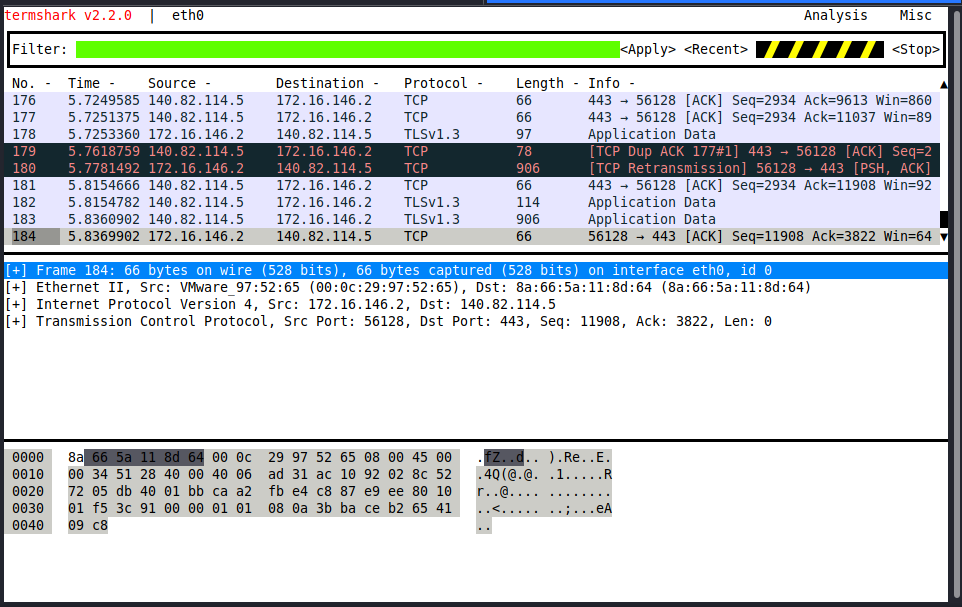
Termshark can be found at Termshark. It can be built from the source by cloning the repo, or pull down one of the current stable releases from https://github.com/gcla/termshark/releases , extract the file, and hit the ground running.
For help navigating this TUI, see the image below.
Termshark Help
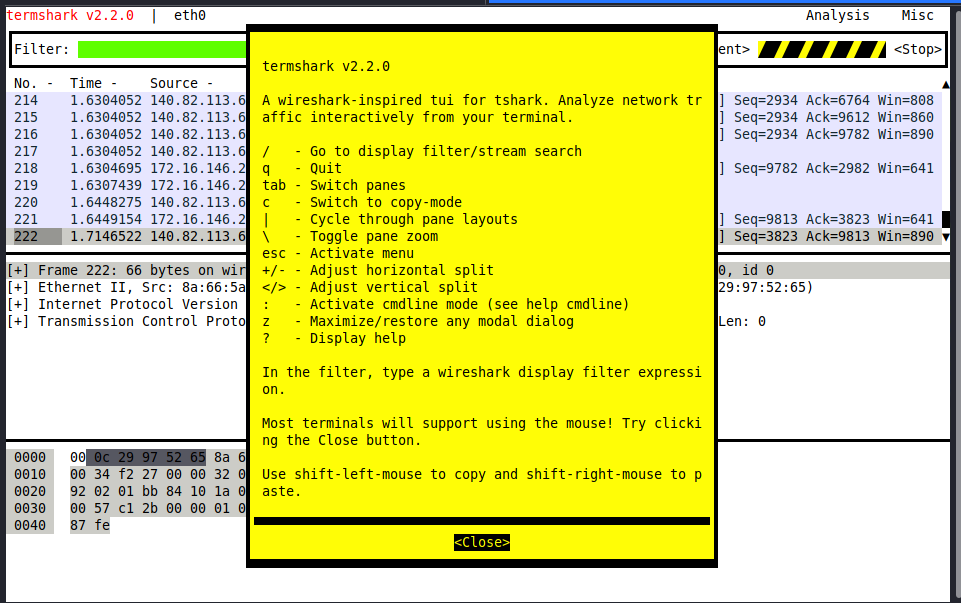
To start Termshark, issue the same strings, much like TShark or tcpdump. We can specify an interface to capture on, filters, and other settings from the terminal. The Termshark window will not open until it senses traffic in its capture filter. So give it a second if nothing happens.
Now that we have spent time learning the art of packet capture from the command line let's spend some time in Wireshark. We will take a few minutes to examine what we are looking at in the output below. Let's dissect this view of the Wireshark GUI.
Wireshark GUI
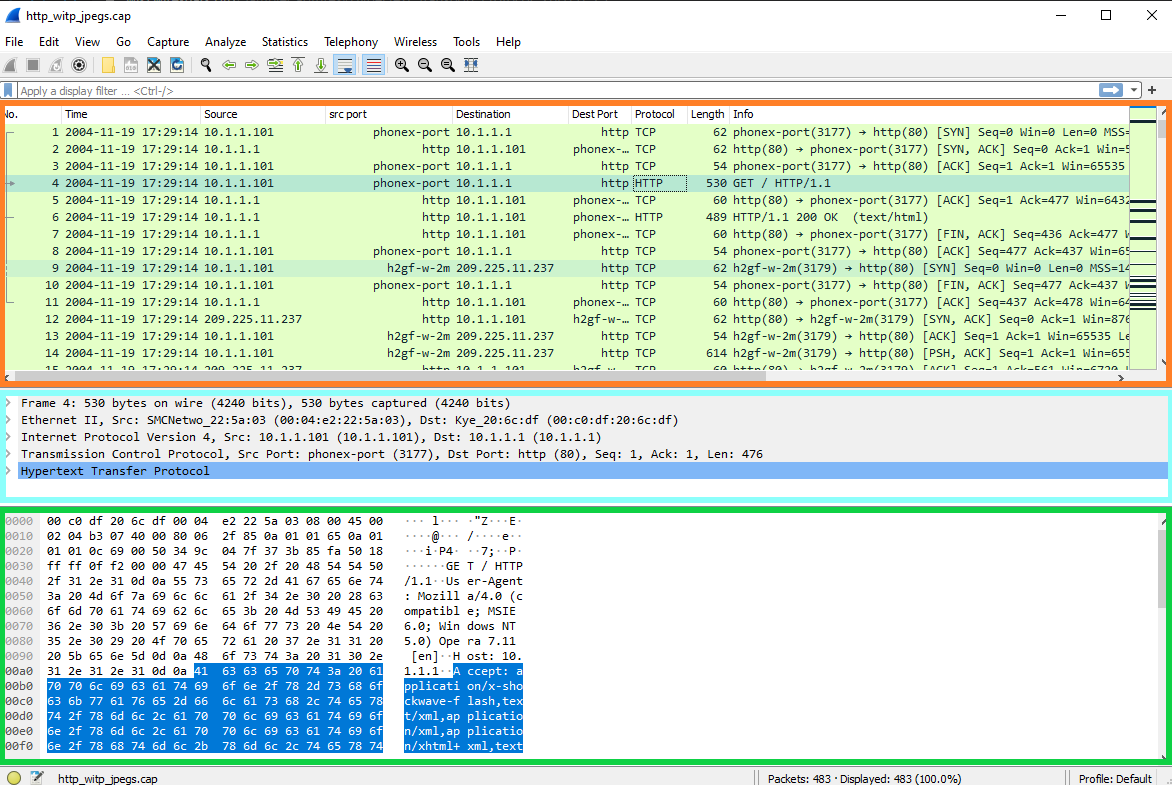
Three Main Panes: See Figure above
OrangeBlueThe packet is dissected into different encapsulation layers for inspection.GreenOther Notable Features
When looking at the Wireshark interface, we will notice a few different option areas and radial buttons. These areas are control points in which we can modify the interface and our view of the packets in the current capture. See Figure below
Wireshark Menu

Starting a capture with Wireshark is a simple endeavor. The gif below will show the steps.
Steps To Start A Capture
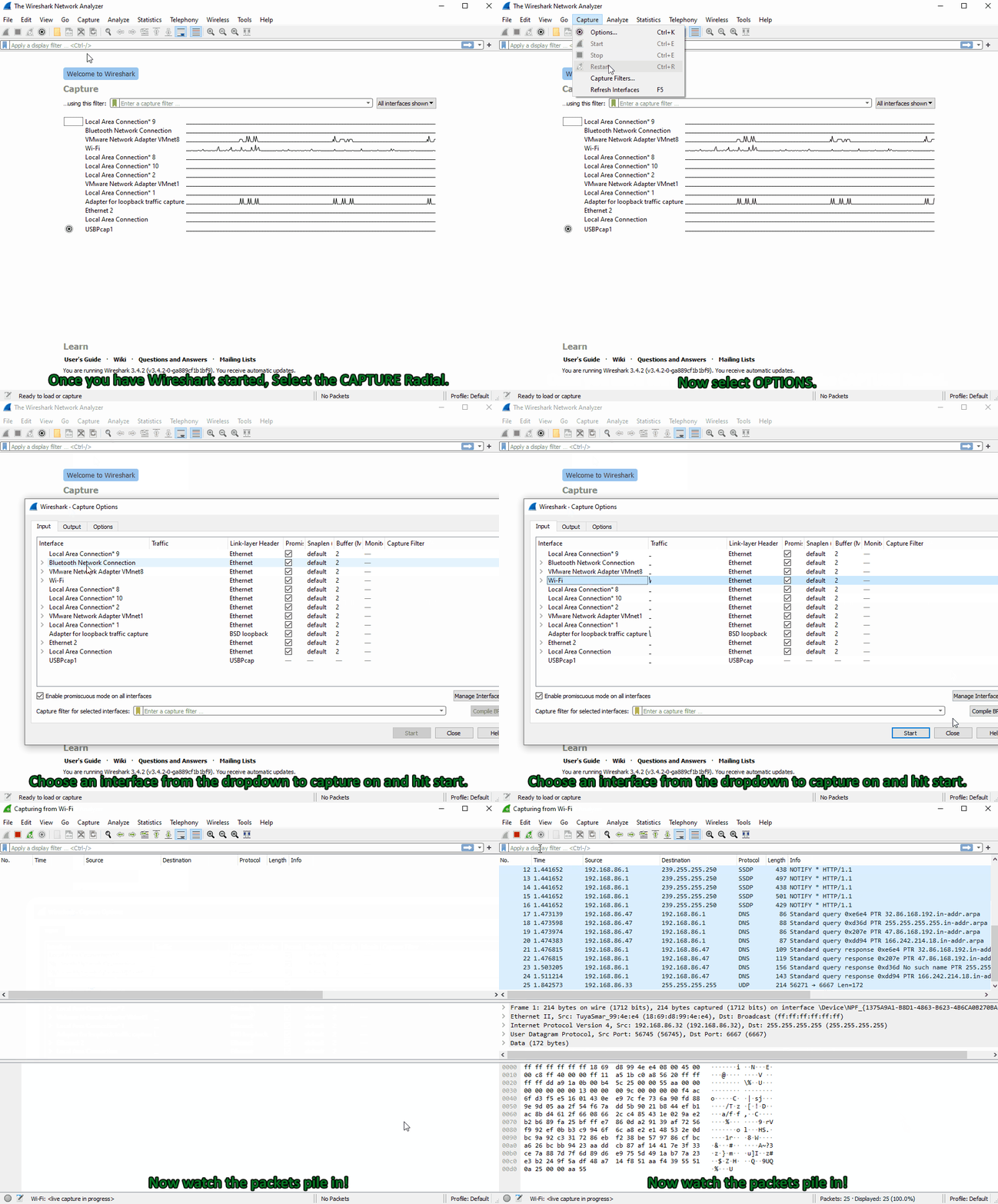
Keep in mind, any time we change the capture options, Wireshark will restart the trace. Much like TCPDump, Wireshark has capture and display filter options that can be used.
The Toolbar

Wireshark's Toolbar is a central point to manage the many features Wireshark includes. From here, we can start and stop captures, change interfaces, open and save .pcap files and apply different filters or analysis add-ins.
How to Save a Capture
Let's say we need to capture what we have in our window currently for troubleshooting later. Saving a capture is super simple:
Be aware that Wireshark can save captures into multiple formats. Choose the one needed for the scenario, but we will use the .pcap format for now.
While capturing traffic with Wireshark, we have several options regarding how and when we filter out traffic. This is accomplished utilizing Capture and Display filters. The Former initiated before the capture starts and the latter during or after capture is complete. While Wireshark has a bunch of useful baked-in functionality, it is worth mentioning that it has a bit of trouble handling large captures. The more packets captured, the longer it will take Wireshark to run the display or analysis filter against it. It can take from just a couple of seconds to a few minutes if it completes at all. If we are working with a large pcap file, it may be best to break it up into smaller chunks first.
Capture Filters
Capture Filters- are entered before the capture is started. These use BPF syntax like host 214.15.2.30 much in the same fashion as TCPDump. We have fewer filter options this way, and a capture filter will drop all other traffic not explicitly meeting the criteria set. This is a great way to trim down the data you write to disk when troubleshooting a connection, such as capturing the conversations between two hosts.
Here is a table of common and helpful capture filters with a description of each:
| Capture Filters | Result |
|---|---|
| host x.x.x.x | Capture only traffic pertaining to a certain host |
| net x.x.x.x/24 | Capture traffic to or from a specific network (using slash notation to specify the mask) |
| src/dst net x.x.x.x/24 | Using src or dst net will only capture traffic sourcing from the specified network or destined to the target network |
| port # | will filter out all traffic except the port you specify |
| not port # | will capture everything except the port specified |
| port # and # | AND will concatenate your specified ports |
| portrange x-x | portrange will grab traffic from all ports within the range only |
| ip / ether / tcp | These filters will only grab traffic from specified protocol headers. |
| broadcast / multicast / unicast | Grabs a specific type of traffic. one to one, one to many, or one to all. |
Applying a Capture Filter
Before we apply a capture filter, let us take a look at the built-in filters. To do so: Click on the capture radial at the top of the Wireshark window → then select capture filters from the drop-down.
Filter List
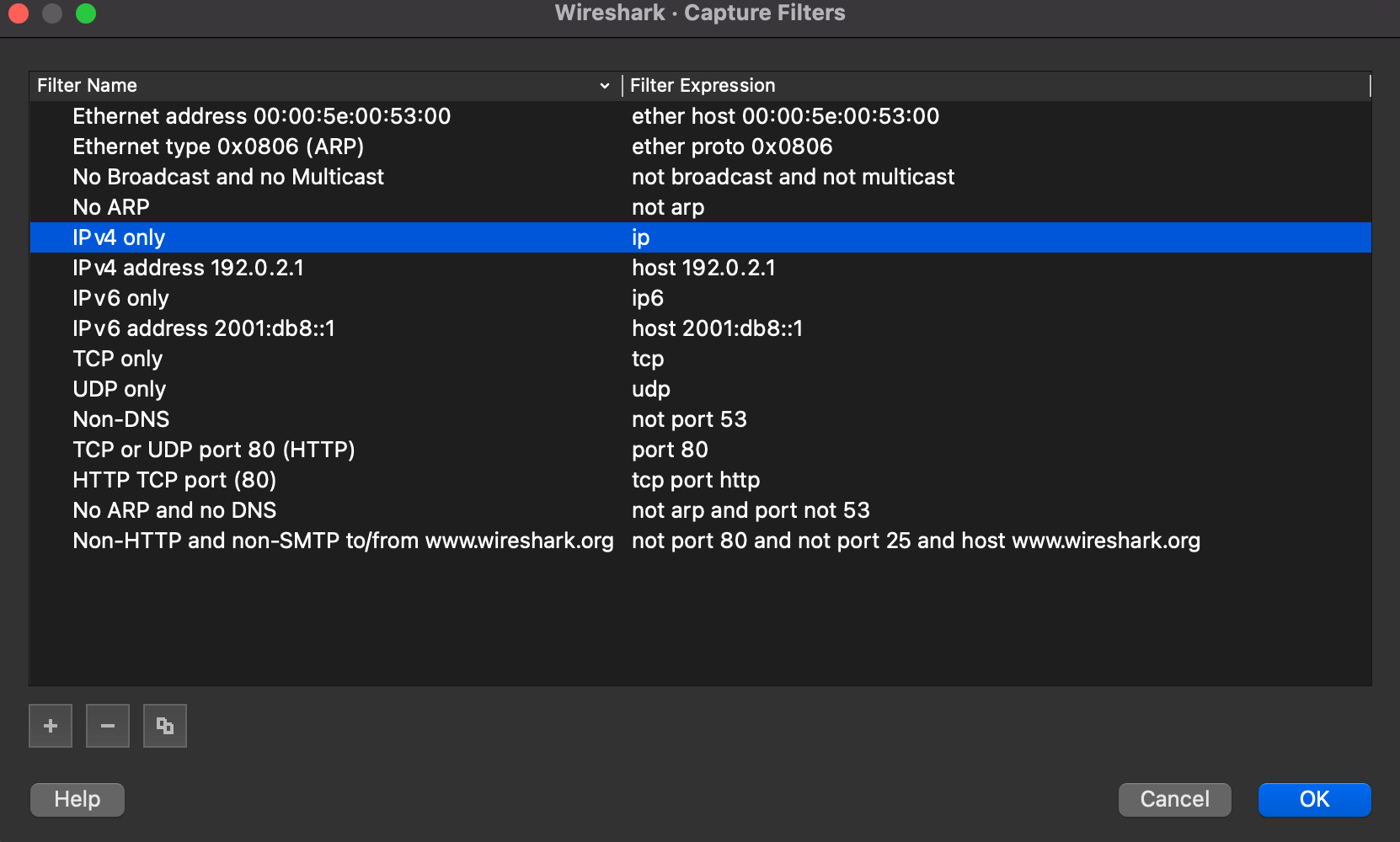
From here, we can modify the existing filters or add our own.
To apply the filter to a capture, we will: Click on the capture radial at the top of the Wireshark window → then select Options from the drop-down → in the new window select the drop-down for Capture filter for selected interfaces or type in the filter we wish to use. below the red arrow in the picture below
Applying A Capture Filter
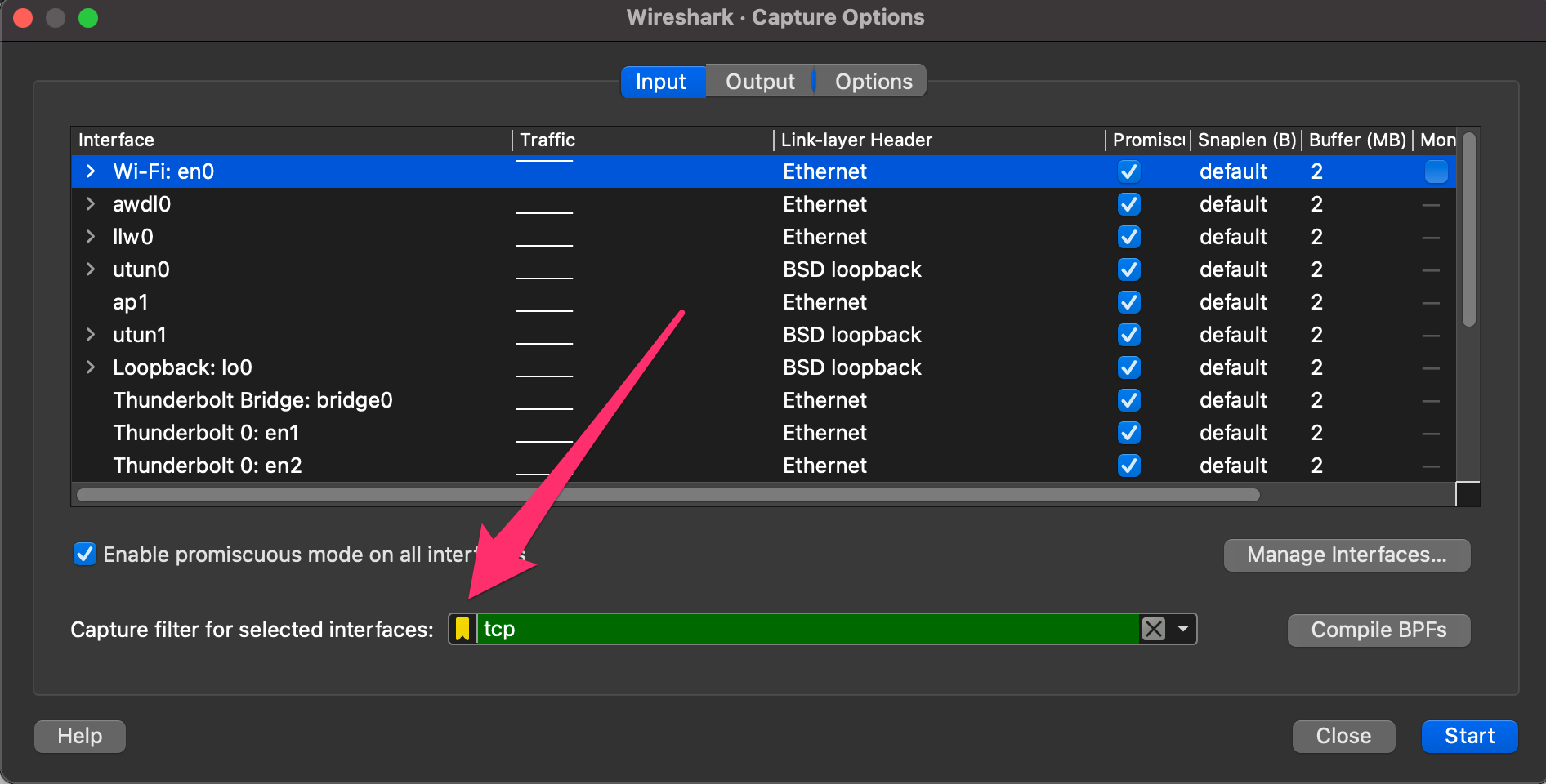
Display Filters
Display Filters- are used while the capture is running and after the capture has stopped. Display filters are proprietary to Wireshark, which offers many different options for almost any protocol.
Here is a table of common and helpful display filters with a description of each:
| Display Filters | Result |
|---|---|
| ip.addr == x.x.x.x | Capture only traffic pertaining to a certain host. This is an OR statement. |
| ip.addr == x.x.x.x/24 | Capture traffic pertaining to a specific network. This is an OR statement. |
| ip.src/dst == x.x.x.x | Capture traffic to or from a specific host |
| dns / tcp / ftp / arp / ip | filter traffic by a specific protocol. There are many more options. |
| tcp.port == x | filter by a specific tcp port. |
| tcp.port / udp.port != x | will capture everything except the port specified |
| and / or / not | AND will concatenate, OR will find either of two options, NOT will exclude your input option. |
Keep in mind, while utilizing Display filters traffic is processed to show only what is requested but the rest of the capture file will not be overwritten. Applying Display filters and analysis options will cause Wireshark to reprocess the pcap data in order to apply.
Applying a Display Filter
Applying a display filter is even easier than a capture filter. From the main Wireshark capture window, all we need to do is: select the bookmark in the Toolbar → , then select an option from the drop-down. Alternatively, place the cursor in the text radial → and type in the filter we wish to use. If the field turns green, the filter is correct. Just like in the image below.
Applying Display Filters
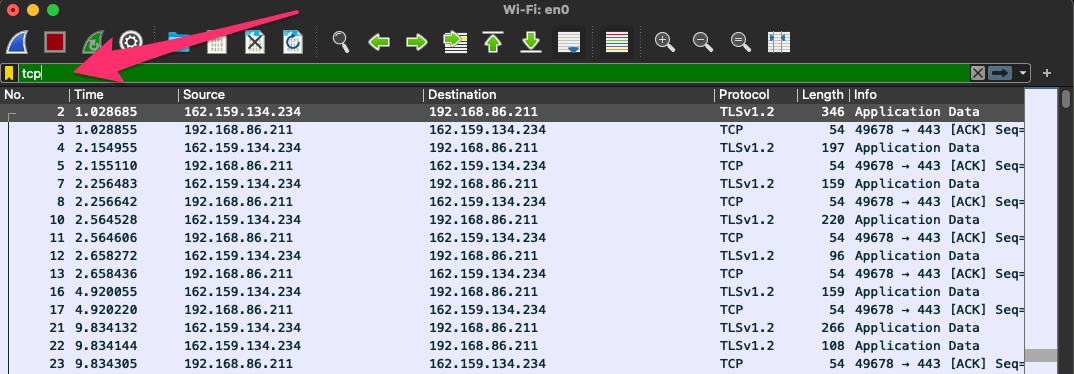
When using capture and display filters, keep in mind that what we specify is taken in a literal sense. For example, filtering for port 80 traffic is not the same as filtering for HTTP. Think of ports and protocols more like guidelines instead of rigid rules. Ports can be bound and used for different purposes other than what they were originally intended. For example, filtering for HTTP will look for key markers that the protocol uses, such as GET/POST requests, and show results from them. Filtering for port 80 will show anything sent or received over that port regardless of the transport protocol.
In the next section, we will work with some of the more advanced features of Wireshark.
In this section, we will cover some advanced usage with Wireshark. The project developers have included many different capabilities ranging from tracking TCP conversations to cracking wireless credentials. The inclusion of many different plugins makes Wireshark one of the best traffic analysis tools.
The analyze and statistics radials provide a plethora of plugins to run against the capture. In this section, we will work through a couple of them. We would cover all of which Wireshark offers, but sadly, it is simply not achievable in an introductory module. I urge everyone to experiment and play as we go through this journey.
The Statistics and Analyze Tabs
The Statistics and Analyze tabs can provide us with great insight into the data we are examining. From these points, we can utilize many of the baked-in plugins Wireshark has to offer.
The plugins here can give us detailed reports about the network traffic being utilized. It can show us everything from the top talkers in our environment to specific conversations and even breakdown by IP and protocol.
Statistics Tab
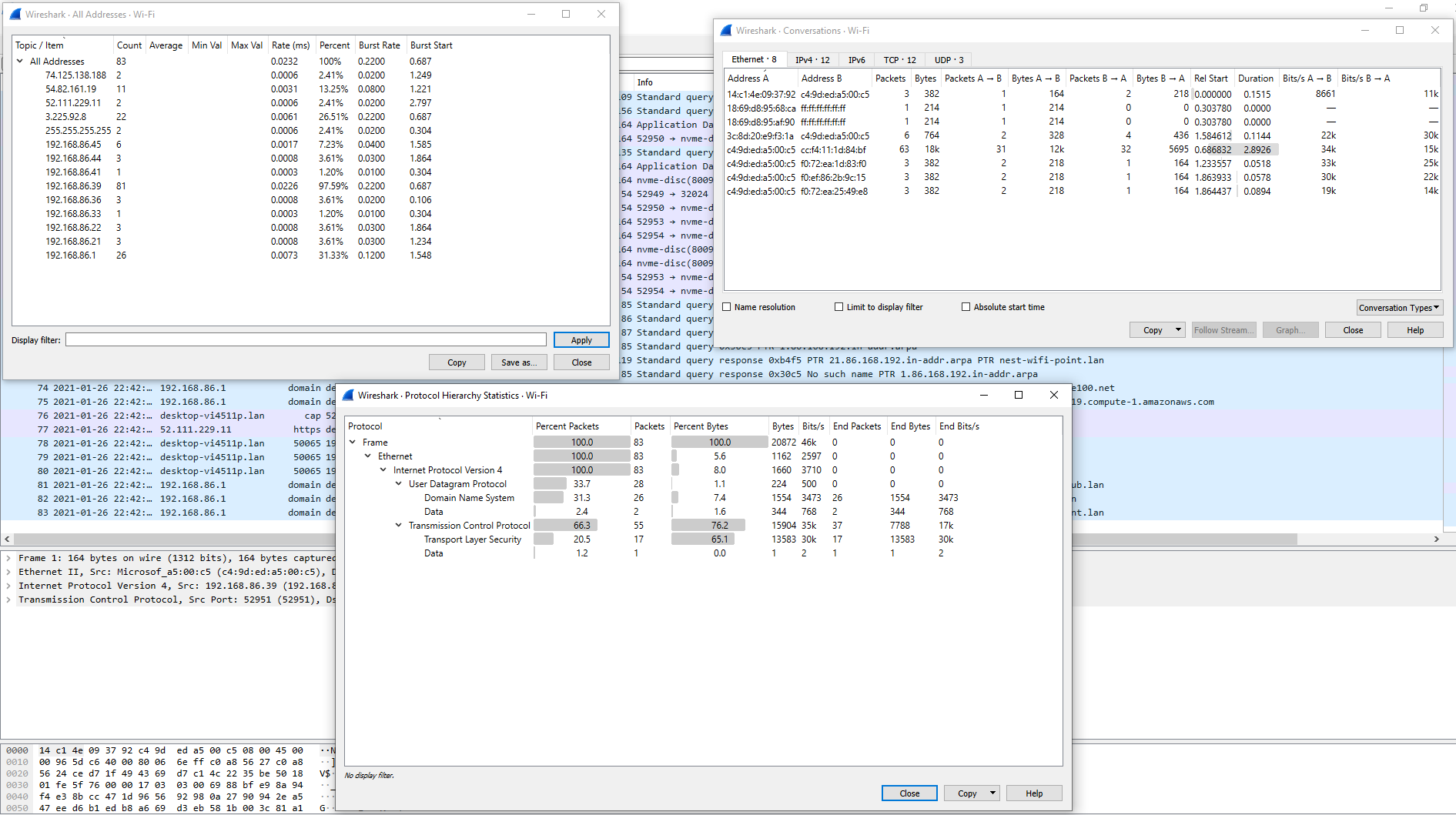
Analyze
From the Analyze tab, we can utilize plugins that allow us to do things such as following TCP streams, filter on conversation types, prepare new packet filters and examine the expert info Wireshark generates about the traffic. Below are a few examples of how to use these plugins.
Analyze Tab
Following TCP Streams
Wireshark can stitch TCP packets back together to recreate the entire stream in a readable format. This ability also allows us to pull data (images, files, etc.) out of the capture. This works for almost any protocol that utilizes TCP as a transport mechanism.
To utilize this feature:
Follow A Stream Via GUI
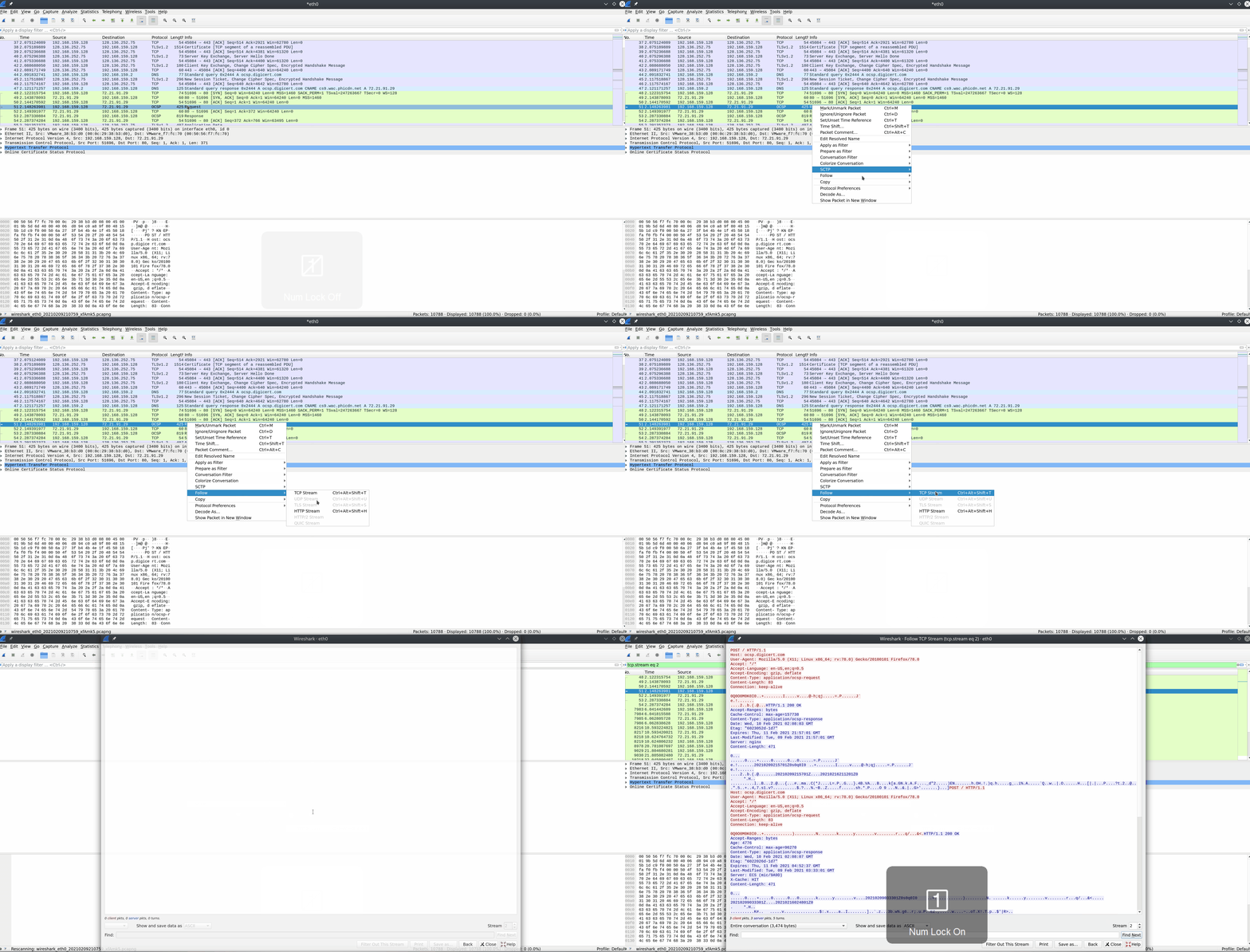
Alternatively, we can utilize the filter tcp.stream eq # to find and track conversations captured in the pcap file.
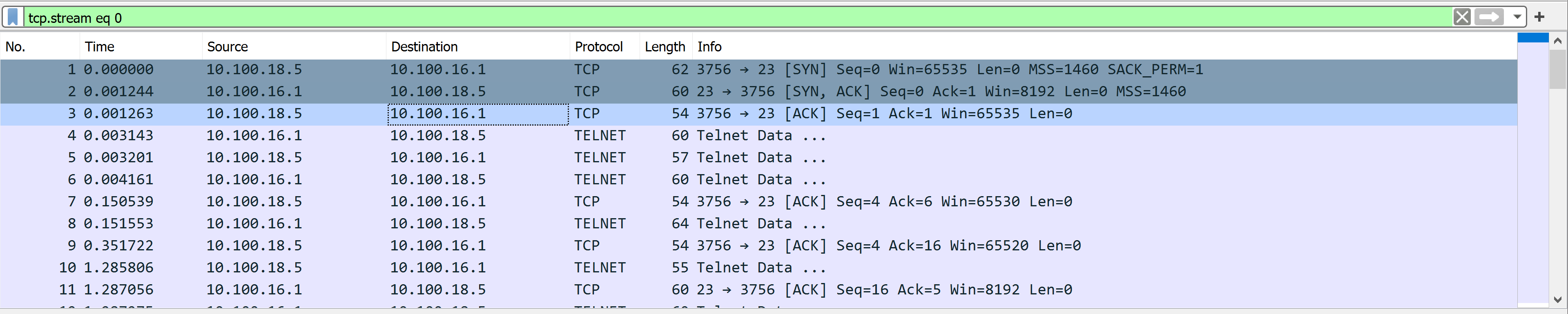
Notice that the first three packets in the image above have a full TCP handshake. Following those packets, we can see the stream transferring data. We have cleared anything not related out of view by utilizing the filter, and we now can see the conversation in order.
Extracting Data and Files From a Capture
Wireshark can recover many different types of data from streams. It requires you to have captured the entire conversation. Otherwise, this ability will fail to put an incomplete datagram back together. If we want a more in-depth understanding of how this capability works, check out the Networking 101 Module or research TCP/IP fragmentation.
To extract files from a stream:
Extract Files From The GUI
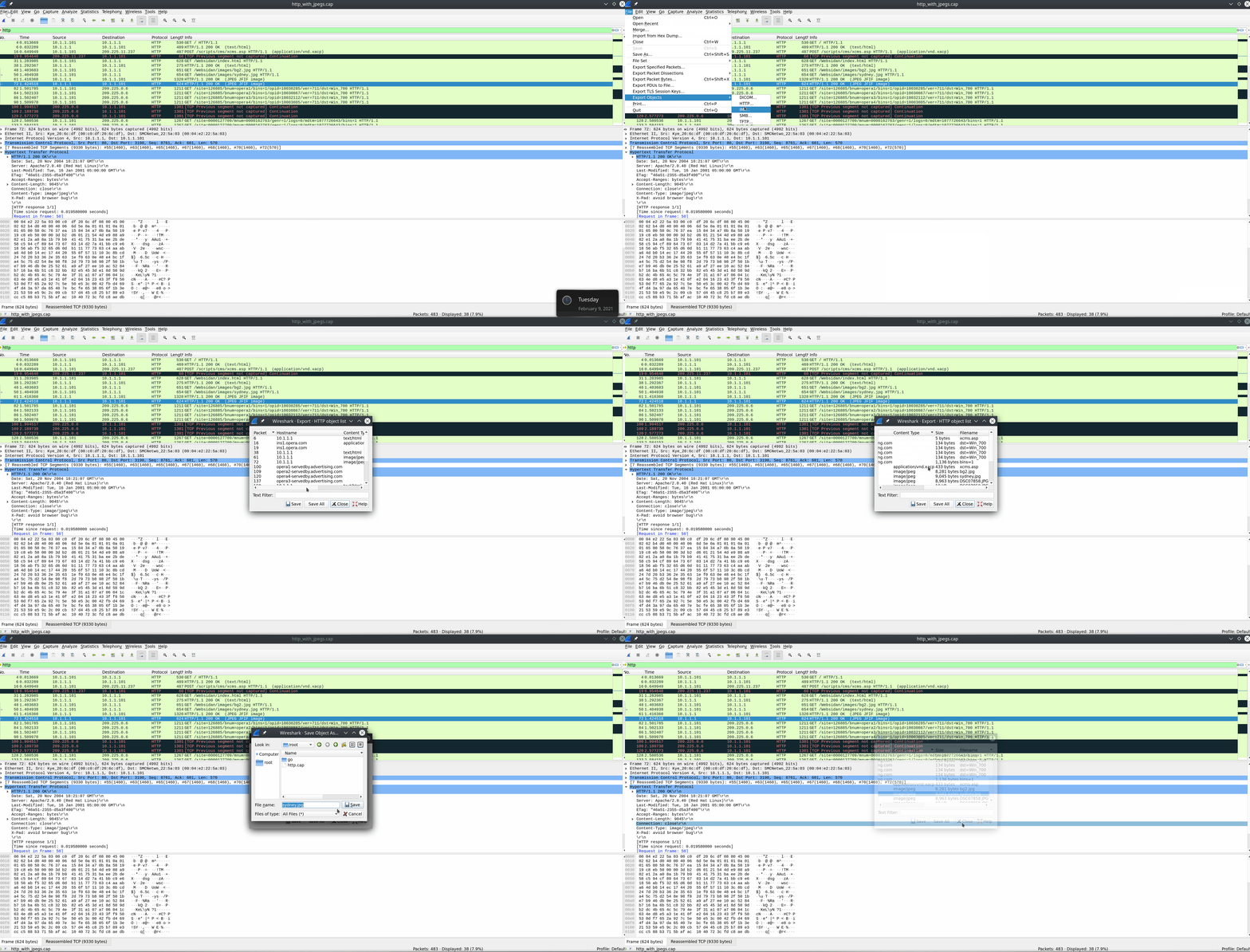
Another exciting way to grab data out of the pcap file comes from FTP. The File Transfer Protocol moves data between a server and host to pull it out of the raw bytes and reconstruct the file. (image, text documents, etc.) FTP utilizes TCP as its transport protocol and uses ports 20 & 21 to function. TCP port 20 is used to transfer data between the server and host, while port 21 is used as the FTP control port. Any commands such as login, listing files, and issuing download or uploads happen over this port. To do so, we need to look at the different FTP display filters in Wireshark. A complete list of these can be found here. For now, we will look at three:
ftp - Will display anything about the FTP protocol.FTP Disector
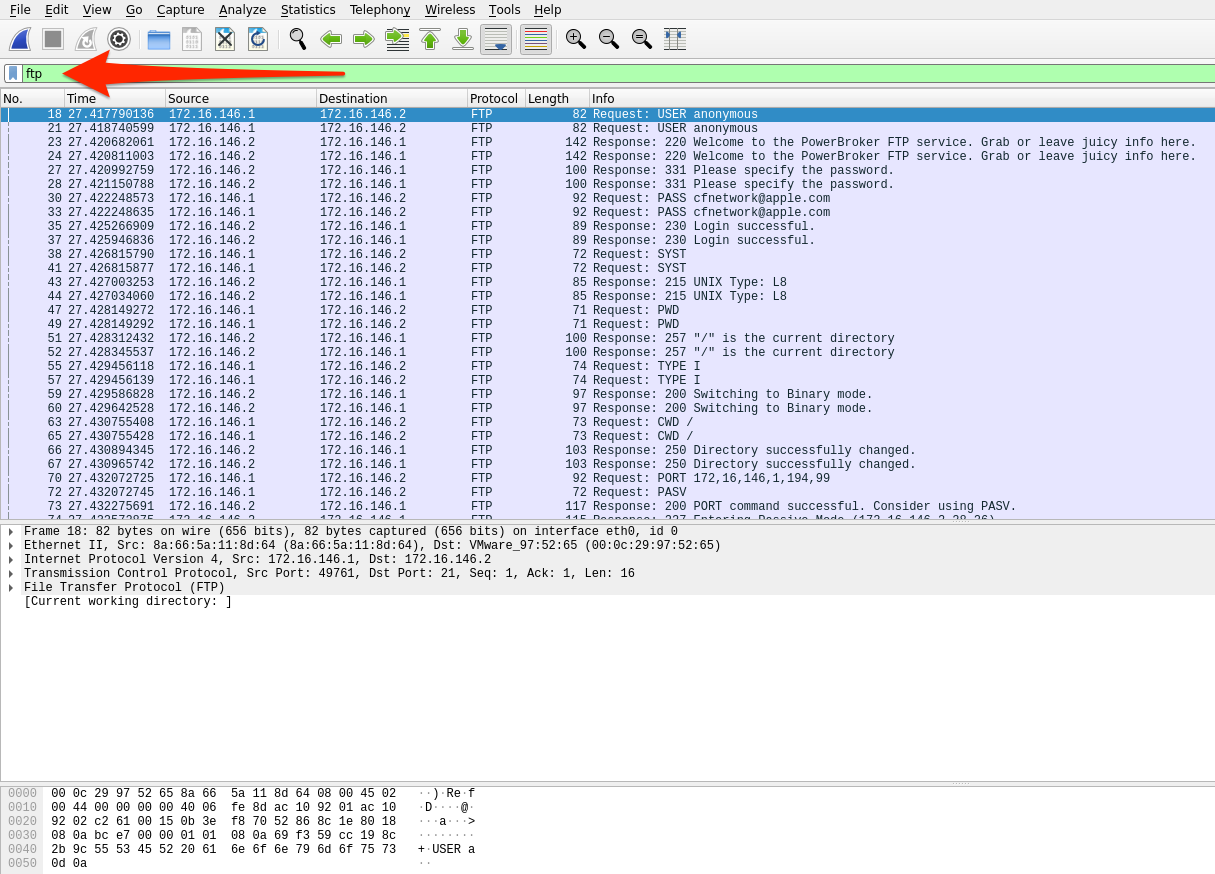
ftp.request.command - Will show any commands sent across the ftp-control channel ( port 21 )FTP-Request-Command Filter
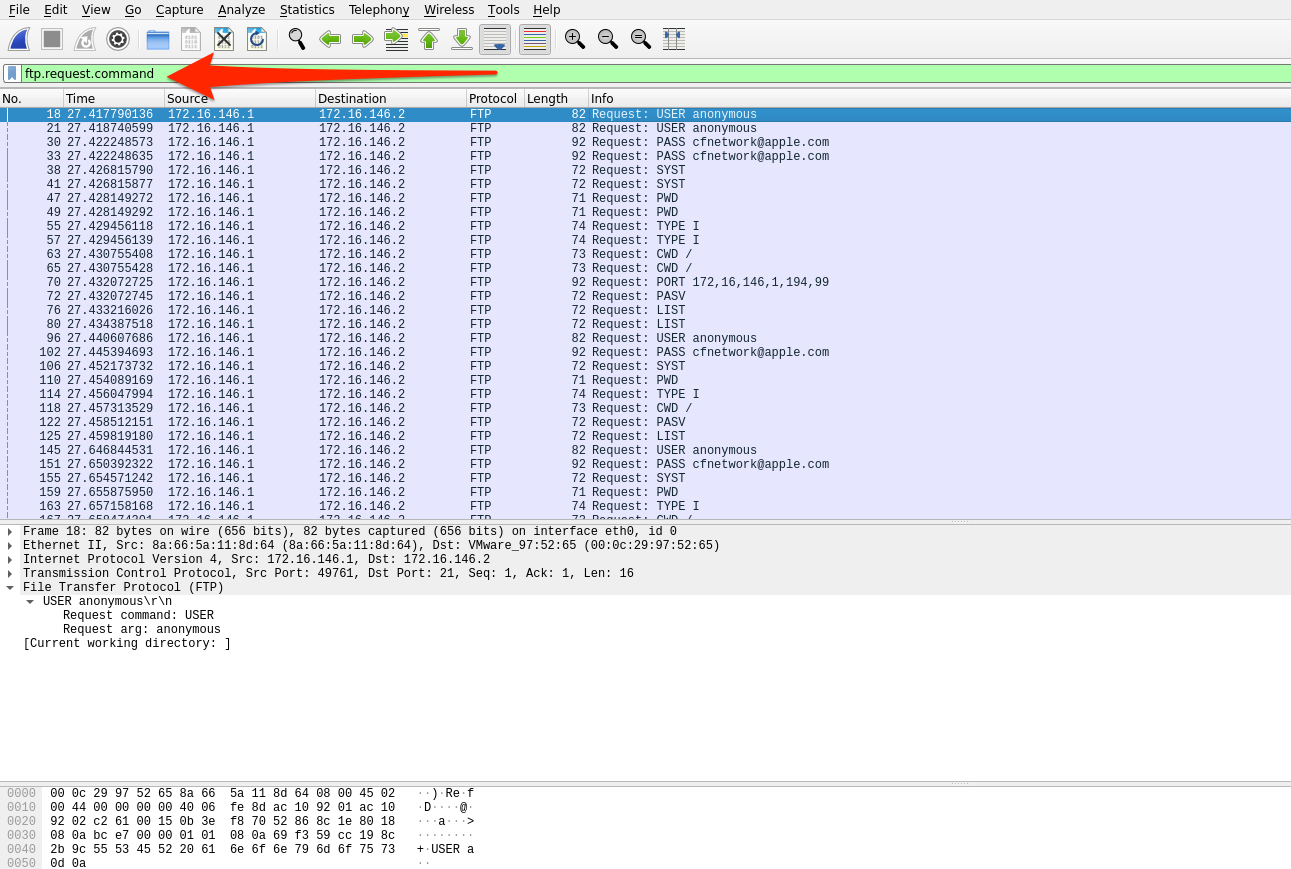
ftp-data - Will show any data transferred over the data channel ( port 20 )ftp-data, we can capture anything sent during the conversation. We can reconstruct anything transferred by placing the raw data back into a new file and naming it appropriately.FTP-Data Filter
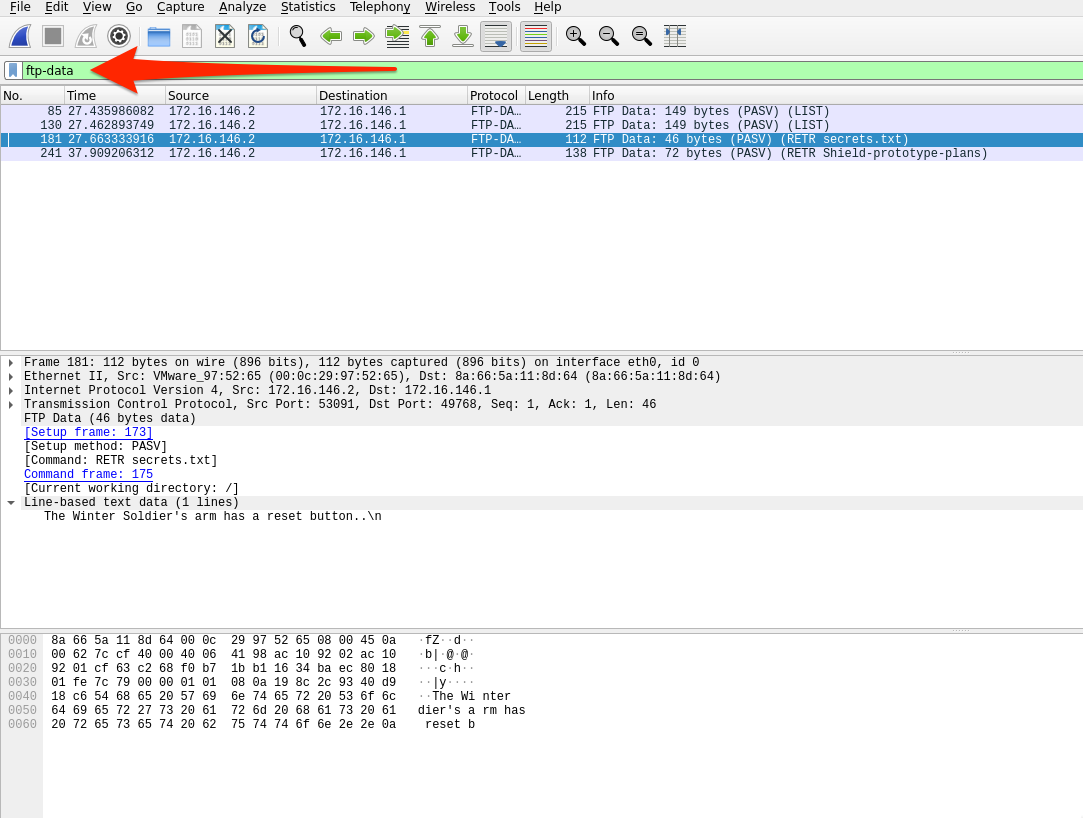
Since FTP utilizes TCP as its transport mechanism, we can utilize the follow tcp stream function we utilized earlier in the section to group any conversation we wish to explore. The basic steps to dissect FTP data from a pcap are as follows:
ftp display filter.ftp.request.command filter.ftp-data. Select a packet that corresponds with our file of interest and follow the TCP stream that correlates to it.Show and save data as" to "Raw" and save the content as the original file name.